Nebula

com.zalinteractive.nebula

1 Nebula Quick Start Guide

Nebula is a froxel-based volumetric fog renderer for Unity’s Universal Render Pipeline (URP). This guide takes an existing URP project from an installed Nebula asset to visible global fog, volumetric lights, local fog volumes, and correctly fogged transparent materials.

For a complete control and scripting reference, see the Nebula Manual chapter below.

1.1 Explore the included demo

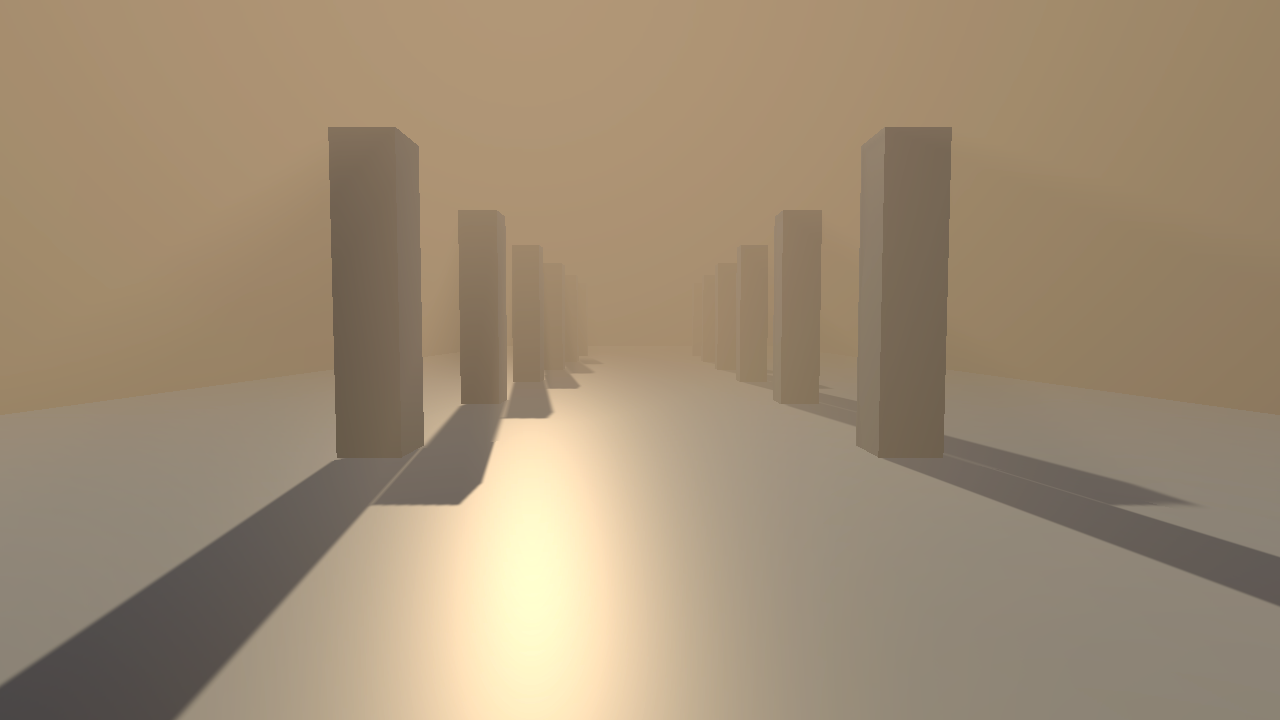
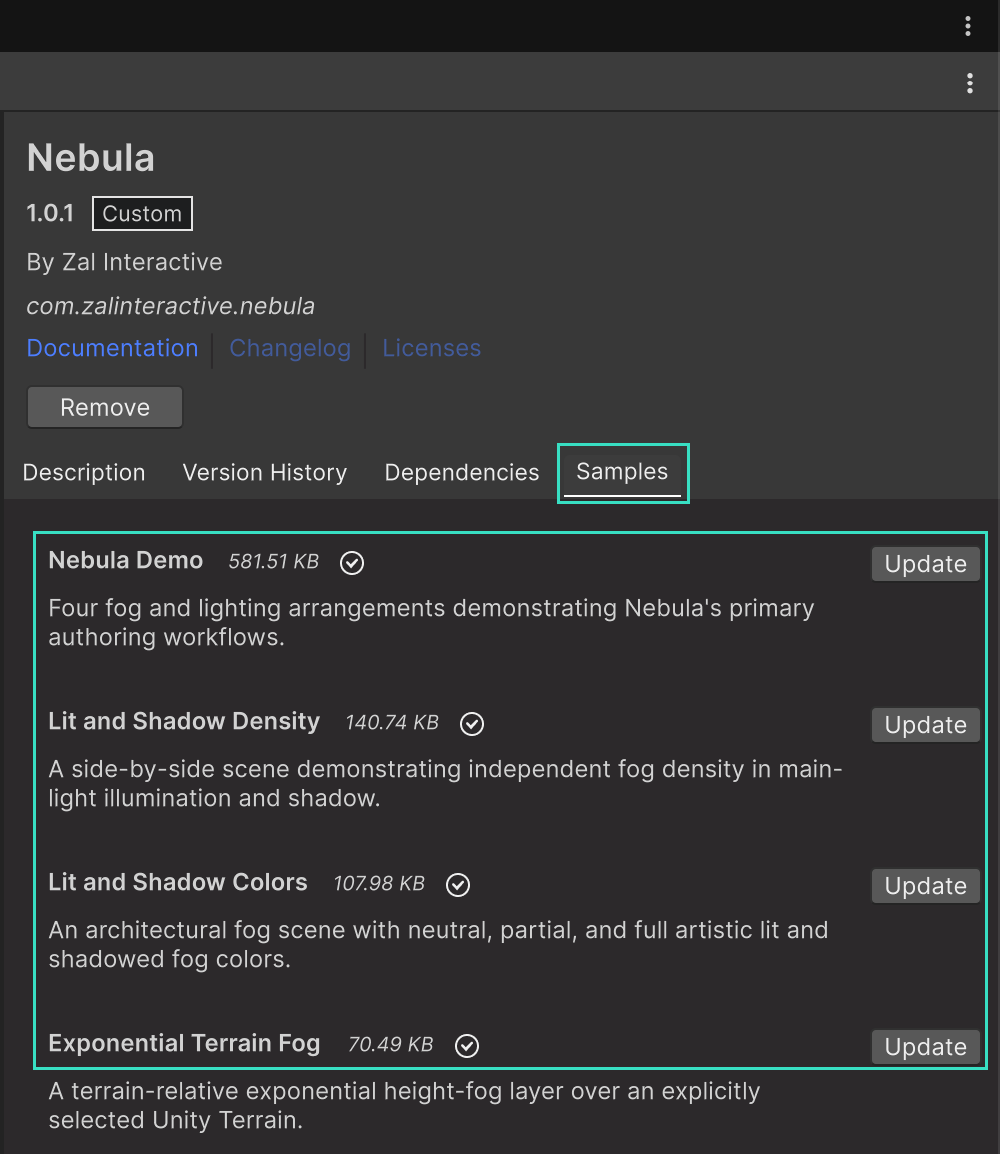
Import Nebula Demo from Package Manager, then open its Nebula Demo.unity scene and enter Play mode. The four bounded arrangements demonstrate god rays, dense wind-driven fog, supported realtime and fog-only light types, shadows, and light cookies using only Unity primitives. Use the on-screen buttons, Left/Right or A/D, or number keys 1-4 to change arrangements.

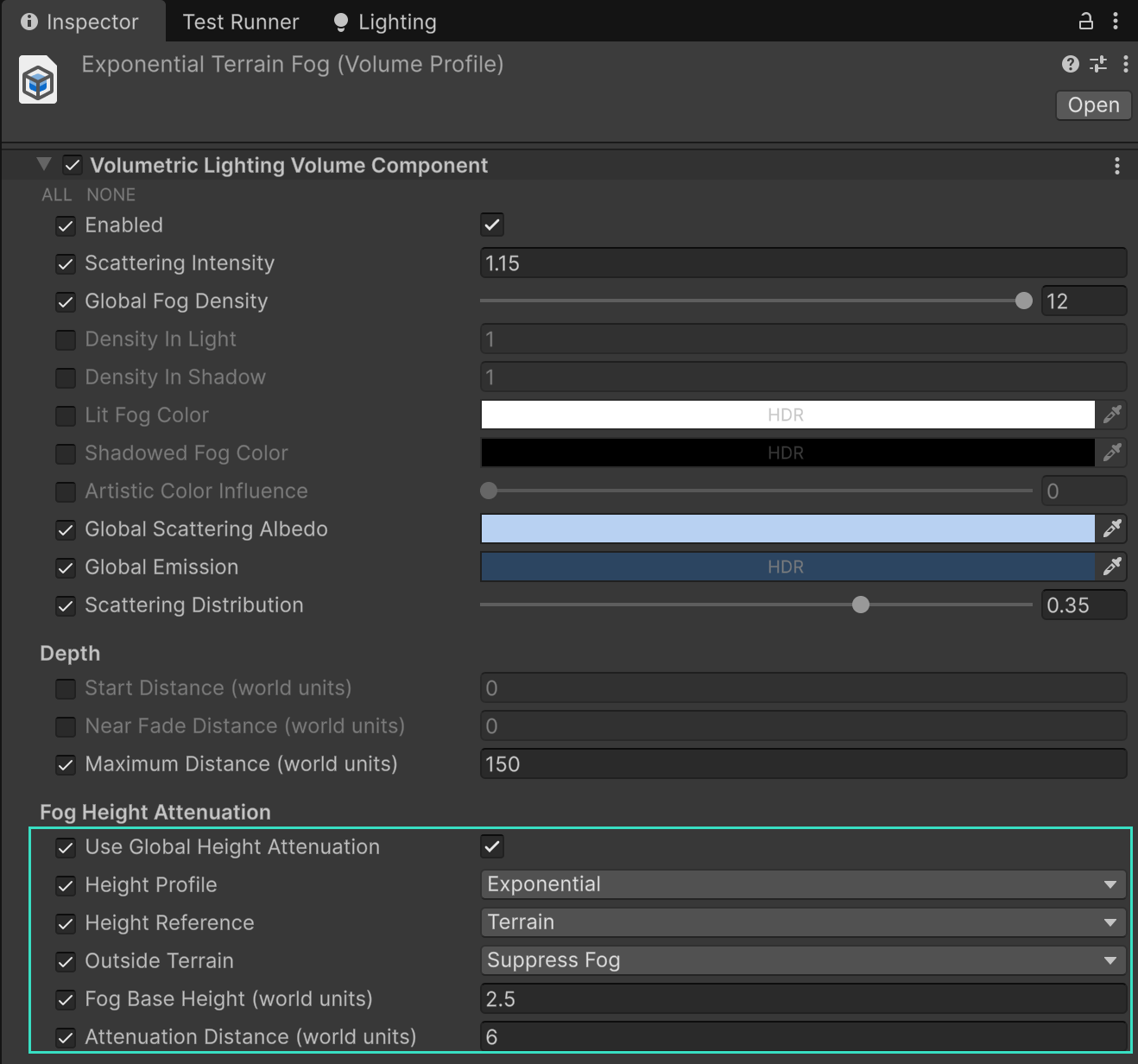
Import Exponential Terrain Fog for a focused example of a global exponential layer following an explicitly selected Unity Terrain.

1.2 1. Check the requirements

Nebula requires:

  • Unity 6000.0, 6000.3, or 6000.5 with the matching URP 17.x package.
  • URP RenderGraph. Do not enable URP Compatibility Mode.
  • A base Game camera or the Scene view. Camera-stack overlay cameras and XR are not supported.
  • Compute shaders, 3D textures, and the texture formats described in the Requirements and compatibility section below.
  • Direct3D 11, Vulkan, Metal, or OpenGL ES 3.1+ on Android.

This repository currently uses Unity 6000.0.82f1 and URP 17.0.4. Its PC renderer is configured for Nebula. The mobile renderer intentionally does not include Nebula yet because physical-device qualification is still pending.

1.3 2. Add Nebula to the URP renderer

Nebula must be added to every URP renderer that should draw fog.

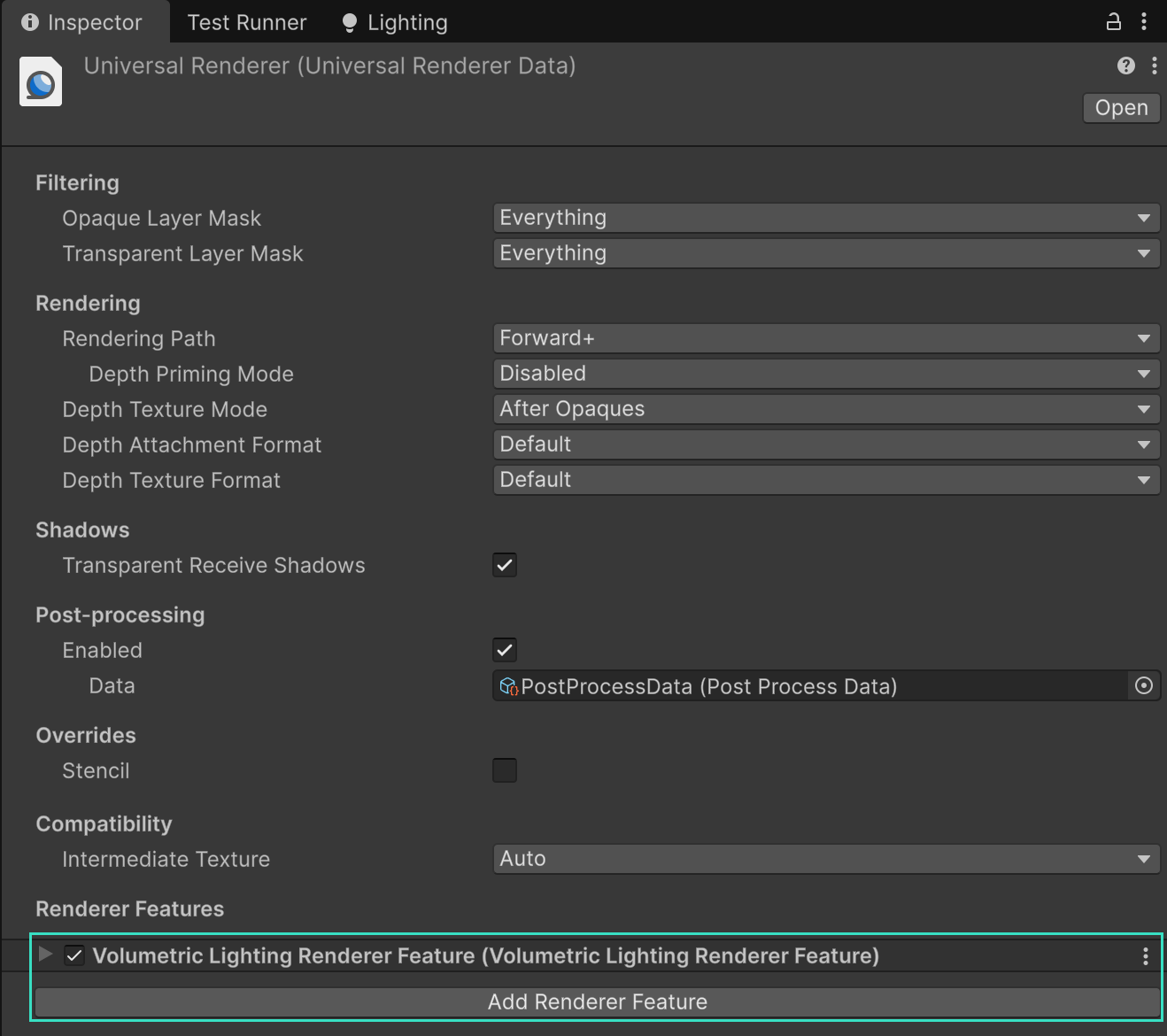
  1. Locate the ScriptableRendererData used by the target URP pipeline asset. In this repository the configured PC renderer is PC_Renderer.asset.
  2. In its Inspector, select Add Renderer Feature and add Volumetric Lighting Renderer Feature.
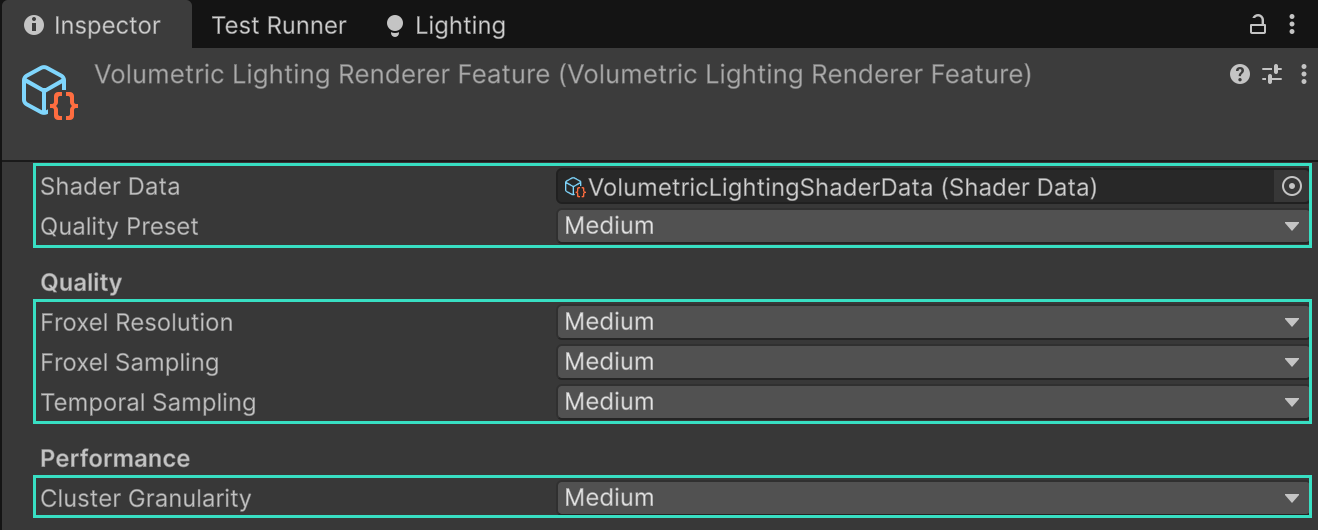
  3. Confirm Shader Data was assigned automatically. Explicit custom Shader Data assignments are preserved.
  4. Start with the Medium quality preset. On a mobile device, begin with Very Low or Low and profile on physical hardware.
  5. Leave Debug Visualization set to None for normal rendering.

The feature safely skips rendering and reports an error when its packaged Shader Data cannot be found or is invalid. In the Editor or a Development build, open Window > Analysis > Rendering Debugger > Nebula > Frame to see the structured reason.

1.4 3. Create and enable the global fog Volume

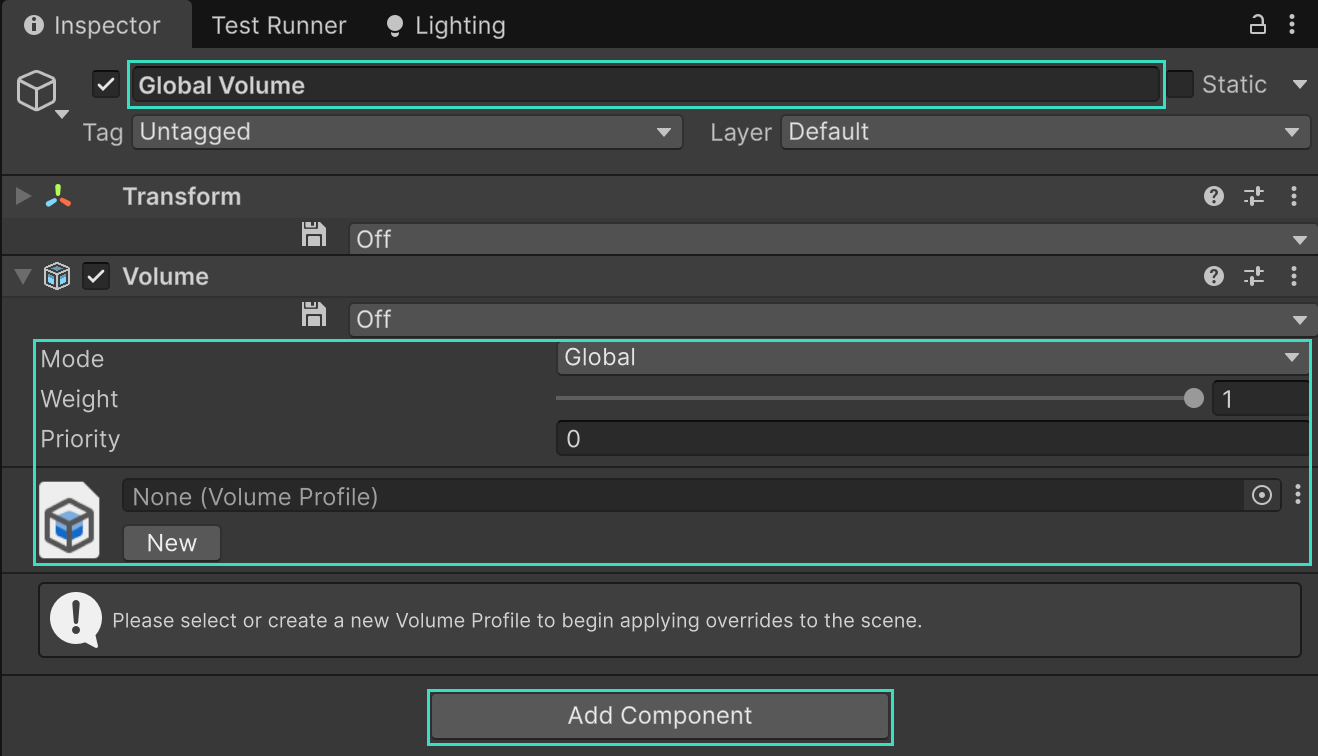
  1. Create or select a Unity Global Volume.
  2. Create or assign a Volume Profile.
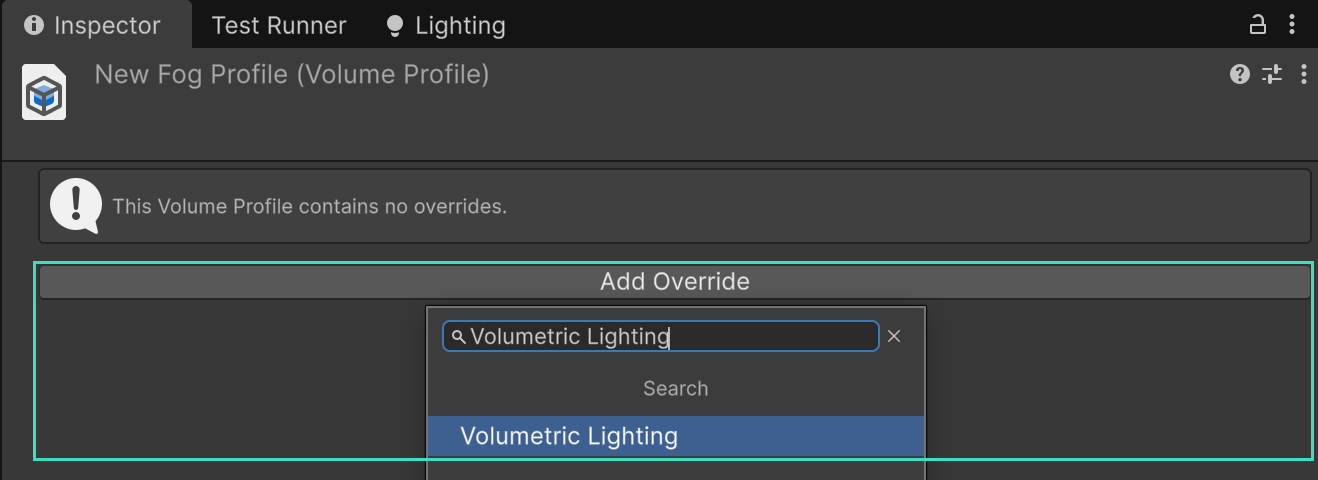
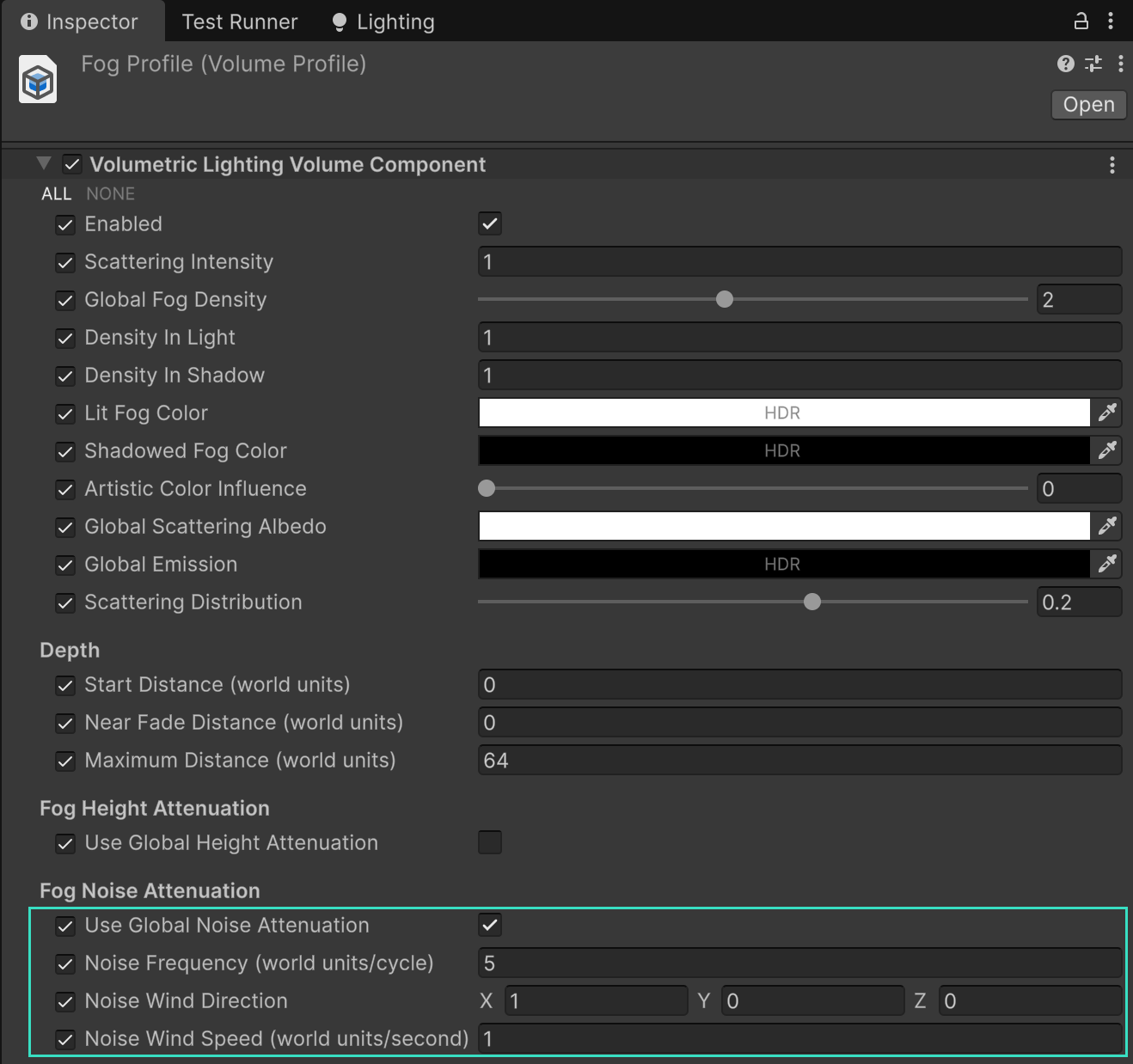
  3. Select Add Override > Post-processing Custom > Volumetric Lighting.
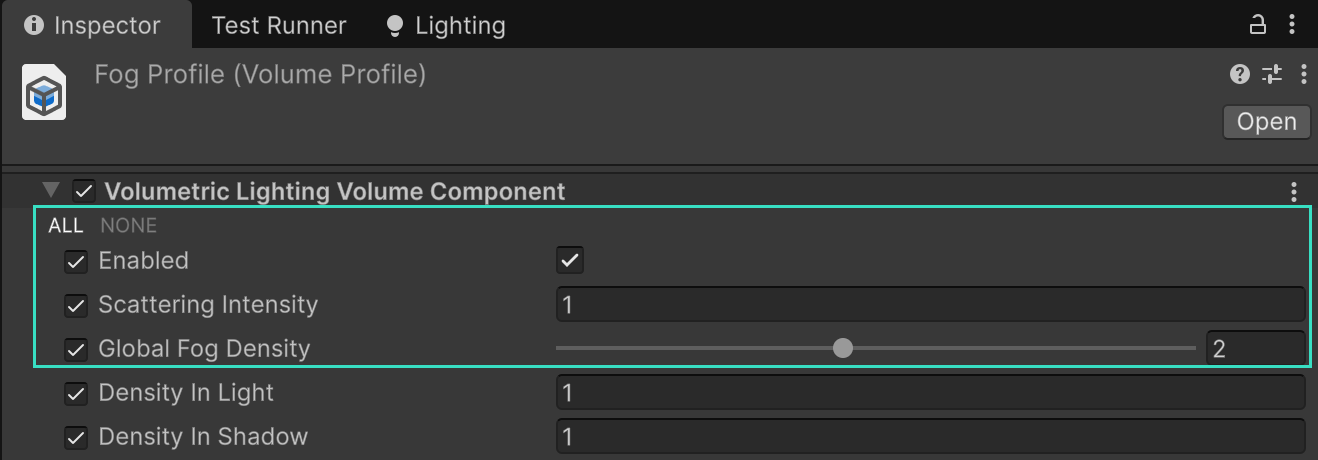
  4. Enable the override checkbox beside Enabled, then enable its value.
  5. Enable the override checkboxes for the settings you want this Volume to control.

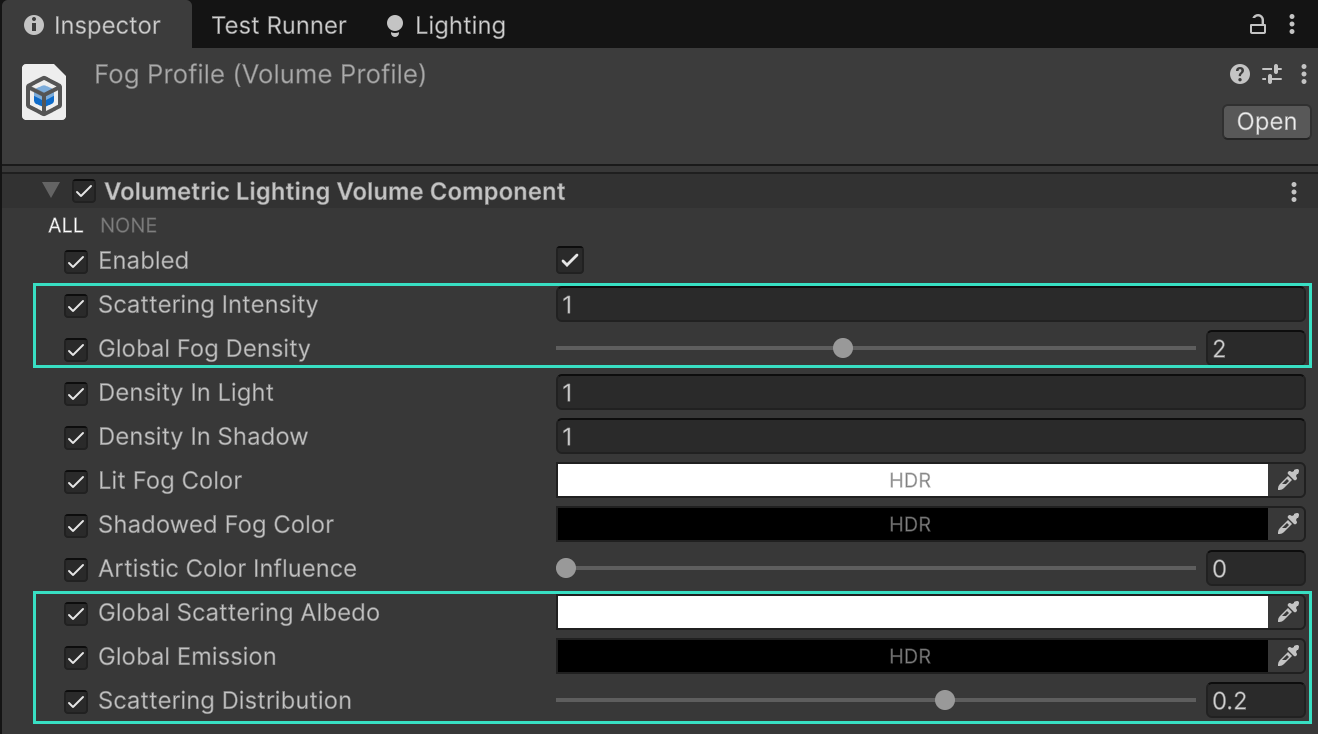
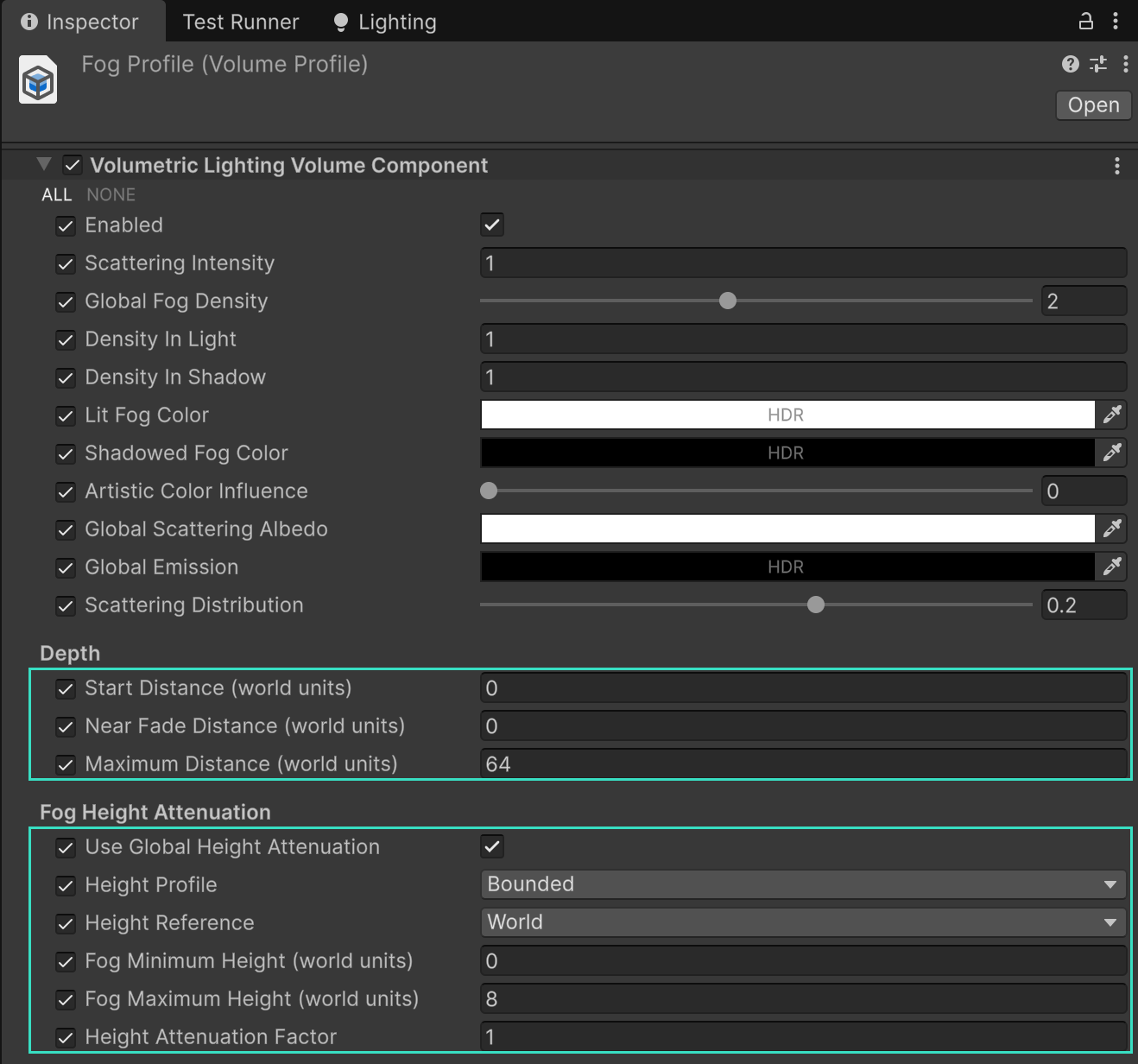
Good starter values are:

Setting Starter value Purpose
Enabled On Activates Nebula for the blended camera Volume stack.
Scattering Intensity 1 Scales incident-light scattering without changing extinction or emission.
Global Fog Density 2 Controls global fog thickness. Try 0.5–2 for subtle fog.
Lit Fog Color White HDR fog-lighting color where the participating main light is visible.
Shadowed Fog Color Black HDR fog-lighting color where the participating main light is blocked.
Artistic Color Influence 0 Blends lit and shadowed fog colors with normal incident lighting.
Global Scattering Albedo White Controls the scattered color and absorption.
Global Emission Black HDR linear radiance emitted by the global medium. Alpha is ignored.
Scattering Distribution 0.2 Adds mild forward scattering and visible light shafts.
Start Distance 0 Starts the represented fog at the camera near plane.
Near Fade Distance 0 Disables the near fade. Increase it to keep the camera area clear.
Maximum Distance 64 Limits the camera-relative fog interval and GPU work distribution.

Fog renders only when the blended Volume stack contains this component and Enabled resolves to on. A component present in an unused profile, a disabled Volume, or an unchecked Enabled override does not activate Nebula.

To preview fog while editing, use a Shaded or Shaded Wireframe Scene view and enable Effects > Fog. Perspective, orthographic, and 2D views are supported. Enable Scene Lighting to preview the scene’s lighting.

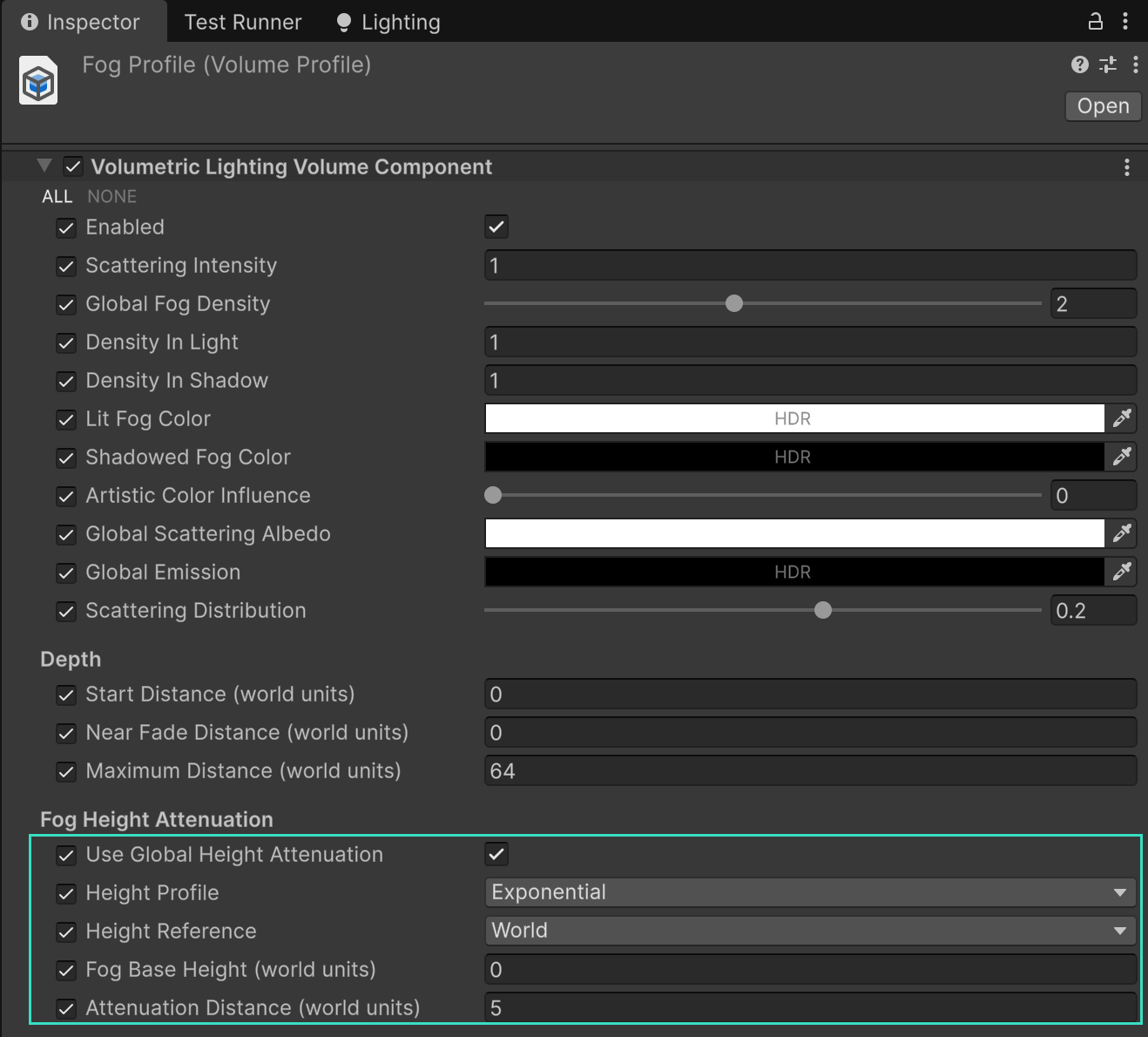
For outdoor height fog, enable Use Global Height Attenuation and select Exponential. Base Height keeps full density at and below that height; Attenuation Distance is the vertical distance over which density falls to about 36.8 percent. Leave Height Reference at World for a fixed layer.

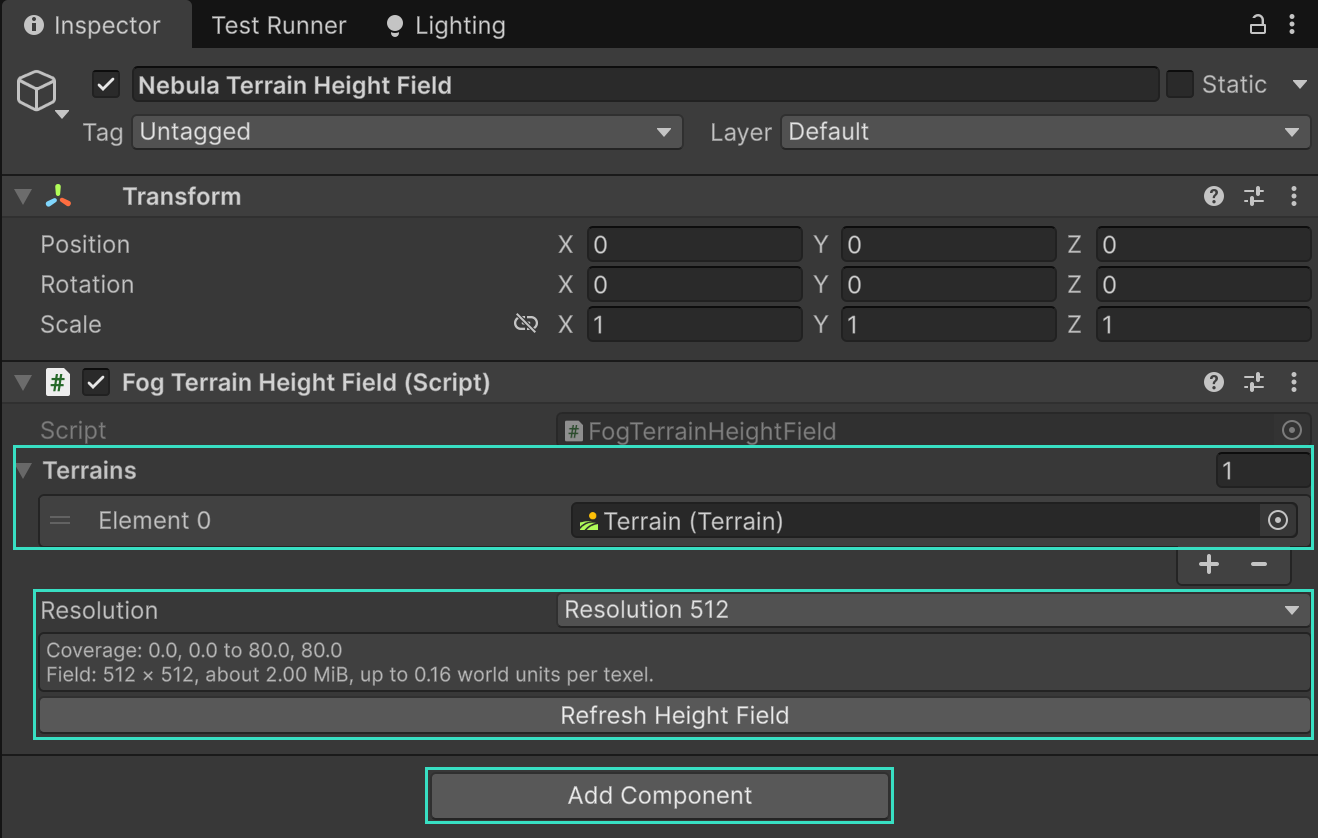
To fit the layer to Unity Terrain, add one FogTerrainHeightField component to the scene, assign the Terrain tiles, and change Height Reference to Terrain. The default 1024 resolution is a good starting point. Select Suppress Fog to omit terrain-relative fog outside the selected tiles and over holes, or Use World Height to evaluate the same profile there using world height. The same field can serve global fog and local fog volumes.

1.4.1 Emissive fog recipe

To make unlit fog glow, keep Global Fog Density above zero, set Global Emission to a nonblack HDR color, set Scattering Intensity to zero, and remove or black out incident lighting. The glow is emitted inside the froxel medium, so it is integrated, temporally reconstructed, and depth-clipped with the rest of the fog. It is not bloom and does not light nearby geometry. Alpha on an emission color is ignored.

For a local glow pocket, set a VolumetricFog object’s Emission and nonzero Fog Density. Additive local volumes add their weighted emission. A Replacing volume blends the accumulated emission toward its own value, so a full black replacement clears underlying glow. Global and local height/noise attenuation apply through their existing density and influence rules. Density In Light and Density In Shadow also scale emission because they scale the composed fog density.

1.5 4. Light the fog

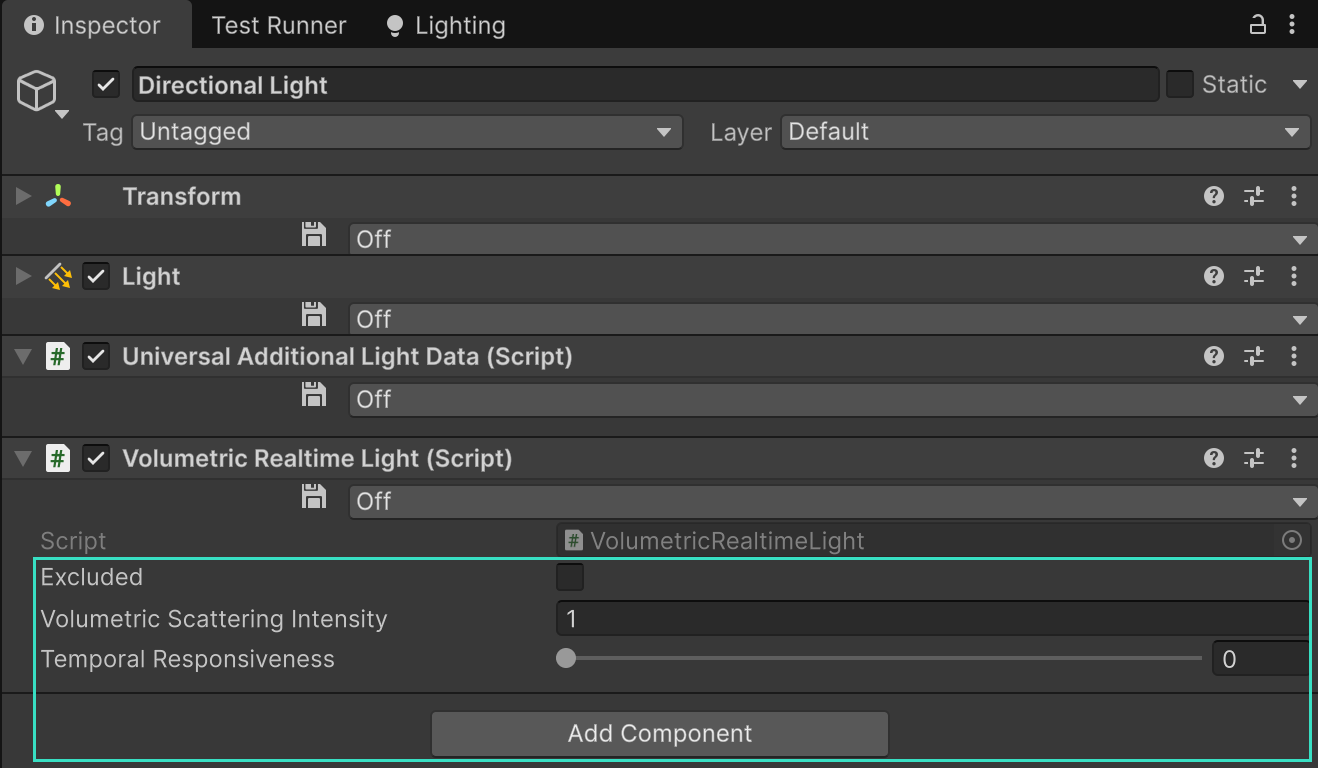
Visible URP Directional, Point, and Spot lights contribute automatically. A VolumetricRealtimeLight component is not required for the default contribution.

Add VolumetricRealtimeLight to a Light when you need to:

  • Exclude that light from Nebula.
  • Scale only its volumetric scattering contribution.
  • Make temporal reconstruction react more quickly to a moving or rapidly changing light.

Nebula respects the camera and light culling masks. Main and additional realtime shadows are supported. Main and additional light cookies are supported when both URP and the renderer feature enable cookies.

1.6 5. Add a local fog volume

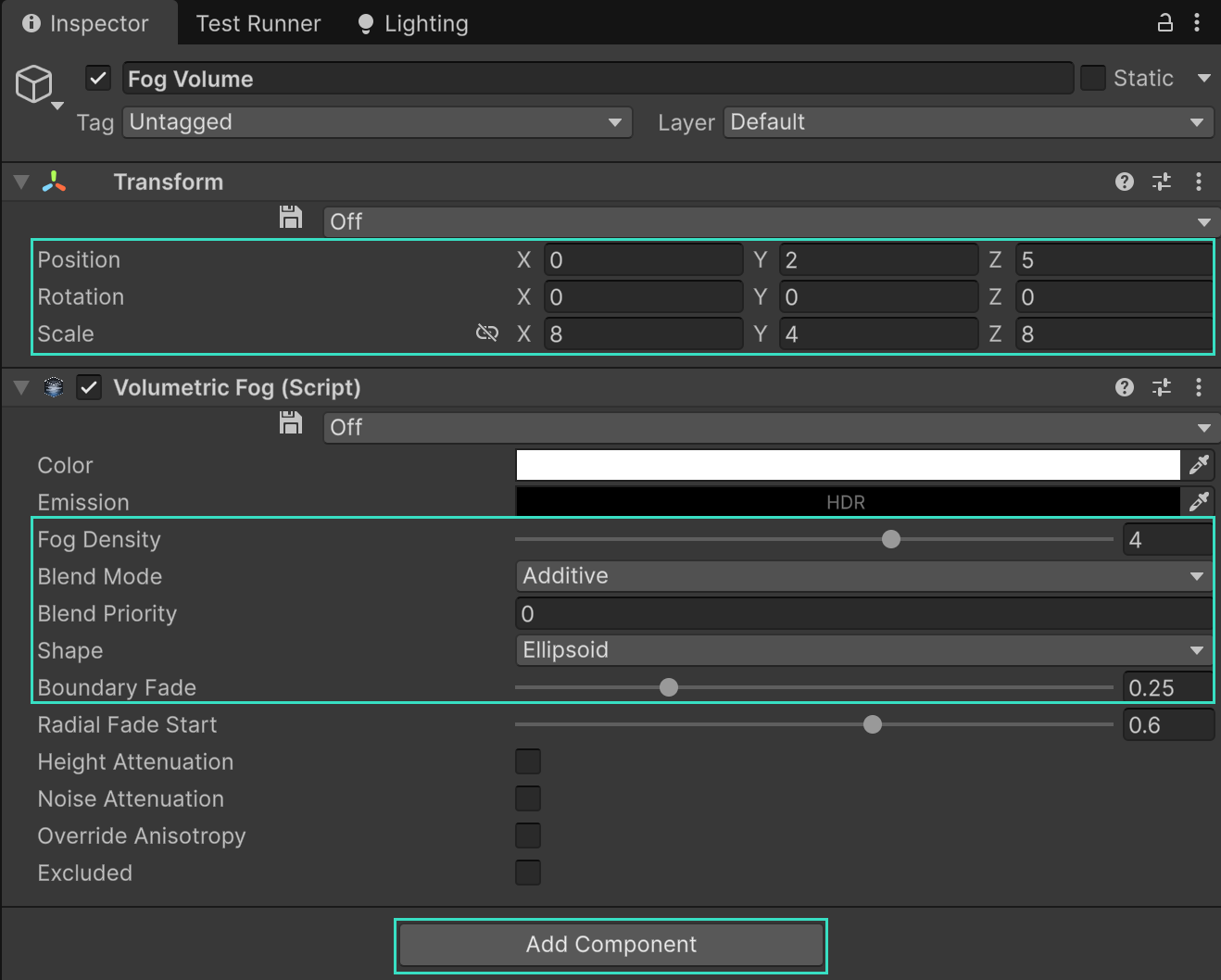
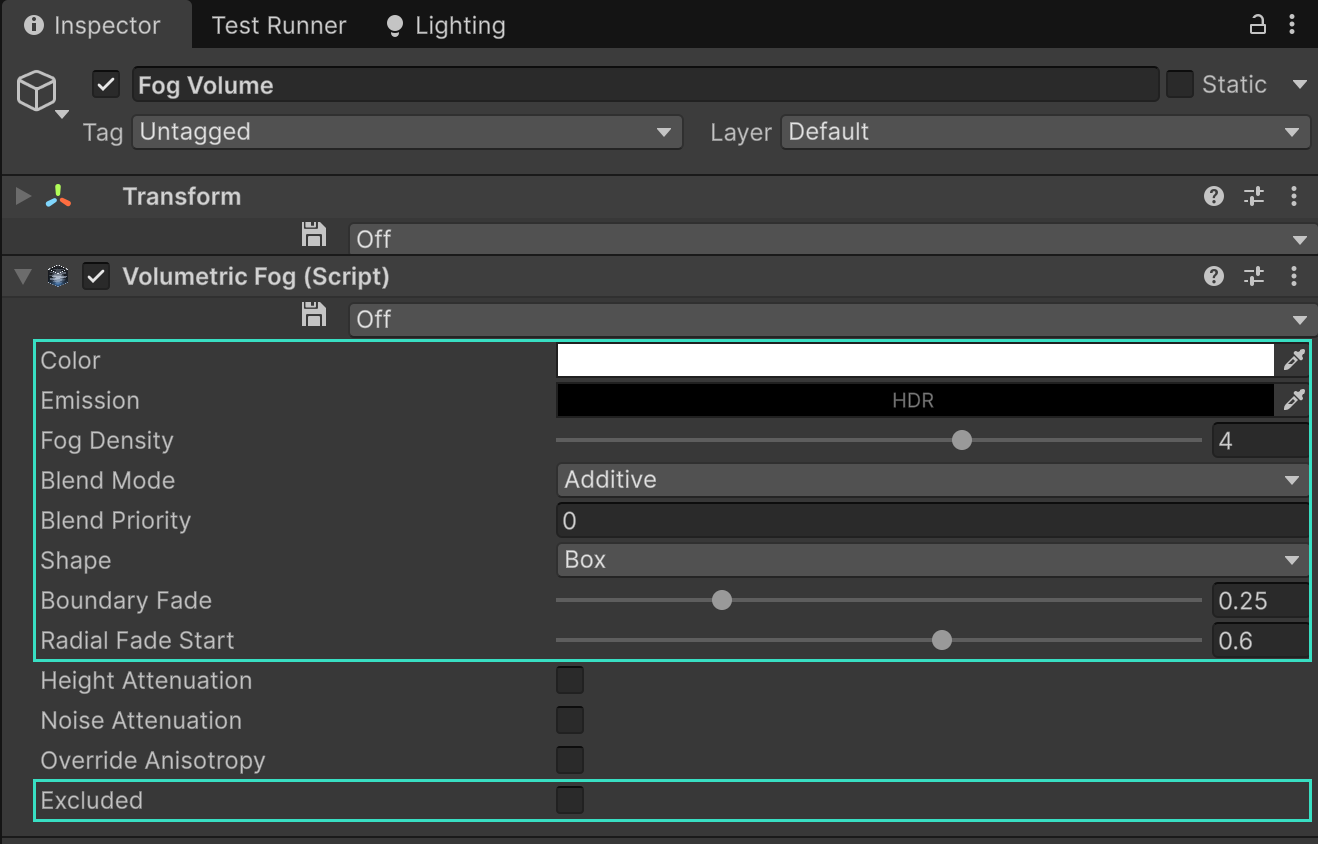
Use GameObject > Effects > Nebula - Local Fog Volume. The command creates a reusable local fog object with a VolumetricFog component.

  • Position, rotate, and scale the Transform to define the local volume.
  • Choose Box or Ellipsoid for the transformed unit shape.
  • Set Color, HDR Emission, and a nonnegative Fog Density.
  • Use Boundary Fade for a soft edge.
  • Use Additive to add medium to the global and lower-priority fog, or Replacing to blend toward this local medium.
  • Give overlapping Replacing volumes explicit Blend Priority values. Lower priorities evaluate first.
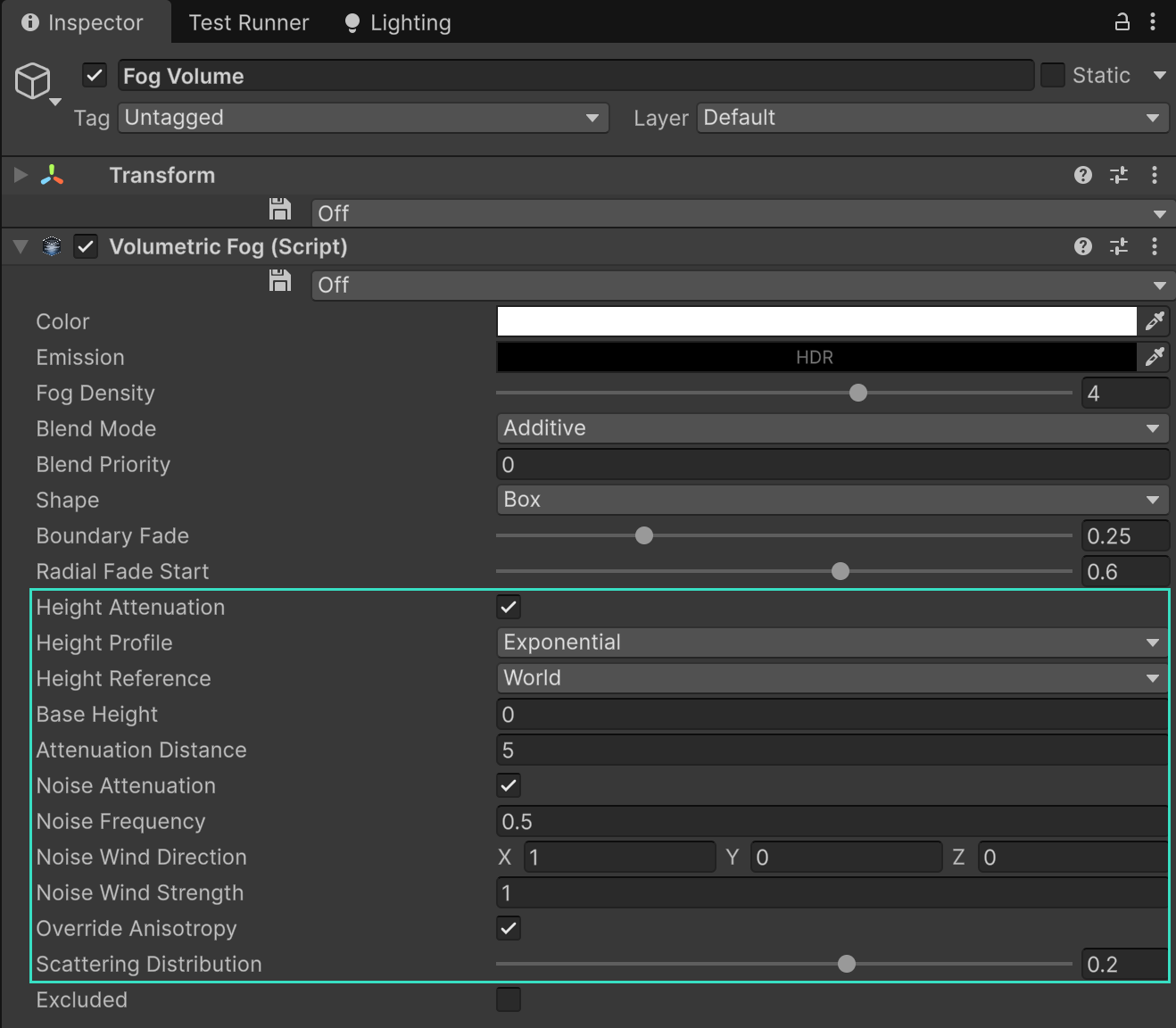
  • Enable Height Attenuation to choose the same bounded or exponential height profiles available to global fog.
  • Choose Terrain as the height reference when the volume should follow the shared terrain height field.

Create a prefab when the same local fog object is repeated. Local volumes outside the camera frustum, outside the camera culling mask, excluded, disabled, or invalid are ignored safely.

1.7 6. Fog transparent materials

Nebula composites the opaque scene and sky before URP draws transparencies. Stock URP transparent shaders do not sample Nebula and therefore are not fogged at their own surface depth.

For a lit transparent material:

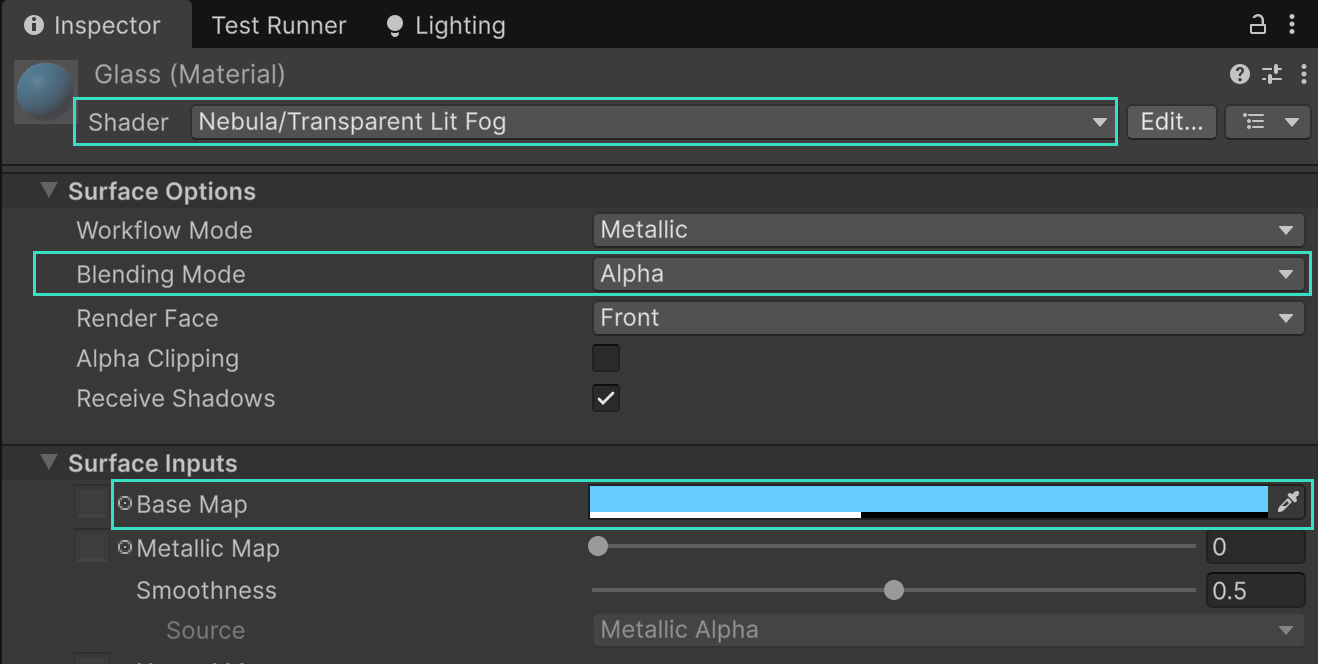
  1. Change its shader to Nebula/Transparent Lit Fog.
  2. Set the base color and alpha; the material is always transparent.
  3. Choose Alpha, Premultiply, or Additive blending. Multiply is not supported.
  4. Nebula fog is applied automatically whenever the renderer publishes a fog volume.
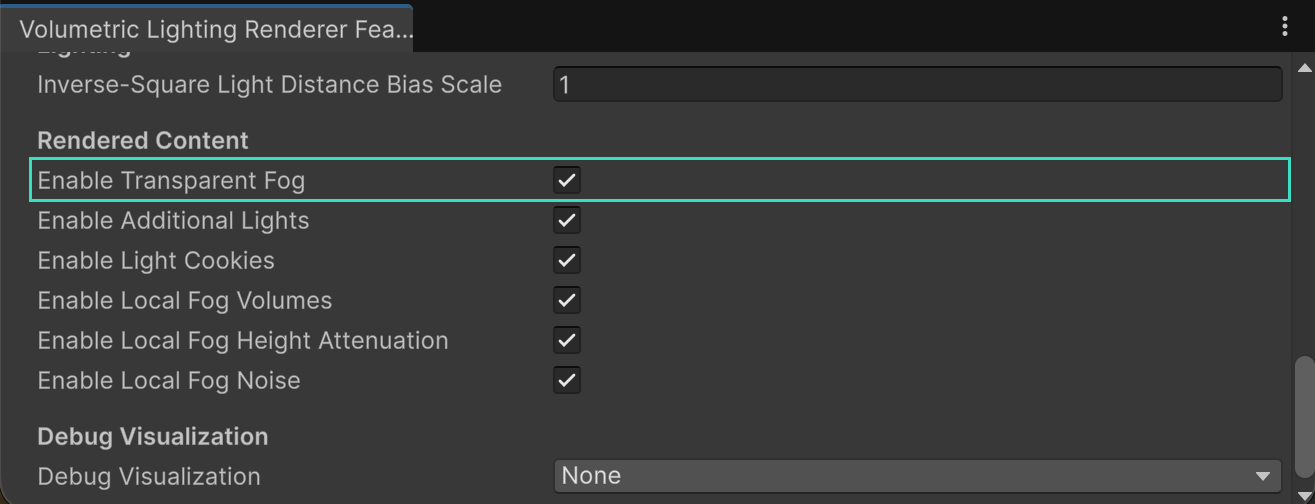
  5. Keep Enable Transparent Fog enabled on the Nebula renderer feature.

For a simple straight-alpha unlit material, use Nebula/Transparent Unlit Fog.

For a custom transparent URP Unlit Shader Graph:

  1. Add Nebula/Transparent/Nebula Transparent Fog.
  2. Pass straight, scene-linear RGB and Alpha into the subgraph.
  3. Connect Straight Alpha RGB, Premultiplied RGB, or Additive RGB to Base Color, matching the graph’s configured blend mode.
  4. Connect the subgraph’s Alpha output to the fragment Alpha block.

Multiply is unsupported. The subgraph is exact for Unlit/final-RGB graphs only; use Nebula/Transparent Lit Fog for Lit materials because standard Lit Shader Graph subgraphs run before URP produces the final lighting result.

When a valid Nebula volume is unavailable, the Lit shader falls back to its normal URP Lit result and URP fog path. The Unlit helper leaves its input color unchanged. Custom transparent shaders can use Nebula_TransparentFog.hlsl; see the Transparent materials section below for the required blend formulas.

1.8 7. Verify the result

With a base Game camera selected or Play mode running, confirm:

  • Opaque geometry and sky receive fog.
  • Directional, Point, or Spot lights illuminate the fog.
  • Local volumes follow their transforms and fade at their boundaries.
  • Nebula-aware transparent materials fog at their own depth.
  • Rendering Debugger > Nebula > Frame > Recorded is true in the Editor or a Development build.

For performance, open Window > Analysis > Profiler, enable the Nebula Fog module, and inspect CPU, delayed GPU, froxel, and memory values. Do not select a final quality tier from Editor timing alone; profile the target device and resolution.

1.9 Common setup failures

Symptom Check
No fog anywhere The active renderer contains the feature, its automatically assigned Shader Data is valid, and the blended Volume component is enabled.
Works in Scene view but not Game view The camera uses the configured renderer, is a base camera, and has valid URP additional camera data.
Works on PC but not the mobile pipeline Add Nebula to the mobile renderer only after qualifying its target devices and use a supported graphics API.
Transparent objects stay clear Use a Nebula-aware transparent shader and enable transparent publication on the renderer feature.
Local fog is missing Check Excluded, component and GameObject state, camera culling mask, transform scale, density, color range, and local settings.
Emission is black unexpectedly Check the emission RGB is finite and nonnegative, density is nonzero, and Global Emission Error or Local Emission Error in Rendering Debugger.
Artistic fog colors do not appear Ensure a participating main light is visible to the camera, set Artistic Color Influence above zero, and check Artistic Fog Color Error in Rendering Debugger.
A light does not affect fog Check its type, visibility, culling masks, intensity, range, Excluded state, and the renderer’s additional-light setting.
Temporal trails follow a changing light Add VolumetricRealtimeLight and raise Temporal Responsiveness, or enable the relevant rejection control.
Fog crosses foreground silhouettes Enable Conservative Depth and tune Surface Depth Bias.
A debug view replaces the final image Set Debug Visualization back to None.
The effect is skipped with no release-player message Reproduce in the Editor or a Development build and inspect Rendering Debugger > Nebula > Frame.

1.9.1 Lit and shadow density

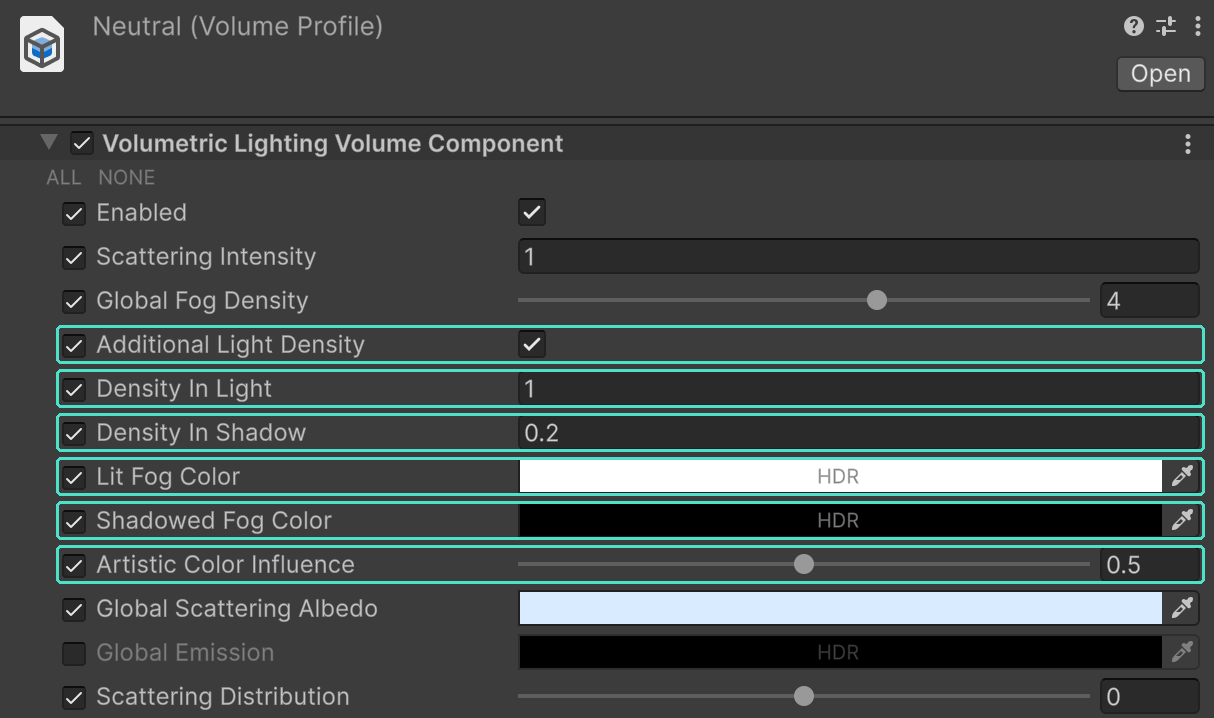
Set Density In Light and Density In Shadow on the Nebula Volume override to scale global and local fog using the main light’s shadow and cookie coverage. Both default to 1. Try 1 and 0.2 respectively to clear shadowed fog; values above 1 strengthen density. These controls affect extinction, scattering, and emission together, independently of Scattering Intensity. Without a participating main light, density stays unchanged.

1.9.2 Lit and shadow colors

Set Lit Fog Color, Shadowed Fog Color, and Artistic Color Influence on the Nebula Volume override to author the fog’s illuminated and shadowed appearance. Main-light shadow visibility and cookie coverage interpolate between the two HDR colors. Alpha is ignored. At an influence of 0, Nebula retains normal ambient, main-light, and additional-light scattering. At 1, the authored color replaces all of that incident lighting while global and local fog albedo, density, and extinction still shape the result.

Emission remains independent. Artistic fog coloring needs a participating main light; an absent, excluded, or camera-filtered main light leaves normal fog lighting unchanged. Smooth Volume changes use Nebula’s regular temporal accumulation. For an abrupt scripted change, call VolumetricLightingRendererFeature.ResetTemporalHistory(camera). Import Lit and Shadow Colors for an editable scene with Neutral, Partial, and Full profiles.

2 Nebula Manual

Nebula is a froxel-based volumetric fog renderer for Unity’s Universal Render Pipeline (URP). It represents the camera-visible medium in a clustered 3D grid, evaluates global and local fog against URP lighting, reconstructs the result over time, integrates physical in-scattering and transmittance, and composites the result before transparent rendering.

This is the package-user and scripting manual. For the shortest setup path, start with the Quick Start Guide chapter in this PDF.

2.1 Requirements and compatibility

2.1.1 Unity and URP

Nebula targets these Unity and URP families:

Unity URP family Status
6000.0 17.0.x Current repository version is Unity 6000.0.82f1 with URP 17.0.4.
6000.3 17.3 Supported target; must be qualified in an installation of that editor.
6000.5 17.5 Supported target; must be qualified in an installation of that editor.

Nebula requires URP’s RenderGraph path. Compatibility Mode is not a production path. The implementation records a normal ScriptableRenderPass through RecordRenderGraph and does not store frame-local RenderGraph handles between frames.

2.1.2 Graphics device requirements

Nebula supports these graphics APIs:

  • Direct3D 11
  • Vulkan
  • Metal
  • OpenGL ES 3.1 or later on Android

The device must support compute shaders, sampled 3D textures, 3D RenderTextures, and sampled, linear-filtered, and random-write R16G16B16A16_SFloat textures. Conservative depth additionally uses sampled and random-write R32_SFloat; Nebula disables that optional stage when either usage is unsupported. Reference temporal history-miss supersampling and responsive-light volumes use sampled and random-write R16_SFloat. An unsupported R16_SFloat configuration reduces reference history-miss sampling to one and omits responsive-light volumes. The active camera color format must support rendering and blending.

Android builds using OpenGL ES must require ES 3.1. A successful shader import on one desktop API does not qualify a different API or physical device.

The scattering kernels bind exactly two Nebula-owned structured buffers: one float4 stream for light, local-fog, and responsive-light attributes, and one uint stream with a compact header, global indices, active cluster ranges, and cluster assignments. This leaves two of OpenGL ES 3.1’s four guaranteed compute-buffer bindings available to URP’s Adaptive Probe Volume L0 lookup when that variant is active. Scattering outputs remain random-write textures and do not consume this buffer allowance.

2.1.3 Cameras and rendering features

Nebula accepts base Game cameras and the Scene view. Important restrictions are:

  • Temporal reconstruction is enabled only for Game cameras. Scene view renders without temporal history.
  • Camera-stack overlay cameras are skipped. Content rendered only by an overlay camera does not receive a separate Nebula pass.
  • Reflection, Preview, and other camera types are skipped.
  • XR rendering is rejected by the current implementation.
  • The effect samples camera depth, so the selected URP renderer must provide a valid depth texture path.
  • A Game camera uses UniversalAdditionalCameraData and URP camera history for temporal reconstruction. When either is unavailable, Nebula continues with non-temporal rendering for that frame.

Scene view supports perspective, orthographic, and 2D navigation, including framing, orbiting, zooming, and resizing. Enable Fog in the Scene view Effects controls to preview Nebula. Turning off Fog or the Effects master control also disables fog on transparent materials for that view. Fog appears in Shaded and Shaded Wireframe views; wireframe and diagnostic draw modes omit it. Each Scene view uses its own controls and camera state.

Scene Lighting and post-processing controls can intentionally change the preview’s appearance. For comparison with a Game camera, match its position, projection, Volume settings, lighting, and post-processing, and disable temporal reconstruction. Orthographic cameras can have a negative near clip plane; Nebula starts at the configured nonnegative Start Distance or the near plane, whichever is farther forward. If the visible clip range does not intersect the configured fog range, no fog is rendered.

2.1.4 Mobile status

Nebula is designed for mobile-compatible URP rendering and includes Low and Very Low workload tiers. Physical-device qualification is still pending for Android Vulkan, Android OpenGL ES 3.1, and iOS Metal across every target Unity version. Consequently, Mobile_Renderer.asset intentionally has no Nebula feature. The package does not automatically reduce workload quality to meet a performance or memory budget. It only disables optional stages whose required device or camera capability is unavailable.

Add Nebula to a mobile renderer only as part of target-device qualification. Begin at Very Low or Low, verify supported formats, record GPU and memory results at the shipping resolution, and test thermal behavior over a representative play session.

2.2 How Nebula renders fog

2.2.1 Froxel volume

The camera volume is divided into screen-space tiles and depth slices called froxels. The XY dimensions follow the camera’s scaled resolution and the selected pixels-per-froxel tier. The Z dimension follows the selected depth-slice tier between the effective fog near and far distances:

  • Effective near distance is the greater of the camera near clip and Start Distance.
  • Effective far distance is the lesser of the camera far clip and Maximum Distance.
  • The frame is rejected safely if the interval is empty or invalid.

Logarithmic and quadratic depth distributions place more resolution near the camera. Logarithmic is the default and its positive scale controls how strongly slices are concentrated near the camera.

2.2.2 Medium and lighting

Every accepted froxel begins with the global extinction, scattering albedo, and emission from the blended Unity Volume stack. Visible local fog volumes then add to or replace that medium according to their influence, blend mode, and priority.

Emission is HDR linear RGB radiance per unit distance. Alpha is ignored. Its source follows the medium that owns it: the global source is GlobalEmission × global extinction × global density influence, while a local source is Emission × local density. Additive local volumes add the source after their influence; Replacing volumes interpolate the accumulated source toward their own source. Thus, a full-weight black replacement removes underlying emission, and a zero-density volume emits nothing. Emission is independent of albedo, phase, ambient lighting, and light color. It enters the source field before temporal reconstruction and integration. For homogeneous unlit fog over length L, this produces Emission × (1 - exp(-extinction × L)).

Scattering Intensity multiplies incident-light scattering only. Main-light density modulation from Density In Light and Density In Shadow applies once to both extinction and emission because it modulates the composed medium density. It does not make emission depend on light brightness, color, phase, or shadow attenuation.

Nebula evaluates:

  • The URP main light.
  • Visible additional Directional, Point, and Spot lights.
  • Main and additional realtime shadows when URP supplies the shadow textures.
  • Main- and additional-light cookies when enabled.
  • Ambient-probe lighting or Adaptive Probe Volume isotropic L0 incident lighting when probe volumes are active.
  • A Henyey-Greenstein phase function using the global or a local override scattering distribution.

Lights and fog volumes are assigned to compact camera-space clusters. Global directional lights are kept in a separate logical list, while bounded lights and local fogs are evaluated only by overlapping clusters. After cluster construction, a Burst IJobFor packs per-cluster ranges only for active light, fog, and responsive-light streams, followed by their assignment indices in disjoint portions of the shared topology stream. The render thread packs the four-word topology header, global indices, and smaller fixed-size scene records before performing the two GPU uploads. Native staging arrays and GPU buffers grow to satisfy observed scene data and are reused by later frames.

2.2.3 Temporal reconstruction

On Game cameras, temporal reconstruction reprojects the previous per-camera volumetric field into the current froxel grid. History is double-buffered: a frame reads the previous 3D texture and writes a different current 3D texture. The default production path fuses current scattering and temporal reconstruction.

History is invalidated or reallocated when required by events such as:

  • A new Play session or camera history.
  • An explicit URP history reset or ResetTemporalHistory request.
  • A camera cut, large transform change, or significant projection change.
  • Resolution, render scale, dynamic-resolution state, viewport, or froxel-layout changes.
  • Fog depth-distribution or represented-field changes.

A missing history manager or item, duplicate producer, invalid or aliased history texture, or failed history preparation disables temporal reconstruction for that frame. Current scattering still renders through the non-temporal path, and Nebula retries temporal history on later frames.

Temporal sampling quality controls jitter period, history-miss supersampling, and the cap used when temporal reconstruction is disabled. Scattering and extinction history weights control the stability-to-responsiveness tradeoff. VolumetricRealtimeLight.TemporalResponsiveness reduces reliance on history around a changing light. Optional lighting and motion rejection further reduce history where current lighting or reprojected motion diverges.

2.2.4 Conservative depth

Conservative depth finds the nearest opaque depth at froxel XY resolution and moves boundary samples in front of that surface by Surface Depth Bias. It reduces foreground bleeding and silhouette leaks at the cost of an extra compute pass and one R32_SFloat 2D texture.

2.2.5 Integration and composite

Nebula integrates each view ray front-to-back using Beer-Lambert transmittance. The integrated 3D texture stores:

  • RGB: accumulated in-scattering L
  • Alpha: remaining transmittance T

The opaque scene and sky are composited before transparencies using:

C_out = L + C_camera * T

The composite is a blend-only fullscreen pass; it does not copy camera color. When transparent publication is enabled, RenderGraph publishes the same integrated volume and depth mapping for participating transparent shaders.

2.3 Installation and renderer setup

Nebula is installed as com.zalinteractive.nebula. Its runtime assembly is Zal.Nebula.Runtime, its root namespace is Zal.Nebula, and the assembly is automatically referenced.

For each URP renderer that needs Nebula:

  1. Select its ScriptableRendererData asset.
  2. Add Volumetric Lighting Renderer Feature.
  3. Confirm Shader Data was assigned automatically. Explicit custom Shader Data assignments are preserved.
  4. Choose a fixed quality preset or Custom configuration.
  5. Configure rendered content, depth, temporal reconstruction, and debug visualization.

PC_Renderer.asset is the repository’s configured example. The active PC pipeline asset is PC_RPAsset.asset.

The renderer feature is shared by every camera that uses that renderer data. Runtime calls such as ApplyPreset therefore affect all those cameras for the remainder of the process; they do not persist an asset change into a built player.

2.4 Renderer feature reference

2.4.1 Resources and preset

Control Behavior
Shader Data Automatically references every Nebula compute shader, material, and kernel. Explicit custom assignments are preserved; missing or invalid resources cause the frame to be skipped.
Quality Preset Applies one tier to froxel resolution, froxel sampling, temporal sampling, and cluster granularity. It preserves unrelated behavior toggles. Editing a grouped tier makes the preset Custom.

Selecting Custom alone does not invent new values; it preserves the currently serialized group settings. Calling ApplyPreset(NebulaQualityPreset.Custom) similarly changes only the preset label.

2.4.2 Quality and performance groups

Control Behavior and cost
Froxel Resolution Selects pixels per froxel and depth slices. Higher tiers increase 3D texture dimensions, compute work, and memory.
Froxel Sampling Selects close, near, middle, and far spatial sample targets used when temporal reconstruction is off. Temporal Sampling caps those targets.
Temporal Sampling Selects jitter length, history-miss samples, and non-temporal sample cap. Higher tiers spend more work when history is unavailable and when temporal reconstruction is disabled.
Cluster Granularity Selects screen tile size and cluster depth. Finer clusters increase cluster construction and storage but can reduce per-froxel contributor tests.

See Quality and performance for exact mappings.

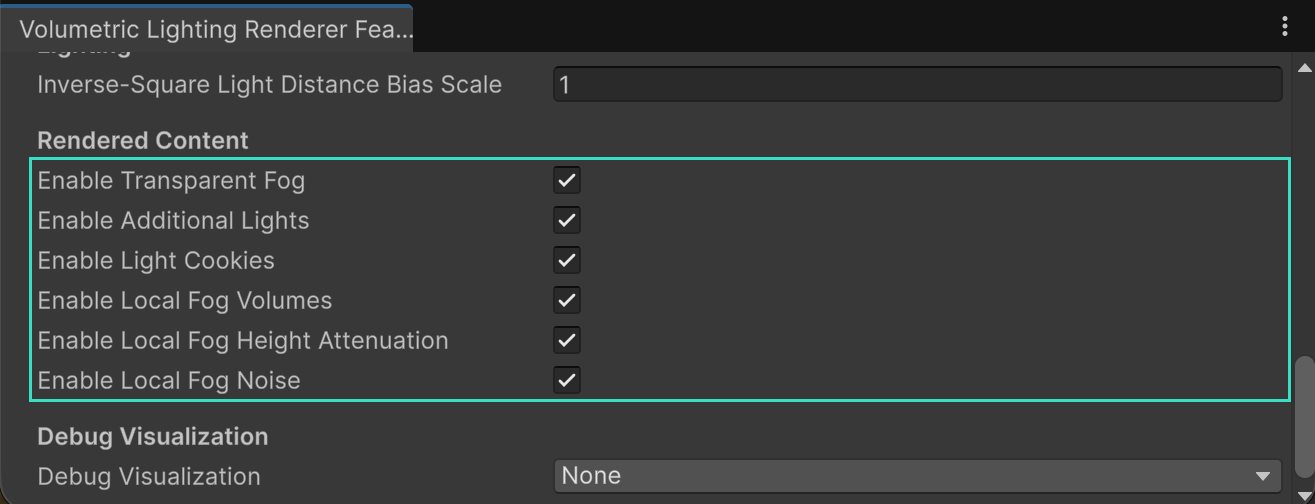
2.4.3 Rendered content

Control Behavior and cost
Enable Transparent Fog Publishes the integrated volume before transparencies. This retains its RenderGraph lifetime and adds publication bandwidth, but no camera-color copy.
Enable Additional Lights Collects supported non-main lights and evaluates their clustered volumetric contribution. The main light remains available.
Inverse Squared Light Distance Bias Scale Scales the froxel-diagonal footprint added to inverse-square light falloff. Higher values suppress source singularity aliasing and flicker while softening peak local-light intensity. Default is 1.
Enable Light Cookies Samples main- and additional-light cookies when URP provides them. It can add texture sampling; Nebula uses URP-provided cookie textures and does not allocate its own.
Enable Local Fog Volumes Collects and clusters registered VolumetricFog components. Disabling it leaves only the global medium.
Enable Local Fog Height Attenuation Gates each local volume’s own Height Attenuation setting. Disabling it removes local height attenuation without changing the global medium.
Enable Local Fog Noise Gates each local volume’s own Noise Attenuation setting. When no accepted local volume uses noise and global noise is off, Nebula selects a shader variant with the three-octave, 24-lattice-hash noise path compiled out.

The local feature gates preserve their serialized values from earlier Nebula versions, but now control only the per-volume flags described by their Inspector labels.

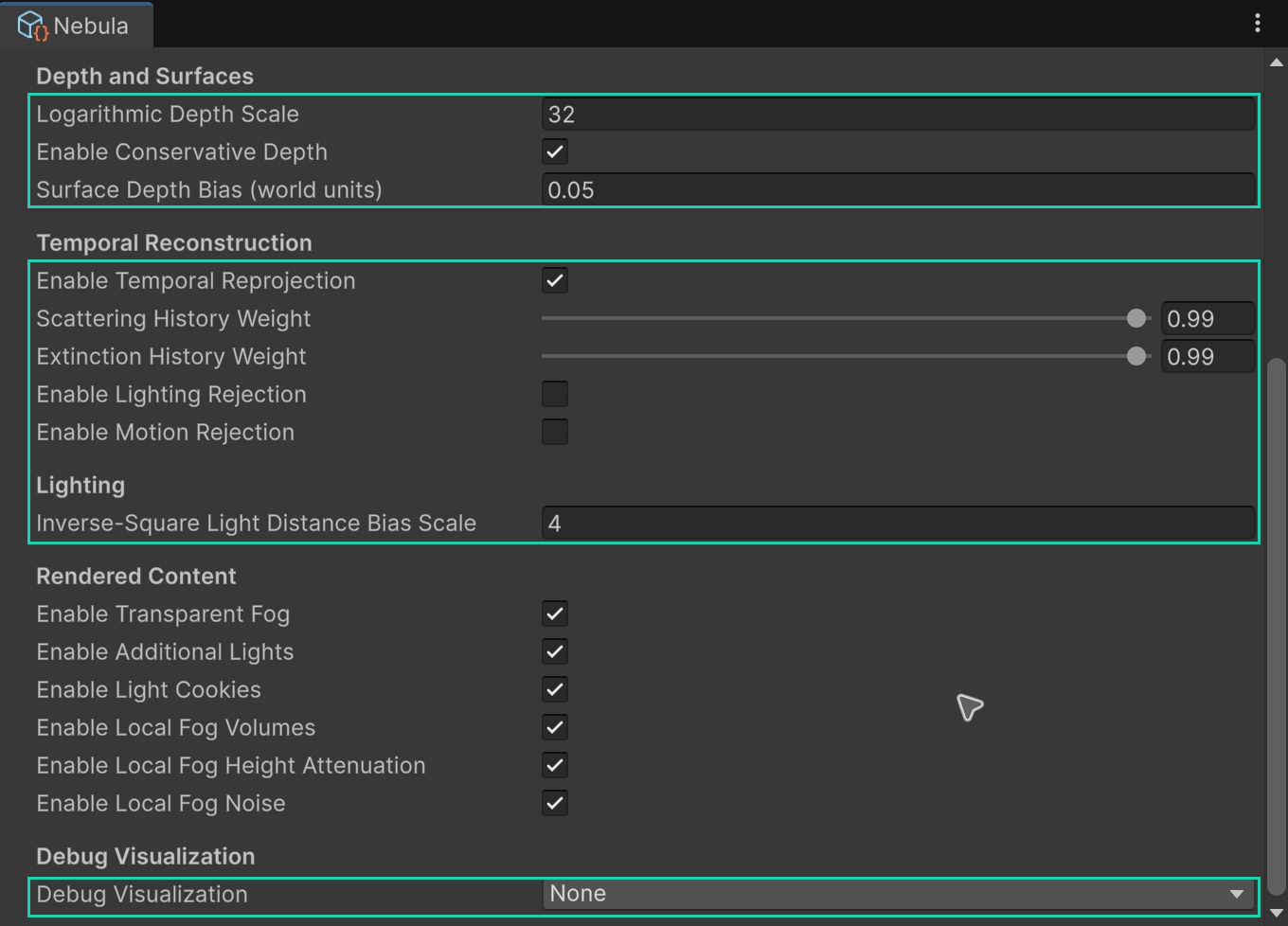
2.4.4 Depth and surfaces

Control Behavior and cost
Depth Distribution Selects Logarithmic or Quadratic placement of depth slices.
Logarithmic Depth Scale Positive curve scale used only by Logarithmic mode. Larger values concentrate more slices near the camera. Default is 32.
Enable Conservative Depth Reduces foreground bleeding using closest opaque depth. Adds a compute pass and one froxel-resolution 2D texture.
Surface Depth Bias World-space gap kept in front of opaque depth. Default is 0.05 world units. Too much bias can pull fog away from surfaces.

2.4.5 Temporal reconstruction controls

Control Behavior and cost
Enable Temporal Reprojection Allocates double-buffered per-camera 3D history and reuses prior scattering/extinction on Game cameras. It usually provides the best quality-to-cost balance.
Scattering History Weight Weights reprojected scattering from 0 to 1. Higher values reduce static jitter but respond more slowly to lighting changes. Default is 0.9.
Extinction History Weight Weights reprojected extinction from 0 to 1. Higher values reduce static density jitter but respond more slowly to medium changes. Default is 0.9.
Enable Lighting Rejection Reduces history when current and reprojected scattering luminance disagree. Adds per-froxel comparisons.
Enable Motion Rejection Reduces history as reprojected froxel motion increases. Adds per-froxel comparisons.

The rejection thresholds and camera-cut thresholds are current implementation defaults rather than public Inspector controls. Temporal compute kernels use a fixed 4x4x4 thread group.

2.4.6 Debug visualization

Debug rendering and its serialized settings are active only when development diagnostics are compiled. Release players resolve to production output.

Mode Displays
None Normal integrated and composited fog.
Conservative Depth The reduced opaque surface depth used by boundary froxels.
Raw Scattering Slice / Raw Extinction Slice Current un-reconstructed source or extinction at Debug Slice.
Resolved Scattering Slice / Resolved Extinction Slice Temporally resolved field at Debug Slice.
Integrated Radiance Slice / Integrated Transmittance Slice Front-to-back integrated values at Debug Slice.
Composite Lookup Depth The volume depth selected for opaque compositing.
History Validity / History Weight History acceptance and applied contribution.
Reprojection Motion / Rejection Cause Reprojection displacement and rejection reason.
Jitter The temporal sample offset pattern.

Debug Slice is normalized from 0 to 1. Modes requiring raw or temporal-debug resources select the reference temporal path in development. A temporal-only debug view is disabled safely when temporal reconstruction is off.

2.5 Global Volume reference

Add Post-processing Custom > Volumetric Lighting to a Unity Volume Profile. Unity blends each parameter using the normal Volume priority, weight, layer, and override-state rules. The component is active only when its blended Enabled value is true.

Global Fog Density and local Fog Density use an artist-facing scale: 1 corresponds to an extinction coefficient of 0.01 per world unit. Try 0.5–2 for subtle fog. Their sliders cover 0–10 with finer adjustment near zero; the numeric fields accept larger values. Zero removes that medium’s density. Existing fog appearances are preserved. Scripts still use inverse-world-unit coefficients through GlobalExtinction and VolumetricFog.Density; divide an Inspector density by 100 when assigning these APIs. Volume blending is unchanged.

Parameter Default Meaning
Enabled Off Activates Nebula for the camera’s blended Volume stack.
Scattering Intensity 1 Multiplies incident-light scattering without changing extinction or emission. Zero keeps extinction and emission.
Global Fog Density 2 Global fog thickness. Higher values produce denser fog. Must be nonnegative.
Lit Fog Color White HDR linear RGB fog-lighting color where the participating main light is visible. Alpha is ignored.
Shadowed Fog Color Black HDR linear RGB fog-lighting color where the participating main light is blocked. Alpha is ignored.
Artistic Color Influence 0 Blends the two artistic colors with normal incident scattering from 0 to 1.
Global Scattering Albedo White RGB fraction of extinction that scatters instead of absorbing. Runtime values are clamped to 0–1. Alpha is not used for the medium.
Global Emission Black HDR linear RGB radiance emitted by global fog. Alpha is ignored. Finite nonnegative RGB is accepted, including values above one.
Scattering Distribution 0.2 Henyey-Greenstein anisotropy from -0.9 to 0.9. Positive values favor forward scattering; negative values favor backward scattering.
Start Distance 0 Camera-relative start of the represented fog interval.
Near Fade Distance 0 Distance after the effective start over which integration fades from clear to full influence. Zero disables the fade.
Maximum Distance 64 Camera-relative end of the represented fog interval, also limited by the camera far clip.
Use Global Height Attenuation Off Enables height attenuation for the global medium only.
Height Profile Bounded Selects the existing finite Bounded ramp or an Exponential layer.
Height Reference World Interprets height controls in world space or as offsets above the shared Terrain height field.
Missing Terrain Suppress Fog Suppresses terrain-relative fog without a valid ground sample, or falls back to world height.
Fog Minimum Height 0 Bounded profile height at full global influence.
Fog Maximum Height 100 Bounded profile height at zero global influence. Must exceed the minimum.
Height Attenuation Factor 1 Positive exponent controlling the Bounded transition.
Base Height 0 Exponential profile height at and below which density remains full.
Attenuation Distance 100 Vertical distance above the base over which Exponential density falls to approximately 36.8 percent.
Use Global Noise Attenuation Off Enables animated procedural noise for the global medium only and selects the noise shader variant.
Noise Frequency 5 Positive world-space procedural-noise frequency.
Noise Wind Direction Up World-space vector translated over time; its magnitude is preserved.
Noise Wind Speed 1 Nonnegative multiplier applied to the wind vector.

Global attenuation is applied while constructing the base global medium. Local media are composed afterward, so a global height or noise setting never reduces a local volume’s extinction or scattering.

The Bounded profile preserves the original Nebula height behavior. The Exponential profile evaluates exp(-max(height - baseHeight, 0) / attenuationDistance): it is constant below its base, exactly full at the base, and continues decreasing above it without a hard upper boundary. When Terrain is selected, height, minimum, maximum, and base values are measured relative to the sampled ground surface.

Invalid or non-finite global values are replaced or clamped to safe defaults during frame resolution. Invalid emission is replaced with black only; extinction, scattering, and the remaining medium configuration remain active. Invalid artistic fog colors or influence disable only artistic coloring for that frame and retain normal lighting. In diagnostic builds, Rendering Debugger > Nebula > Configuration exposes the typed reason through Global Emission Error or Artistic Fog Color Error. Inactive global height and noise parameters resolve to neutral defaults and do not count as corrections.

2.6 Local fog volumes

2.6.1 Creation and transform

Use GameObject > Effects > Nebula - Local Fog Volume, or add VolumetricFog to an existing GameObject. The component has no required collider or renderer. Its Transform maps a centered unit volume to world space:

  • Box occupies the transformed cube from -0.5 to +0.5 on each local axis.
  • Ellipsoid occupies the inscribed transformed ellipsoid.
  • Nonuniform scale produces a box or ellipsoid with the same nonuniform world dimensions.

Nebula registers enabled components without scanning the scene every frame. It ignores disabled, excluded, invalid, layer-invisible, render-stage-ineligible, and frustum-culled components. Use prefabs for repeated local fog objects.

2.6.2 Local fog controls

Control Default Meaning
Color White Local scattering albedo. Every RGB component must be finite and within 0–1.
Emission Black HDR linear RGB radiance emitted by this medium. Alpha is ignored. Finite nonnegative RGB is accepted, including values above one.
Fog Density 100 Local fog thickness, using the same scale as Global Fog Density. Must be finite and nonnegative.
Blend Mode Additive Adds the local medium or replaces prior medium according to influence.
Blend Priority 0 Lower values evaluate first; higher values are layered afterward.
Shape Box Box or Ellipsoid influence inside the transformed unit volume.
Boundary Fade 0 Normalized inward soft-edge distance. Zero produces a hard shape boundary.
Radial Fade Start 1 Normalized center-to-edge fade start. One disables radial fading.
Height Attenuation Off Enables per-volume height attenuation.
Height Profile Bounded Selects a finite Bounded ramp or an Exponential layer.
Height Reference World Interprets height controls in world space or as offsets above Terrain.
Missing Terrain Suppress Fog Suppresses this volume without a valid terrain sample, or falls back to world height.
Minimum Height 0 Bounded profile height at full local influence.
Maximum Height 100 Bounded profile height at zero local influence. Must exceed the minimum.
Height Factor 1 Positive exponent controlling the Bounded transition.
Base Height 0 Exponential profile height at and below which local density remains full.
Attenuation Distance 100 Vertical distance above the base over which Exponential density falls to approximately 36.8 percent.
Noise Attenuation Off Multiplies this volume’s influence by animated procedural noise.
Noise Frequency 5 Positive world-space local noise frequency.
Noise Wind Direction Up Local noise translation vector in world space.
Noise Wind Strength 1 Nonnegative animation multiplier.
Override Anisotropy Off Uses the local scattering distribution for this medium instead of the global value.
Scattering Distribution 0.2 Local Henyey-Greenstein value from -0.9 to 0.9.
Excluded Off Keeps the component registered but prevents it from contributing.

Additive increases extinction, scattering, and emission according to influence. Replacing interpolates the accumulated medium toward the local medium, including emission. Replacing also interpolates phase scattering when anisotropy is involved. Give overlapping Replacing volumes different priorities rather than relying on object identity to break equal-priority ties.

Property setters on VolumetricFog intentionally expose the serialized values directly. They do not clamp every assignment. A local fog with invalid transform, color, density, enum, fade, anisotropy, height, or noise values is ignored for that frame instead of being submitted to the GPU. Invalid emission is different: its emission alone is replaced with black, preserving the volume’s extinction, scattering, blend participation, and ordering. The typed reason appears as Local Emission Error in Rendering Debugger. Height and noise values are validated only when the component setting and its corresponding renderer feature gate are both active.

2.6.3 Terrain fitting

Add one FogTerrainHeightField component to an enabled scene GameObject and explicitly assign every Unity Terrain tile that terrain-relative fog may use. One GPU height and validity field per active renderer-feature instance serves all cameras using that renderer, global fog, and local fog volumes. It rebuilds after a selected Terrain heightmap or holes texture changes, when a selected Terrain moves or changes data, when the selection changes, or when RequestRefresh() is called.

The Resolution is the longest field axis: 256, 512, 1024 by default, or 2048 samples. The shorter axis preserves the combined Terrain bounds’ aspect ratio. Each active renderer-feature instance uses two persistent R32F textures, so a square field consumes approximately 0.5 MiB, 2 MiB, 8 MiB, or 32 MiB respectively. Overlapping tiles keep the highest valid surface. Terrain holes and positions outside all selected tiles are invalid samples. Manual validity-aware filtering uses nearby valid samples without bleeding a zero height across tile borders or holes.

Selected Terrain objects must be axis aligned, unscaled, finite, and backed by valid TerrainData. An invalid provider reports a typed TerrainHeightFieldError, logs once per distinct error, displays the error in its Inspector, and publishes TerrainHeightFieldUnavailable in the Rendering Debugger while rendering continues with each fog’s configured missing-terrain behavior. Only one enabled provider may be active at a time.

2.7 Realtime lights

Nebula accepts visible Directional, Point, and Spot lights from URP. The main light and additional lights contribute without a VolumetricRealtimeLight marker, using scattering intensity 1 and temporal responsiveness 0.

Add VolumetricRealtimeLight to customize a Light:

Control Default Meaning
Excluded Off Removes this light from Nebula without disabling the Unity Light.
Volumetric Scattering Intensity 1 Nonnegative multiplier applied only to this light’s volumetric contribution.
Temporal Responsiveness 0 Value from 0 to 1 that favors current scattering over history near the light.

The component requires a Unity Light, disallows duplicates, and registers in Edit and Play modes. Its numeric property setters clamp finite values; a non-finite scattering intensity becomes 1 and a non-finite responsiveness becomes 0.

Light acceptance also requires valid finite transform, color, intensity, and range data. The Light’s GameObject layer must be visible to the camera, and its culling mask must overlap the camera culling mask. Additional-light count follows UniversalRenderPipeline.maxVisibleAdditionalLights, so the platform’s URP limit remains authoritative.

2.8 Transparent materials

2.8.1 Why shader participation is required

The opaque composite happens before URP transparencies. After normal transparency blending, a renderer feature no longer knows each transparent fragment’s surface depth, radiance, alpha convention, or ordering. A correct result therefore requires the transparent shader to sample Nebula at its own positive eye depth.

A post-transparent fullscreen pass would fog all transparent layers at opaque depth. A transparent depth prepass would represent only one layer and still require compatible material passes. Nebula deliberately uses shader participation instead of those approximations.

2.8.2 Included shaders

Nebula/Transparent Lit Fog is a URP Lit-compatible transparent shader with Metallic or Specular workflows, standard Lit surface inputs, details, emission, and shadows. It always participates in Nebula fog and supports:

  • Straight-alpha blending
  • Premultiplied-alpha blending
  • Additive blending

Materials are always transparent. Multiply is migrated to Alpha, and Preserve Specular is always disabled so alpha-zero fragments remain a framebuffer no-op. The shader omits motion-vector passes and does not implement refraction or arbitrary scene-color sampling. It is not guaranteed to match stock URP Lit for every custom transparent material.

The Inspector normalizes legacy Opaque materials to Transparent and Multiply to Alpha when editing or assigning the shader. Other supported blend modes, textures, and detail scales are preserved. The old per-material fog toggle is ignored.

Nebula/Transparent Unlit Fog is a minimal straight-alpha helper with a base color and fixed transparent render state.

2.8.3 Blend formulas

The shared include returns in-scattering L and transmittance T. Apply them before the material’s framebuffer blend using the matching convention:

Straight alpha:      L + T * rgb
Premultiplied alpha: alpha * L + T * premultipliedRgb
Additive:            T * rgb

Fog changes RGB while preserving material alpha. The shared API is in Nebula_TransparentFog.hlsl:

NebulaTransparentFogSample fog;
if (Nebula_SampleTransparentFog(input.positionCS, input.positionWS, fog))
{
    color = Nebula_ApplyTransparentFogStraightAlpha(color, fog);
}

Use Nebula_ApplyTransparentFogPremultiplied or Nebula_ApplyTransparentFogAdditive for the other conventions. Sampling safely returns no fog when publication is invalid, the fragment depth is invalid, or the fragment lies outside the published camera viewport.

2.8.4 Shader Graph

Use Nebula/Transparent/Nebula Transparent Fog for custom transparent URP Unlit Shader Graphs and other graphs where Base Color is the final framebuffer RGB. The subgraph accepts straight, scene-linear Color and Alpha, samples Nebula once, and provides four outputs:

  • Straight Alpha RGB for the Alpha blend mode.
  • Premultiplied RGB for the Premultiply blend mode. The subgraph performs the premultiplication.
  • Additive RGB for the Additive blend mode.
  • Alpha, which must be connected to the fragment Alpha block.

Set the graph Surface Type to Transparent, select the matching blend mode, connect its matching RGB output to Base Color, and keep Enable Transparent Fog enabled on the Nebula renderer feature. Multiply is unsupported. When Nebula publication is unavailable, straight-alpha and additive colors pass through unchanged, while the premultiplied output still performs the premultiplication required by URP.

The standard URP Lit target evaluates a subgraph before its final lighting, reflections, and specular contribution exist. Unity 6000.0 does not expose a public post-lighting Shader Graph extension point, so the subgraph cannot fog a Lit graph exactly. Use Nebula/Transparent Lit Fog for Lit materials. Do not connect the subgraph to Lit surface inputs as an approximation.

Transparent publication adds one integrated 3D volume sample per participating fragment. It does not add a camera-color copy, fullscreen pass, persistent transparent texture, GPU readback, or steady-state managed allocation.

2.9 Quality and performance

2.9.1 Fixed quality tiers

A fixed preset applies the same tier index to all four grouped controls. Behavior toggles such as additional lights or temporal reprojection are preserved.

Tier Froxel pixels Depth slices Close / near / middle / far samples Jitter frames History-miss samples Non-temporal cap
Very Low 16 32 1 / 1 / 1 / 1 1024 1 1
Low 12 64 1 / 1 / 1 / 1 1024 1 1
Medium 8 64 2 / 1 / 1 / 1 1024 4 1
High 8 96 2 / 2 / 1 / 1 1024 4 2
Very High 6 96 4 / 2 / 1 / 1 1024 4 4

At 1920x1080, these grids contain approximately 0.26, 0.92, 2.07, 3.11, and 5.53 million froxels. Render scale and camera resolution change those totals directly.

When temporal reconstruction is enabled, normal current scattering uses one spatial sample per froxel; the temporal tier controls jitter and history-miss supersampling. When temporal reconstruction is disabled, each depth band uses the lesser of its Froxel Sampling target and the Temporal Sampling non-temporal cap.

2.9.2 Cluster tiers

Tier Cluster tile Cluster depth
Very Low 64 px 8
Low 48 px 12
Medium 32 px 16
High 24 px 24
Very High 16 px 32

Finer clusters can reduce light and fog evaluation per froxel but increase CPU cluster construction, reference storage, and GPU buffer memory. The best tier depends on contributor density, not only screen resolution.

2.9.3 Memory behavior

The dominant resources are half-float 3D textures:

  • Current or resolved scattering/extinction: RGBA16F at froxel dimensions.
  • Integrated fog: RGBA16F with one extra depth boundary.
  • Temporal history: two persistent RGBA16F 3D textures per active Game-camera history.
  • Conservative depth: one transient R32F 2D texture at froxel XY dimensions when enabled.
  • Terrain fitting: two persistent R32F 2D textures shared by all cameras when a terrain-relative fog consumes them.

Scattering scene attributes use 16 bytes per additional light, 144 bytes per local fog, and 64 bytes per responsive light. Topology uses a 16-byte header, four bytes per global index and assignment, and eight bytes per cluster for each active light, fog, or responsive-light stream. A scene without global indices or active cluster streams uploads only the header. Staging and GPU capacity remain at their observed high-water mark, while each upload uses only the current compact logical length.

Temporal history is absent when temporal reconstruction is off. Transparent publication retains the integrated texture later into the frame but does not create a persistent copy. Backend alignment, aliasing, and driver allocation can differ from Nebula’s logical estimates.

2.9.4 Tuning order

For a GPU-bound target, tune in this order:

  1. Lower Froxel Resolution; it has the broadest effect on compute and 3D memory.
  2. Reduce Maximum Distance if the game does not need long-range fog.
  3. Keep temporal reconstruction enabled and choose an appropriate Temporal Sampling tier.
  4. Disable features the content does not use: transparent publication, additional lights, cookies, local volumes, conservative depth, global/local noise, or optional rejection. With both noise sources inactive, the noise code is absent from the selected compute-shader variant.
  5. Tune Cluster Granularity against the real light and local-fog population.
  6. Profile the shipping camera resolution, render scale, graphics API, and physical device.

Nebula never silently drops quality to meet a budget. Missing core capabilities or invalid core configuration skip the frame safely. Unsupported optional stages and unavailable camera history use the effective fallback configuration and expose exact degradation flags through development diagnostics.

2.10 Scripting manual

2.10.1 Namespace and lifecycle

Add using Zal.Nebula;. Nebula components follow normal Unity enable/disable and Volume lifecycle rules. Static registries and temporal requests reset at RuntimeInitializeLoadType.SubsystemRegistration, so entering Play mode starts clean even when domain reload is disabled.

Scripts should supply finite, in-range data. Global Volume settings are corrected to safe frame values, whereas an invalid local fog or light contributor can be ignored. The null checks in the examples are necessary because each referenced component or profile entry is optional configuration supplied through the Inspector.

2.10.2 Change global Volume parameters

Use Volume.profile when a scene instance needs runtime-owned parameter values. Accessing profile creates the normal Unity runtime instance instead of modifying the shared project asset.

using UnityEngine;
using UnityEngine.Rendering;
using Zal.Nebula;

[RequireComponent(typeof(Volume))]
public sealed class NebulaVolumeController : MonoBehaviour
{
    VolumetricLightingVolumeComponent _settings;

    void Awake()
    {
        var volume = GetComponent<Volume>();
        volume.profile.TryGet(out _settings);
    }

    public void SetExtinction(float extinction)
    {
        if (_settings == null || !float.IsFinite(extinction))
        {
            return;
        }

        _settings.GlobalExtinction.Override(Mathf.Max(0f, extinction));
    }

    public void SetMaximumDistance(float distance)
    {
        if (_settings == null || !float.IsFinite(distance))
        {
            return;
        }

        _settings.MaxDistance.Override(Mathf.Max(float.Epsilon, distance));
    }
}

VolumetricLightingVolumeComponent exposes these public Volume parameters:

  • Enabled
  • Intensity
  • GlobalExtinction
  • DensityInLight
  • DensityInShadow
  • LitColor
  • ShadowedColor
  • ColorInfluence
  • GlobalAlbedo
  • GlobalEmissionColor
  • ScatteringDistribution
  • StartDistance
  • NearFadeDistance
  • MaxDistance
  • UseGlobalHeightAttenuation
  • FogHeightProfile
  • FogHeightReference
  • FogTerrainFallback
  • FogMinHeight
  • FogMaxHeight
  • FogHeightAttenuationFactor
  • FogBaseHeight
  • FogAttenuationDistance
  • UseGlobalNoiseAttenuation
  • FogNoiseFrequency
  • FogNoiseWindDirection
  • FogNoiseWindStrength

Call Override(value) or set both .value and .overrideState according to the intended Unity Volume behavior. IsActive() returns the current Enabled.value.

2.10.3 Control a local fog prefab

using UnityEngine;
using Zal.Nebula;

public sealed class LocalFogController : MonoBehaviour
{
    [SerializeField] VolumetricFog _fog;

    public void SetDensity(float density)
    {
        if (_fog == null || !float.IsFinite(density))
        {
            return;
        }

        _fog.Density = Mathf.Max(0f, density);
    }

    public void SetBoundaryFade(float fade)
    {
        if (_fog == null || !float.IsFinite(fade))
        {
            return;
        }

        _fog.BoundaryFade = Mathf.Clamp01(fade);
    }

    public void SetExcluded(bool excluded)
    {
        if (_fog != null)
        {
            _fog.Excluded = excluded;
        }
    }
}

VolumetricFog exposes public get/set properties for every Inspector control: Color, EmissionColor, Density, BlendMode, BlendPriority, Shape, BoundaryFade, RadialFadeStart, UseHeightAttenuation, HeightProfile, HeightReference, TerrainFallback, MinimumHeight, MaximumHeight, HeightAttenuationFactor, BaseHeight, AttenuationDistance, UseNoiseAttenuation, NoiseFrequency, NoiseWindDirection, NoiseWindStrength, OverrideScatteringDistribution, ScatteringDistribution, and Excluded.

FogTerrainHeightField exposes its selected Terrains, the Resolution, the current typed Error, SetTerrains, and RequestRefresh. SetTerrains returns an empty Optional<TerrainHeightFieldError> on success. Passing a null array returns InvalidConfiguration and preserves the previous selection.

2.10.4 Customize a realtime light

using UnityEngine;
using Zal.Nebula;

[RequireComponent(typeof(Light))]
public sealed class VolumetricLightController : MonoBehaviour
{
    VolumetricRealtimeLight _volumetricLight;

    void Awake()
    {
        _volumetricLight = VolumetricRealtimeLight.GetForLight(GetComponent<Light>());
    }

    public void SetResponse(float scatteringIntensity, float temporalResponsiveness)
    {
        if (_volumetricLight == null)
        {
            return;
        }

        _volumetricLight.VolumetricScatteringIntensity = scatteringIntensity;
        _volumetricLight.TemporalResponsiveness = temporalResponsiveness;
    }
}

GetForLight returns the registered marker for that exact Light or null when none exists. Use a prefab containing both components when the customized light is repeated.

2.10.5 Change quality at runtime

Assign the renderer-feature subasset to a serialized reference. A preset changes shared renderer behavior for every camera using that renderer data.

using UnityEngine;
using Zal.Nebula;

public sealed class NebulaQualityController : MonoBehaviour
{
    [SerializeField] VolumetricLightingRendererFeature _feature;

    public void ApplyMobileQuality(bool higherQuality)
    {
        if (_feature == null)
        {
            return;
        }

        _feature.ApplyPreset(higherQuality
            ? NebulaQualityPreset.Low
            : NebulaQualityPreset.VeryLow);
    }
}

QualityPreset reports the current preset label. ApplyPreset accepts VeryLow, Low, Medium, High, VeryHigh, or Custom. An invalid enum value falls back to Medium. Fixed presets apply all grouped quality values; Custom preserves the existing group values.

2.10.6 Reset temporal history

Request a reset after an application-defined camera teleport, discontinuous world-origin change, or other change that Nebula cannot infer from normal camera metadata:

using UnityEngine;
using Zal.Nebula;

public sealed class NebulaCameraCut : MonoBehaviour
{
    [SerializeField] Camera _camera;

    public void NotifyCameraCut()
    {
        VolumetricLightingRendererFeature.ResetTemporalHistory(_camera);
    }
}

The request is consumed by that camera’s next temporal frame. Repeated requests coalesce, stale camera references are pruned, and passing null safely does nothing. URP’s UniversalAdditionalCameraData.resetHistory is also honored.

2.10.7 Froxel pixel helper

VolumetricLightingRendererFeature.GetFroxelSizePixels(NebulaFroxelPixelSize value) returns 2, 4, 6, 8, 12, or 16 for a supported enum value and defaults to 8 for an invalid value. The fixed renderer presets use 6, 8, 12, and 16; 2 and 4 remain public for calculations and custom/internal configurations.

2.10.8 Public enums

Enum Values and use
NebulaQualityPreset VeryLow, Low, Medium, High, VeryHigh, Custom; used by the public preset API.
NebulaFroxelResolutionQuality VeryLow through VeryHigh; serialized renderer resolution group.
NebulaFroxelSamplingQuality VeryLow through VeryHigh; serialized renderer spatial-sampling group.
NebulaTemporalSamplingQuality VeryLow through VeryHigh; serialized renderer temporal-sampling group.
NebulaClusterGranularity VeryLow through VeryHigh; serialized renderer clustering group.
NebulaFroxelPixelSize Pixels2, Pixels4, Pixels6, Pixels8, Pixels12, Pixels16; used by the pixel-size helper.
NebulaDepthDistributionMode Logarithmic, Quadratic; serialized depth mapping.
NebulaFogHeightProfile Bounded, Exponential; vertical density profile.
NebulaFogHeightReference World, Terrain; vertical reference surface.
NebulaFogTerrainFallback SuppressFog, UseWorldHeight; behavior without a valid ground sample.
NebulaTerrainHeightFieldResolution Resolution256, Resolution512, Resolution1024, Resolution2048; longest-axis field resolution.
TerrainHeightFieldErrorCode MissingProvider, DuplicateProvider, MissingTerrain, InvalidConfiguration, UnsupportedGraphicsFormat, ResourceFailure.
VolumetricFogShape Box, Ellipsoid; local fog shape.
VolumetricFogBlendMode Additive, Replacing; local medium composition.
NebulaDebugMode None and the development visualization modes listed above.

The grouped renderer settings are serialized private fields. Only the complete preset has a public runtime setter; do not use reflection or serialized-editor APIs as a player-side workaround for individual groups.

2.11 Diagnostics and profiling

2.11.1 Rendering Debugger

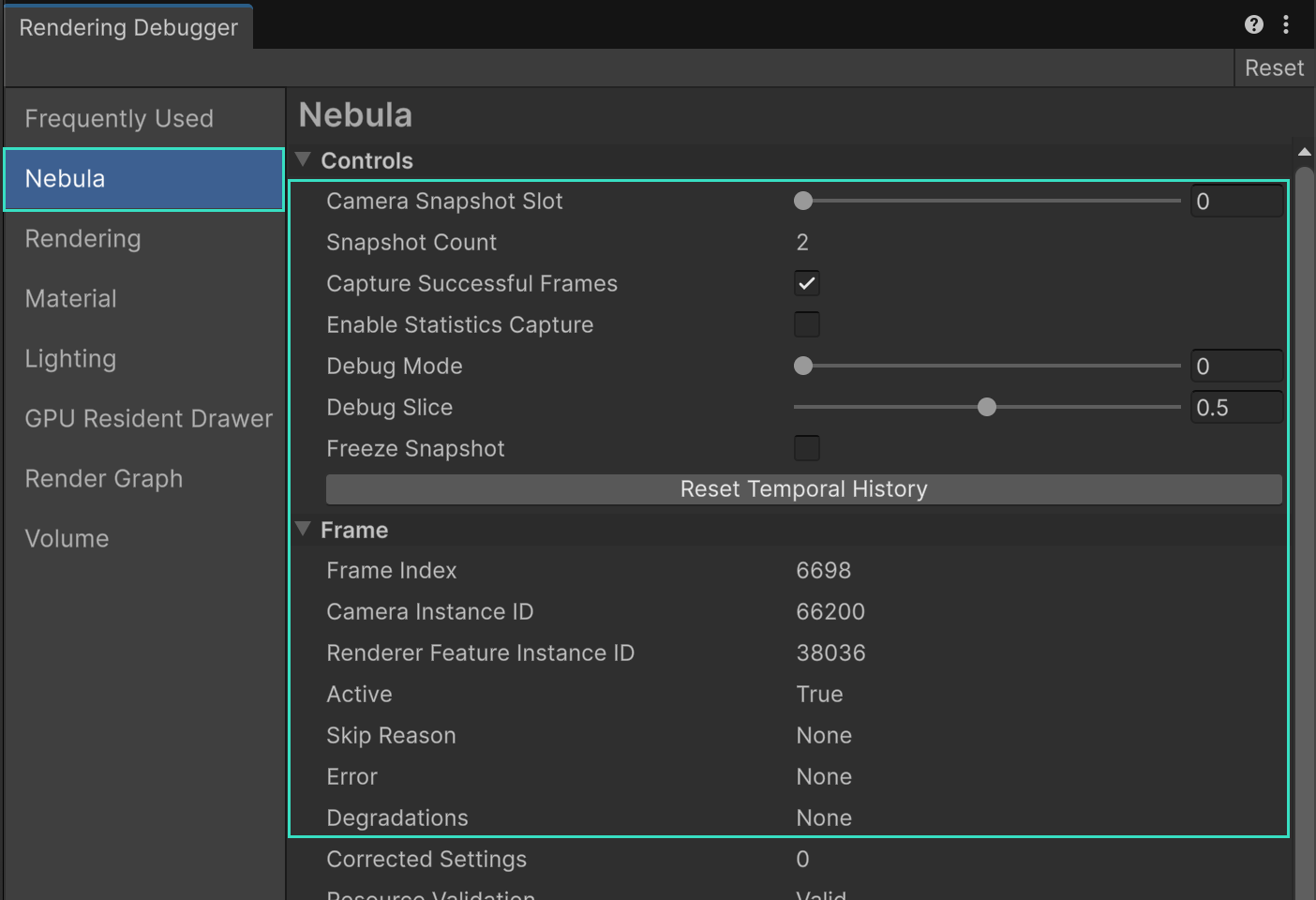
In the Editor and diagnostic Development builds, open Window > Analysis > Rendering Debugger > Nebula. The panel is the authoritative structured view of Nebula’s latest frame attempt for each camera.

Its sections include:

  • Controls: select camera/feature entries, retain successful snapshots, capture temporal statistics, override debug visualization, and reset selected camera history.
  • Frame: recorded/skipped outcome, skip reason, structured error, degradation flags, corrected settings, temporal path, history validity/reset reason, texture roles, jitter, and statistics.
  • Configuration: active global attenuation, typed global emission correction, local feature gates, and other frame behavior.
  • Scene Data: registered, visible, accepted, excluded, invalid, and unsupported lights and fogs, including the accepted noisy-fog count used to select the noise shader variant and a typed local emission correction.
  • Layout: froxel and cluster dimensions, formats, and memory estimate.
  • Profiling A/B Controls: development-only isolation toggles for fog, density, lights, shadows, cookies, local volumes, global and local noise together, temporal work, transparent publication, async compute, history, and jitter.

Successful diagnostic payloads are discarded unless capture is requested. Large scratch data is retained only when needed. Diagnostic UI, debug rendering, statistics, history probes, and snapshot retention are absent from release players.

2.11.2 Unity Profiler

Open Window > Analysis > Profiler and enable the Nebula Fog module. Its headline chart shows:

  • CPU
  • GPU
  • Froxels
  • Memory

The details view breaks down prepare/graph CPU work, delayed GPU prepare/resolve work, workload drivers, warnings, logical memory, and active configuration. Recording in the Unity Profiler automatically enables Nebula’s timing samplers; stopping recording disables the additional sampler recording.

GPU values come from delayed ProfilingSampler recorders. Nebula does not perform a synchronous GPU readback for timing, so a newly selected frame can report that GPU timing is not yet available. The CPU and GPU Usage modules remain the detailed timeline sources; search for Nebula. CPU roots and Nebula Fog / GPU / samples.

Unity’s ENABLE_PROFILER controls profiler markers, counters, aggregation, and the custom module independently of development diagnostics. The four combinations of diagnostics and profiler compilation are supported; neither publication path depends on the other.

2.12 Troubleshooting

2.12.1 Frame is not recorded

Inspect Rendering Debugger > Nebula > Frame and resolve the reported cause:

Cause Resolution
Missing renderer feature Add Nebula to the renderer data actually used by the camera.
Missing Shader Data or invalid render resource Reimport Nebula and ensure all packaged shaders and materials import successfully. New renderer features assign the provided Shader Data automatically.
Missing or inactive Volume component Add Volumetric Lighting to the blended profile, override Enabled, and turn it on.
Unsupported camera or Overlay Camera Use a base Game camera or Scene view. Render overlay-only content with an explicitly supported strategy.
Unsupported XR Use a non-XR camera; the current implementation does not claim XR support.
Unsupported compute, sampled 3D texture, 3D RenderTexture, core format, or color blend Use a supported device and graphics API. Optional R32F and R16F limitations appear as degradations instead of skips.
Invalid frame configuration Check camera clip planes, Start/Maximum Distance, resolution, froxel dimensions, and finite settings.

If fog renders without an optional stage, inspect Degradations in the Frame section. Missing or duplicate camera history selects non-temporal rendering; unsupported R32F disables conservative depth; unsupported R16F reduces reference history-miss sampling and omits responsive-light volumes. TerrainHeightFieldUnavailable applies each terrain-relative fog’s selected missing-terrain behavior.

2.12.2 Fog appearance is wrong

  • Excessive haze: lower Global Fog Density, reduce Maximum Distance, add Near Fade Distance, or adjust global height/noise settings.
  • Dim or black fog: verify Scattering Intensity, Global Scattering Albedo, light visibility, light color/intensity, shadows, exposure, and emission RGB/density when using emissive fog.
  • Weak shafts: use a positive Scattering Distribution, suitable shadowed lighting, and sufficient depth resolution.
  • Local-light source flicker: raise Inverse Squared Light Distance Bias Scale, then raise the history weights for static content if residual temporal variance remains.
  • Surface leaks: enable Conservative Depth and tune Surface Depth Bias.
  • Temporal trails: raise light responsiveness, enable the relevant rejection control, or explicitly reset history after a discontinuity.
  • Local volume does not appear: validate its transform determinant, camera layers, color, nonnegative density, fades, height/noise ranges, Excluded state, and renderer local-volume toggle.
  • Terrain-relative fog is missing: enable exactly one FogTerrainHeightField, assign valid Terrain tiles, inspect its typed error and the Rendering Debugger degradation, then verify the selected missing-terrain behavior.
  • Replacing volumes produce surprising overlap: assign unique Blend Priority values and check boundary/radial influence.
  • Transparent material stays unfogged: use a participating shader, enable its material toggle when applicable, choose a supported blend mode, and enable renderer publication.

2.12.3 Graphics API compatibility

Remove unsupported graphics APIs from the build target. For Android OpenGL ES, enable the Player setting that requires ES 3.1. Build and test each intended backend separately; a desktop import does not prove Metal or mobile OpenGL ES execution.

2.12.4 Compute shader variants in builds

Nebula strips scattering variants that the project’s saved URP configurations cannot use. It considers all saved URP assets as well as the build’s Graphics and Quality settings, so switching between saved pipeline assets and activating renderer features at runtime remains supported. Features enabled only by creating or modifying pipeline capabilities at runtime must also be represented in a saved pipeline configuration, as with URP’s own shader stripping. Standalone AssetBundle builds retain configuration-dependent variants because their destination player may use a different pipeline configuration. Platform-specific stripping still removes keyword states that URP does not select, including separate static soft-shadow quality states on macOS.

2.13 Current limitations

  • XR is unsupported.
  • Camera-stack overlay cameras do not run Nebula.
  • Only Directional, Point, and Spot lights contribute.
  • Stock URP transparent shaders do not receive depth-correct Nebula fog.
  • Multiply transparent blending, general refraction, and arbitrary scene-color transparent shaders require separate integration.
  • The included transparent Lit shader omits motion-vector passes.
  • Physical mobile and cross-version qualification remains incomplete; the repository’s mobile renderer is not configured with Nebula.
  • Individual quality groups have no public player-side setter; the supported runtime API applies complete presets.
  • Terrain fitting supports explicitly selected, axis-aligned, unscaled Unity Terrain tiles. Mesh ground capture and baked height-field assets are not provided.

2.14 Lit and shadow density

The Volume parameters DensityInLight and DensityInShadow are nonnegative multipliers, both defaulting to 1. They blend with Volume weights and affect the composed global and local medium, including additive and replacing local fog. A multiplier of 0 removes extinction, scattering, and emission in the corresponding region; values above 1 increase density. Fog albedo and anisotropy remain intact.

Main-light shadow visibility and cookie coverage interpolate between shadow and lit density. Soft shadows and shadow-distance fade produce gradual transitions. RGB cookies use alpha as coverage; alpha cookies use alpha and red-channel cookies use red. RGB tint and light brightness do not classify fog as shadowed. Disabling cookie sampling makes cookie coverage fully visible; disabling main shadows makes shadow visibility fully visible. An absent, excluded, or camera-filtered main light leaves density unchanged. Additional lights do not classify density, but their scattering is affected by the resulting medium.

Use Intensity to change incident-light scattering brightness independently of density and emission. Changes to these density controls use the existing scattering and extinction temporal response settings. Nonfinite values reaching frame resolution revert to 1 and are reported through the existing corrected-settings diagnostics.

2.15 Lit and shadow colors

LitColor, ShadowedColor, and ColorInfluence are blended Volume parameters. The colors accept finite, nonnegative HDR linear RGB values and ignore alpha. ColorInfluence defaults to 0 and is clamped to the range from 0 to 1. At zero, the normal ambient, main-light, and additional-light scattering calculation is unchanged.

Malformed serialized RGB or influence values disable artistic fog coloring and report the precise validation error in the Renderer Debugger and Nebula log.

When a participating main light exists, its shadow visibility and cookie coverage choose the blend between shadowed and lit artistic colors. At full influence, the result replaces all incident lighting, including additional-light contributions and anisotropic phase lighting. It still multiplies the composed global/local scattering coefficient, so albedo, extinction, additive fog, and replacing fog keep their normal behavior. Artistic fog coloring does not modify emission.

An absent, excluded, invalid, or camera-filtered main light bypasses artistic colors. Additional lights never choose the lit/shadowed state. Soft shadows, shadow-distance fading, and cookie coverage produce continuous color changes. Smooth Volume changes use the existing temporal reconstruction. Call VolumetricLightingRendererFeature.ResetTemporalHistory(camera) before an abrupt scripted color cut when the existing temporal transition is not appropriate.

Sample guides