 Zal Interactive
Recent Assets
com.zalinteractive.recent-assets
Pin your first asset
With Recent Assets installed in Unity 6.0 or newer, open Tools > Recent Assets. Keep the window beside the Project window so you can drag between them.
Drag an existing asset from the Project window into Recent Assets. Release it anywhere inside the window, including the empty space. The example below uses a Volume Profile; you can use a material, prefab, or saved scene instead.
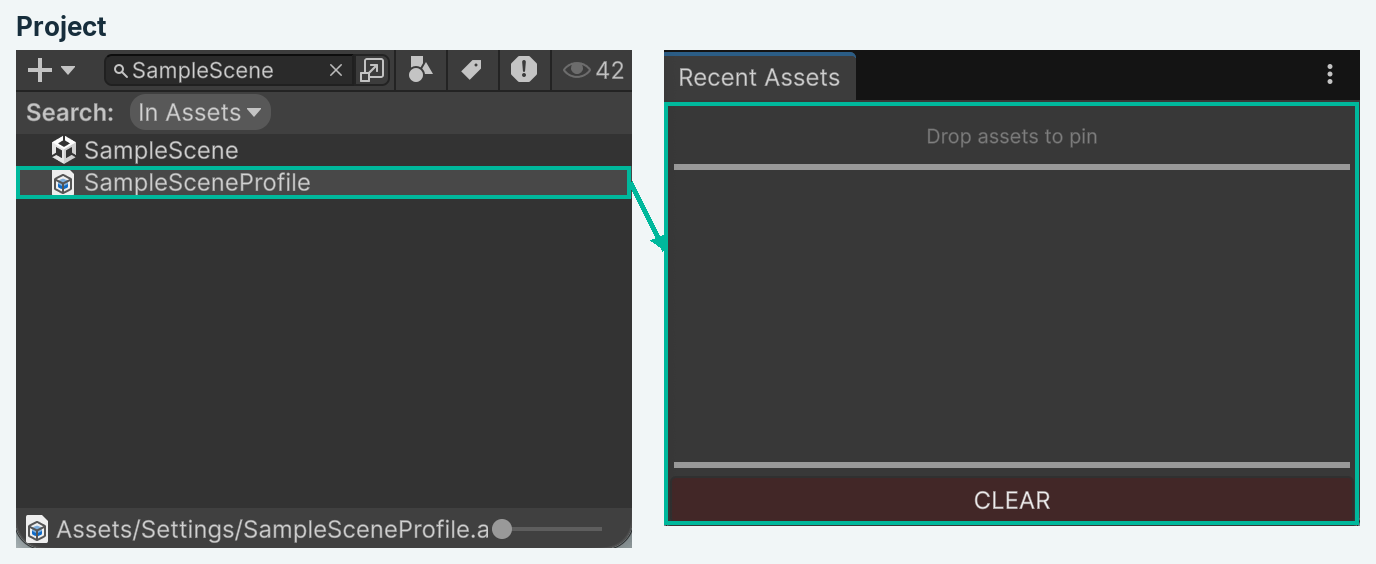
Figure 1
The asset appears in Pinned, above the divider. Click its name or the row area to open it with Unity’s standard Open Asset behavior. The green star identifies a pinned entry.
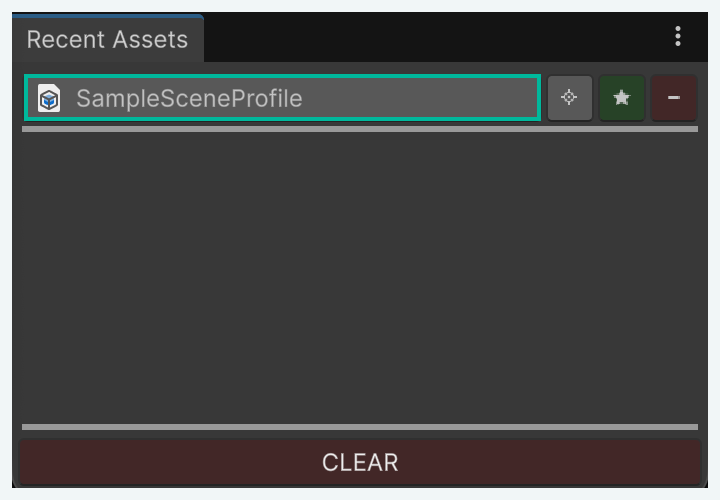
Figure 2
A saved scene or prefab that is already open has a disabled row. Its other row buttons remain available. Recent Assets is an Editor-only tool; it adds no components to your game.
Open or locate an asset
Click an asset’s name or row area to open it. Scenes open as scenes, prefabs open in Prefab Mode, and other assets use their associated Unity editor.
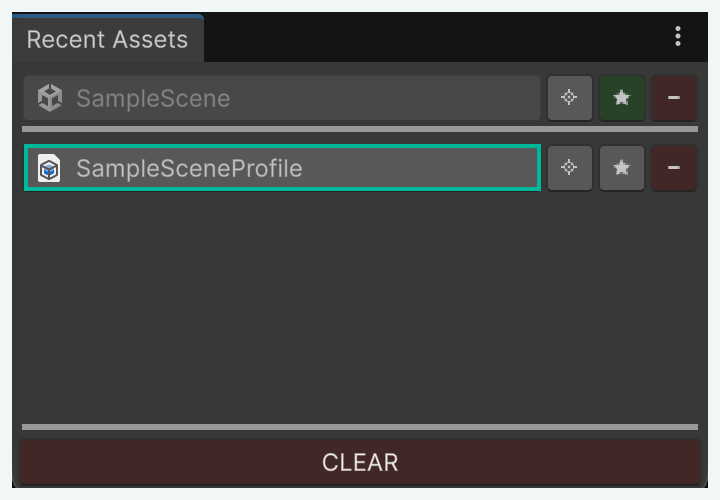
Figure 3
Click the Ping button immediately to the right of the asset name to highlight it in the Project window without opening it. Hover a row button to read its tooltip.
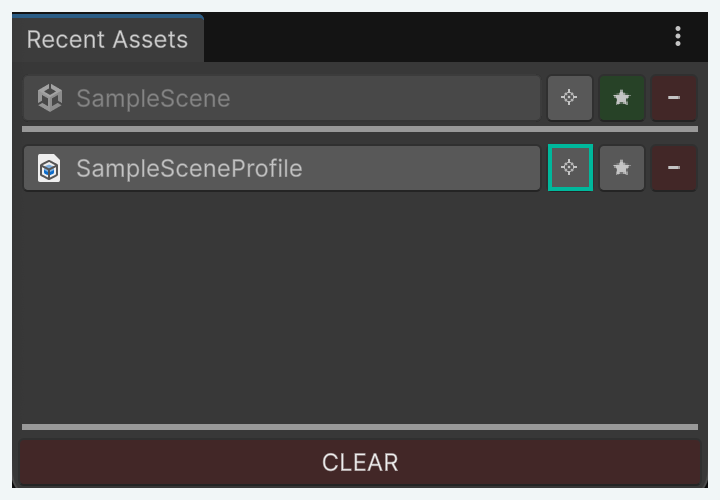
Figure 4
An open scene or Prefab Stage disables only that asset’s opening area. This avoids reopening it; Ping and the other row buttons still work.
Keep or remove entries
Click the star beside a recent asset to pin it. Click a pinned asset’s green star to unpin it and return it to Recent. Pinned assets stay above the divider and do not count toward the recent-entry limit.
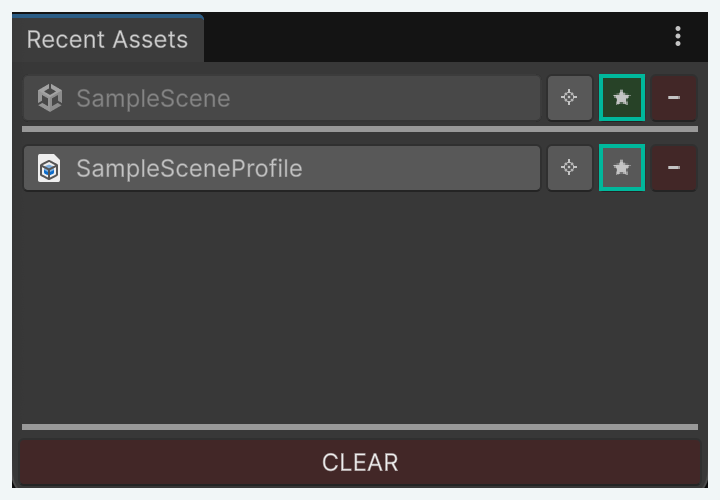
Figure 5
Click a row’s minus button (Remove) to remove that entry from the window. Click CLEAR at the bottom to empty Recent while preserving Pinned. Neither control deletes the project assets.
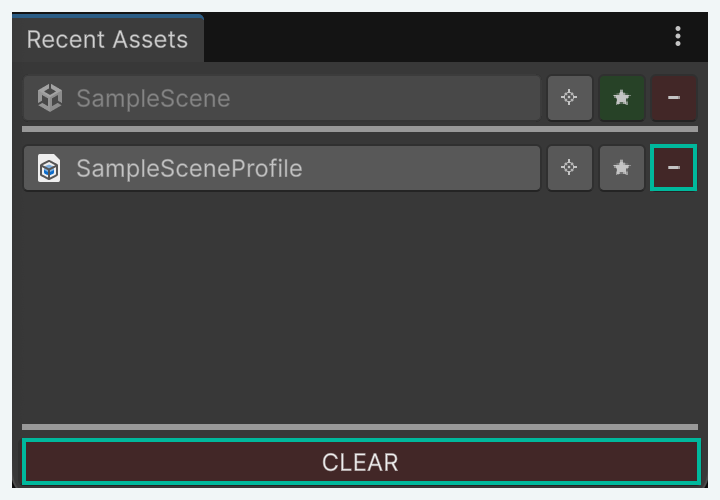
Figure 6
The lists are saved locally for this Unity project. Invalid entries are removed when the window refreshes. A removed asset can appear again after another tracked Editor event.
Understand automatic tracking
Recent Assets listens for supported Editor events only while its window is open. Merely selecting an asset, importing a file, or changing a file outside Unity does not add it to Recent.
Inspector edits recorded by Undo
An Inspector change can add the affected project asset when Unity records the change through Undo. The asset must have a path under Assets or Packages. Changes to scene-only objects without a project asset path do not create entries.
Saved scenes closing
Closing a saved scene outside Play Mode adds its asset to Recent. Opening a scene alone is not the event this package tracks. Unsaved scenes have no project asset path, and scenes closed during Play Mode are ignored.
Prefabs opening
Opening a prefab in Prefab Mode adds its asset when its Prefab Stage opens. The prefab must have a project asset path; a scene instance alone is not a separate asset entry.
What appears in the list
Accepted events put the asset first in Recent and move an existing recent entry back to the top. Assets already in Pinned stay there. Recent scrolls when its rows exceed the available space.
Banned Patterns excludes matching assets from these automatic events. A deliberate drag into the window bypasses that filter. Retention settings control the unpinned list; they do not limit Pinned.
Choose what Recent retains
Open Unity > Settings… on macOS or Edit > Preferences on Windows and Linux, then select Recent Assets.
Set Max Recent Assets to the number of unpinned entries you want to retain. The default is 10. The limit is applied when an asset is added to Recent; pinned entries are not counted.
Expand Banned Patterns, click +, and enter an AssetDatabase.FindAssets query, such as t:Texture2D, to exclude matching assets from future automatic tracking. Select an entry and click − to remove that exclusion. The default list is empty; the screenshot shows one example query.
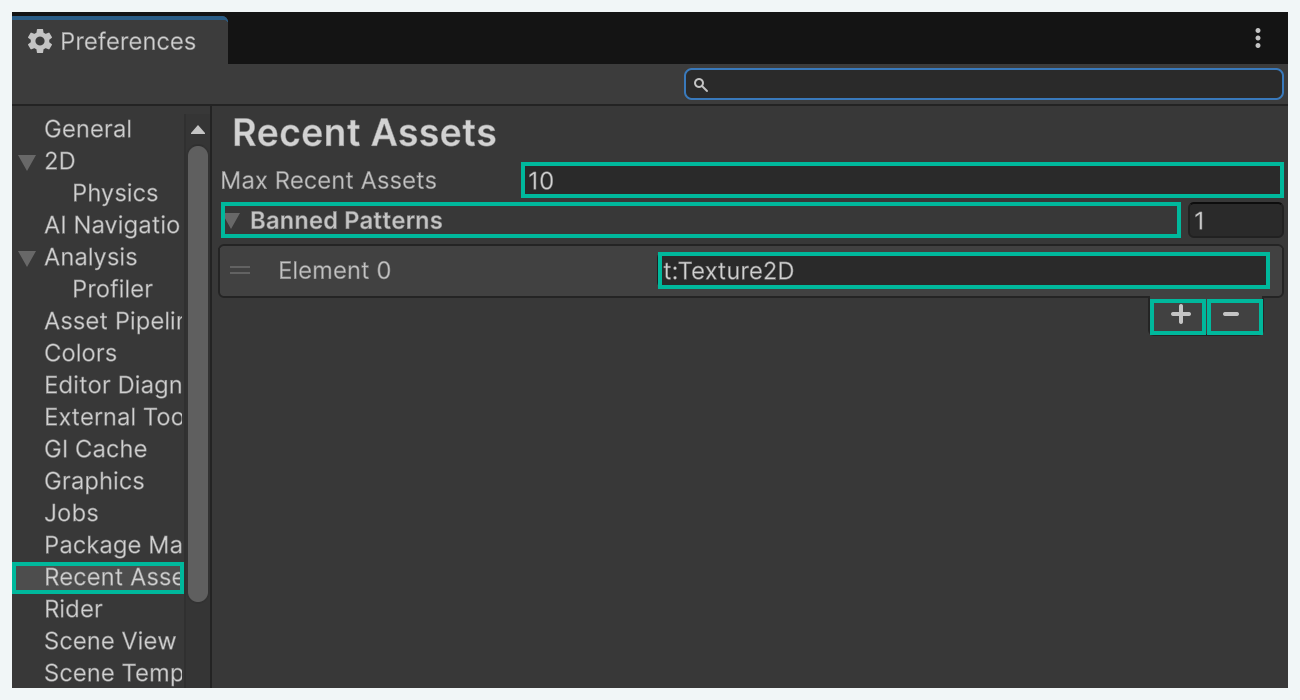
Figure 7
A Max Recent Assets value of 0 discards unpinned entries when an asset is added; negative values are read as 0. Lowering the setting does not immediately trim the existing list.
Exclusions do not remove existing entries. The window reads the exclusion list when it opens; close and reopen Recent Assets after changing these queries.
These settings use Unity’s user-level Editor preferences; the recent and pinned lists are stored separately for each project. Neither is serialized into scenes or included in a Player build.
Find out why an entry is missing
The window starts empty
The list reflects events observed while the window was open; it is not a record of everything previously opened in the project. Pinning an existing asset is a direct way to make the first entry. The automatic tracking page explains which Editor events populate Recent.
An edited asset does not appear
Possible reasons include a change not recorded through Undo, an object without a project asset path, a matching exclusion query, or a recent-entry limit of zero. An asset already pinned stays in the top section instead of appearing twice. The settings page explains the two preference fields and their special values.
A scene or prefab does not appear
Scenes enter Recent when they close outside Play Mode; prefabs enter when their Prefab Stage opens. An unsaved scene cannot be tracked because it has no asset path. Both types are subject to the same exclusions as other automatically tracked assets.
CLEAR leaves entries visible
CLEAR intentionally preserves Pinned. The row controls provide separate ways to unpin an entry or remove it without deleting the project asset.
An entry disappears later
A new accepted event can evict the oldest recent entry when the limit is exceeded. Invalid asset references are removed when the window refreshes. Pinned entries are exempt from the recent-entry limit, but still require an existing project asset.