 Zal Interactive
Playmode Persistence
com.zalinteractive.playmode-persistence
1 Quick start
- Save the scene containing the component you want to track.
- Open Tools > Playmode Persistence and drag a component from the Inspector or a GameObject from the Hierarchy into the panel. A GameObject adds only its own components, not its children. New components use the last enabled mode (Review by default); already tracked components keep their mode. You can also choose Review after Play or Auto Apply after Play in the component’s Inspector persistence control.
- Enter Play mode, adjust the component, then stop Play mode.
- Open Tools > Playmode Persistence.
- Expand the scene, GameObject, and component groups. Select values and use Apply (n) to apply selected safe changes, or Discard (n) to remove selected pending changes. Group checkboxes toggle all descendant values.
- Resolve red conflict rows individually with Keep Playmode Value or Discard Playmode Value. The current Edit-mode value is shown alongside the baseline and captured values.
Save your scene after applying changes. Applied values support Unity Undo.
See the package manual and detailed sections below for tracking and resolving issues.
2 Zal Playmode Persistence
Zal Playmode Persistence preserves selected serialized component changes made during Play Mode. Each existing scene component can be ignored, queued for review, or applied automatically after Unity returns to Edit Mode.
The package is entirely Editor-only. It adds no runtime assembly, component, initialization hook, scripting symbol, or Player-build dependency, and it never saves a scene automatically.
2.1 Installation
Install the package from a Git URL or a local folder through Unity Package Manager. The package identifier is com.zal.playmode-persistence, and the recommended minimum Unity version is 2022.3.
For a local checkout, select Window > Package Manager > + > Add package from disk, then select this package’s package.json.
2.2 Quick start
- Save the scene. Unsaved scenes cannot provide durable component identities.
- Select a scene GameObject and find the persistence control below a component’s normal Inspector header.
- Choose Review after Play or Auto Apply after Play. Enabling a component for the first time defaults to Review.
- Enter Play Mode and let the component reach the state you want to keep.
- Exit Play Mode.
- For Review changes, use Tools > Playmode Persistence to select properties and apply or discard them.
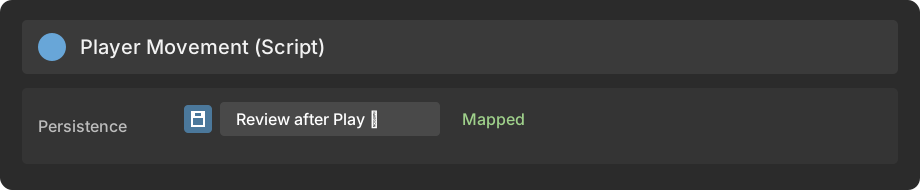
The icon toggles between Off and the last enabled mode. Its menu changes the mode or opens the persistence window. Compatible multi-object selections show mixed values and update every eligible selected component.
2.3 Modes
| Mode | Behavior |
|---|---|
| Off | Ignores the component. This is the default. |
| Review after Play | Captures final serialized Play Mode changes and queues them for selective review. |
| Auto Apply after Play | Applies safe property changes on return to Edit Mode. Conflicts and failures remain available for review. |
The package captures the component’s final serialized state at the moment Play Mode exits. It intentionally does not distinguish Inspector edits from changes made by scripts, custom editors, animation, initialization, or other systems. Only serialized properties whose final values differ are eligible; unrelated properties are not overwritten.
2.4 Persistence window
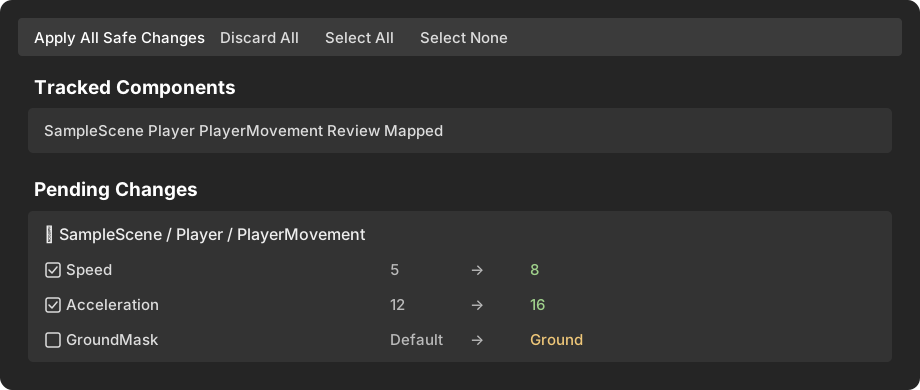
The window lists tracked components and pending property differences. Changes can be selected, applied, kept at their current Edit Mode values, or discarded per property and per component. Filters are available for scene, restore status, and conflicts.
Before any delayed apply, the package compares the current Edit Mode value with the stored baseline. A different value is a conflict. Auto Apply never overwrites a conflict; the user can keep the current Edit value, force the captured Play value, or leave the item pending.
Apply All Safe Changes creates one Undo group. Applying one component creates one component-level Undo operation. Discarding captured data does not modify objects and creates no Undo entry.
2.5 Prefabs and references
Scene prefab instances receive ordinary instance overrides. The package does not open, save, or modify the source prefab asset, and Prefab Stage editing is outside the current scope.
Asset references are stored by asset GUID and local file ID. References to indexed, pre-existing scene objects are stored by their Edit Mode GlobalObjectId. A reference to a runtime-created object, deleted asset, missing scene, or incompatible type is reported and left unchanged; it is never silently replaced with null.
2.6 Compatibility
| Configuration | Initial release |
|---|---|
Serialized fields on custom MonoBehaviour components |
Supported |
| Serialized fields on built-in components | Supported |
| Component enabled state | Supported when serialized |
| Transform local values | Supported |
| RectTransform local and layout values | Supported |
| Inactive GameObjects and disabled components | Supported |
| Scene prefab instances | Supported as instance overrides |
| Multiple saved scenes loaded before Play Mode | Supported |
| Asset references | Supported |
| References to pre-existing objects in indexed scenes | Supported |
| Domain reload enabled or disabled | Supported |
| Scene reload enabled or disabled | Supported |
| Enabling persistence during Play Mode | Supported for mapped, pre-existing components |
| Runtime-created components or GameObjects | Not supported |
| Dynamically loaded scenes without an Edit Mode counterpart | Not supported |
| Components destroyed or unloaded before Play Mode exits | Final state cannot be captured |
| Adding, removing, or reordering components | Not supported |
| Creating, deleting, reparenting, or reordering GameObjects | Not supported |
| GameObject name, active state, tag, or layer | Not included; component-only scope |
| Static, nonserialized, and computed values | Not supported |
| Prefab assets and Prefab Stage objects | Not supported |
Acyclic [SerializeReference] trees |
Supported |
Shared or cyclic [SerializeReference] graphs |
Not supported |
| Unsaved scenes | Not supported; save before entering Play Mode |
The package contains only an assembly restricted to the Unity Editor, so its behavior is independent of Player platform. It adds no footprint to mobile, Web, PC, or console builds.
2.7 Storage and recovery
Tracked modes and user preferences are stored locally in UserSettings/ZalPlaymodePersistence.asset. Active sessions and pending reviews are stored atomically under Library/ZalPlaymodePersistence/ and survive assembly reloads and Editor restarts.
The package can recover a session only after its final snapshot was written while exiting Play Mode. A hard Editor crash before that transition cannot recover values that were never captured.
The workflow, serialization, compatibility, and troubleshooting sections below provide the detailed guidance.
3 Workflow
3.1 Track a component
Save every scene that contains a component you want to track. In the Inspector header control, choose Review after Play or Auto Apply after Play. The choice is stored per user and does not dirty the scene or prefab.
The header reports Mapped in Play Mode when the component has a verified Edit Mode counterpart. Runtime Only means the object or component was created during Play Mode. Unresolved means the identity could not be validated safely. Runtime-only and unresolved components are never restored.
3.2 Capture
The package indexes identities once while exiting Edit Mode. It does not continuously scan scenes or snapshot properties every frame. Immediately before Play Mode objects are destroyed, it snapshots only enabled tracked components.
The final serialized state is authoritative regardless of which system changed it. Structural changes such as creating objects, reparenting transforms, or adding components are outside the component-only scope.
3.3 Review
After returning to Edit Mode, Review changes appear in the persistence window. Expand a component to compare baseline and Play values, select individual properties, and choose Apply Selected, Apply Play, Keep Edit, or Discard.
If the current Edit value no longer matches the stored baseline, the property is marked as a conflict and its current value is shown. It remains pending until explicitly resolved or discarded.
3.4 Auto Apply and Undo
Auto Apply immediately applies only resolvable, non-conflicting properties. Anything unsafe remains in Review. Serialized changes participate in Unity Undo and prefab-instance overrides. Apply All Safe Changes is collapsed into one Undo group; no operation automatically saves a scene.
4 Serialization and references
Snapshots are typed property trees read through SerializedObject and SerializedProperty. Top-level serialized properties are independent restore units. Nested classes and structs retain child trees, while each array or List<T> is one unit so element paths cannot become invalid after resize or reorder.
Supported values include integer and floating-point types, booleans, strings, characters, enums, layer masks, vectors, quaternions, colors, rectangles, bounds, animation curves, gradients, Hash128, nested serializable values, arrays, lists, object references, and acyclic [SerializeReference] trees.
The package skips the complete affected top-level property when it encounters a fixed buffer, an unknown native property type, a missing managed-reference type, a shared or cyclic managed-reference graph, or an unresolved runtime-only reference. Unsupported values are reported and are not replaced with defaults or null.
Unity identity and ownership fields are excluded, including script identity, owning GameObject, hide flags, prefab linkage, and Transform parent/child relationships. Transform capture is limited to local position, rotation, and scale. RectTransform capture additionally includes anchors, pivot, size delta, and anchored position.
Asset references use the asset GUID and local file ID. Scene references use the Edit Mode GlobalObjectId of an indexed object. Resolution validates the expected type before writing.
5 Compatibility
The recommended minimum Editor is Unity 2022.3. The package is developed and validated against Unity 6000.0, 6000.3, and 6000.5.
All code belongs to Zal.PlaymodePersistence.Editor, whose assembly definition includes only the Editor platform. There is no Runtime directory or runtime assembly. Player builds on mobile, Web, PC, and console therefore receive no package assembly or initialization code.
Domain reload and scene reload can each be enabled or disabled. Important session state is stored under Library, and Editor subscriptions are installed idempotently, so all four combinations are supported.
Only saved scenes loaded before Play Mode are indexed. Additive saved scenes are supported. Multiple simultaneously loaded instances of the same scene asset are rejected because their durable scene identity is ambiguous. Dynamically loaded scene instances that had no Edit Mode counterpart are not eligible.
Scene prefab instances are supported as instance overrides. Prefab assets, Prefab Stage objects, source-prefab application, and automatic scene saving are deliberately excluded.
6 Troubleshooting
6.1 The header says Runtime Only or Unresolved
Runtime Only indicates that the object or component was created after entering Play Mode. Unresolved indicates that the saved scene, hierarchy sibling path, component slot, same-type ordinal, or expected component type could not be validated. The package does not guess a replacement target.
Save unsaved scenes before entering Play Mode. If scripts were renamed or removed, restore the script or discard the stale pending item.
6.2 A property was not captured
Expand the pending component and review its diagnostics. Runtime-created references, fixed buffers, unsupported native types, corrupted managed-reference types, and shared or cyclic managed-reference graphs cause the complete top-level property to be skipped safely.
6.3 Auto Apply left a pending item
The target or reference could not be resolved, the property changed type, the current Edit value conflicted with the baseline, or OnValidate altered the requested value. Review the displayed reason and choose whether to keep Edit or force the Play value.
6.4 Pending data survived a restart
This is expected. Pending changes live in Library/ZalPlaymodePersistence/PendingChanges.json. Use Discard All or Clear Stale in the persistence window when the data is no longer needed.
If a session file is corrupted, the package logs a recoverable error and keeps the Editor operational. It never substitutes corrupted values into a component.
6.5 The Editor crashed during Play Mode
Final values are written while Play Mode exits. A hard crash before that transition cannot recover values that were never captured.