 Zal Interactive
Interactions
com.zalinteractive.interactions
Make your first object usable
Interactions finds the object the player is looking at, tells your UI what pressing interact would do, and runs the tap or hold when the player presses the button. It has no input, UI or networking code of its own, so it fits any input setup and any netcode.
Create a script for the object, such as a lever, and implement
IInteractable. Return a prompt fromGetInteractionand do the work inInteract. Prompts are Unity LocalizationLocalizedStringvalues.using UnityEngine; using UnityEngine.Localization; using Zal.Interactions; public sealed class Lever : MonoBehaviour, IInteractable { [SerializeField] LocalizedString _prompt; public Interaction GetInteraction(Interactor interactor) => Interaction.Tap(_prompt); public void Interact(Interactor interactor) { // Play the lever animation and apply its effect. } }Add the script to a GameObject that has a collider, or whose child has one, and assign a localized string to Prompt.
Add Interactor to your player and assign the player’s camera to Origin. The Interactor aims along the camera’s forward direction.
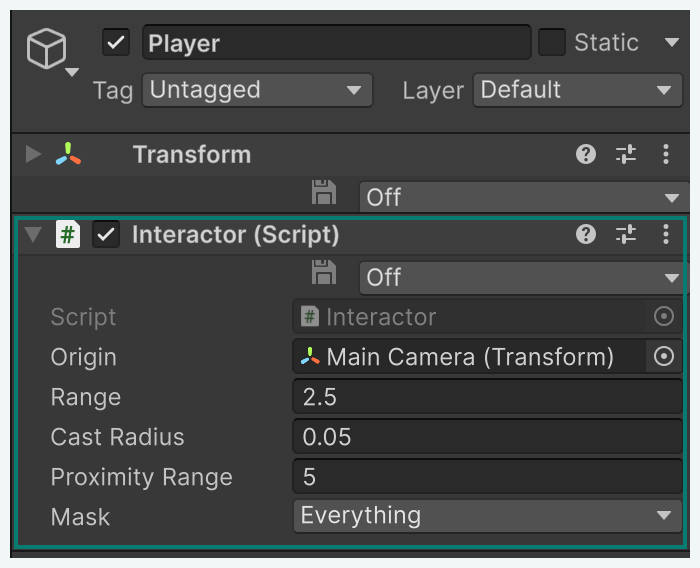
Figure 1
Call
BeginInteract()when your interact button is pressed andEndInteract()when it’s released. With the Input System, call them from the action’sstartedandcanceledcallbacks.
Enter Play Mode and look at the lever from closer than 2.5 units. Interactor.Focused now returns the lever, and pressing the button calls its Interact. To show the prompt on screen, see Show prompts and progress.
Choose what an object offers
The Interactor calls GetInteraction every frame while the player aims at the object, so return what the object offers right now. The object takes focus when it returns anything other than Interaction.None.
Interaction.Tap(prompt)runsInteractas soon as the player presses the button.Interaction.Hold(prompt, seconds)runsInteractafter the player keeps the button pressed for that many seconds. Releasing the button or looking away cancels the hold and resets its progress.Interaction.Unavailable(prompt)shows a prompt but does nothing when pressed. Use it to explain why an object can’t be used yet, such as a locked door.Interaction.Nonemakes the Interactor ignore the object, as if it weren’t interactable.
public Interaction GetInteraction(Interactor interactor)
{
    if (_isOpen)
    {
        return Interaction.None;
    }

    return _isLocked ? Interaction.Unavailable(_lockedPrompt) : Interaction.Hold(_openPrompt, 1.2f);
}
Note: Return the same LocalizedString instance every frame. Interactions compare prompts by reference, so a new instance every frame raises FocusChanged every frame and cancels any hold.
Several interactables on one object
One GameObject can carry several IInteractable components, such as a character to talk to and a body to search. The Interactor tries them in component order and focuses the first one that returns an interaction. Move a component up in the Inspector to give it priority.
Tune how the player aims
Select the player and adjust the Interactor settings.
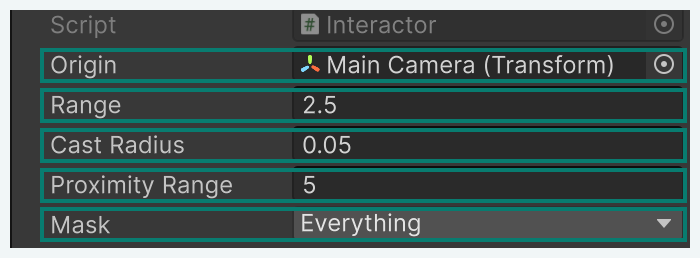
Figure 2
Origin: Where the aim starts. Its forward direction is the aiming direction, so assign the player’s camera. Required.
Range: How far, in world units, the player can reach an object. The default is 2.5.
Cast Radius: The thickness of the aim. The Interactor casts a sphere of this radius instead of a thin ray. The default is 0.05. Larger values make small objects easier to hit, but can pick an object beside the one at the center of the screen.
Proximity Range: How far away objects start receiving proximity feedback. The default is 5. Set it to 0 to turn proximity off. See Fade markers in as the player approaches.
Mask: The layers the aim and proximity checks see. Trigger colliders are included. Leave out layers with invisible volumes that would block the aim.
The nearest collider the aim hits decides focus, so walls and objects in front block the ones behind them. Colliders in the player’s own hierarchy are skipped.
Fade markers in as the player approaches
Implement IProximityReceiver on an interactable to react before the player can use it, such as fading in a world-space marker.
public sealed class Crate : MonoBehaviour, IInteractable, IProximityReceiver
{
    [SerializeField] CanvasGroup _marker;

    // GetInteraction and Interact as in the Quick Start.

    public void OnProximityChanged(float proximity01) => _marker.alpha = proximity01;
}
The value is 0 at Proximity Range and rises to 1 at Range, where the player can interact. It’s measured from the Interactor’s Origin to the receiver’s transform. The Interactor updates proximity ten times per second and only calls a receiver when its value changes. Leaving the range or disabling the Interactor reports 0.
The receiver must sit on the same GameObject as an IInteractable that has a collider within Proximity Range.
Show hold progress on the object
Implement IHoldProgressReceiver to show hold progress in the world, such as a valve turning while the player holds the button. OnHoldProgress receives a value from 0 to 1. It reaches 1 when the hold completes, then returns to 0. It also returns to 0 when the hold is cancelled or focus moves away.
Show prompts and progress
Your HUD reads the Interactor’s state and listens to its events. Interactions doesn’t draw any UI, so show the prompt and the input glyph for the player’s active device yourself.
FocusChangedis raised when the focused object or its interaction changes. ReadFocusedandFocusedInteractionfor the new state.HoldProgressChangedis raised with the hold progress from 0 to 1.HoldProgressreturns the current value.Interactedis raised after an object’sInteractruns. Use it for player-side reactions, such as a hand animation.
using TMPro;
using UnityEngine;
using UnityEngine.UI;
using Zal.Interactions;

public sealed class InteractionPrompt : MonoBehaviour
{
    [SerializeField] Interactor _interactor;
    [SerializeField] TMP_Text _label;
    [SerializeField] Image _holdFill;

    void OnEnable()
    {
        _interactor.FocusChanged += Refresh;
        _interactor.HoldProgressChanged += ShowProgress;
        Refresh();
    }

    void OnDisable()
    {
        _interactor.FocusChanged -= Refresh;
        _interactor.HoldProgressChanged -= ShowProgress;
    }

    void Refresh()
    {
        var interaction = _interactor.FocusedInteraction;
        _label.gameObject.SetActive(interaction.IsAvailable);
        if (interaction.IsAvailable)
        {
            _label.text = interaction.Prompt.GetLocalizedString();
        }

        _holdFill.gameObject.SetActive(interaction.IsHold);
    }

    void ShowProgress(float progress) => _holdFill.fillAmount = progress;
}
Check FocusedInteraction.IsActionable to hide the button glyph for Interaction.Unavailable prompts, which can’t be pressed.
Use interactions in a networked game
The Interactor only runs on the local machine. Enable it only on the player object the local client owns, and disable it on other players’ copies.
Interact runs on that client. To change shared state, send your own request to the server from Interact, such as a server RPC. The server must check the request again, including the player’s distance and the object’s current state, because it can’t trust the client’s focus result.
public void Interact(Interactor interactor)
{
    PlayOpenAnimation();
    OpenServerRpc();
}
Fix common problems
Nothing gets focused
Check these in order:
- Select the player and confirm Origin is assigned on the Interactor. Without it, the Console shows an error every frame.
- Confirm the object has a collider on itself or a child, and that the collider’s layer is included in Mask.
- Move closer than Range. The distance is measured from Origin, not from the player’s feet.
- Check that
GetInteractiondoesn’t returnInteraction.Nonein the object’s current state.
A different object is focused
The aim focuses the nearest collider it hits. An invisible collider, a trigger volume or a larger collider in front of the object wins. Move that collider to a layer outside Mask.
A hold never completes
The hold restarts whenever focus changes. Return the same LocalizedString instance from GetInteraction every frame, and call EndInteract() only when the button is released.
Proximity never reaches the object
IProximityReceiver must be on the same GameObject as an IInteractable, with a collider on a layer in Mask within Proximity Range. Confirm Proximity Range is greater than 0.