 Zal Interactive
Debug Menu
com.zalinteractive.debug-menu
Register your first option
Use a Unity 6 project with Zal UI 0.4.0, Autofac, the Input System, and TextMesh Pro Essential Resources already installed. The supplied prefabs reference the standard LiberationSans SDF font. The package does not activate itself.
In the bootstrap that owns your UI container, install the menu with DefaultDebugMenuConfiguration from Runtime/Assets. Keep the existing project-owned UI root, scaler, and EventSystem configuration.
var builder = new ContainerBuilder();
var uiError = builder.AddZalUI(uiConfiguration);
var menuError = builder.AddDebugMenu(menuConfiguration);
if (uiError.HasValue || menuError.HasValue)
    return; // Report the returned configuration error.

var container = builder.Build();
var menu = container.Resolve<IDebugMenu>();
var result = menu.Register(new DebugToggle
{
    Id = "player.god-mode", Name = "God Mode", Category = "Player",
    Read = () => player.Invulnerable,
    Write = value =>
    {
        player.Invulnerable = value;
        return Optional<DebugOperationError>.Empty;
    },
});
if (result.IsSuccess) registrations.Add(result.Value);
else Debug.LogError(result.Error);
var openError = await menu.ShowAsync();
Use the Zal.DebugMenu, Zal.UI.Autofac, Zal.Common, and Autofac namespaces. Retain registration tokens and dispose them with their owner. Dispose the container when its UI lifetime ends.
Tap the God Mode row to change the game value. This captured catalog contains additional demonstration options.
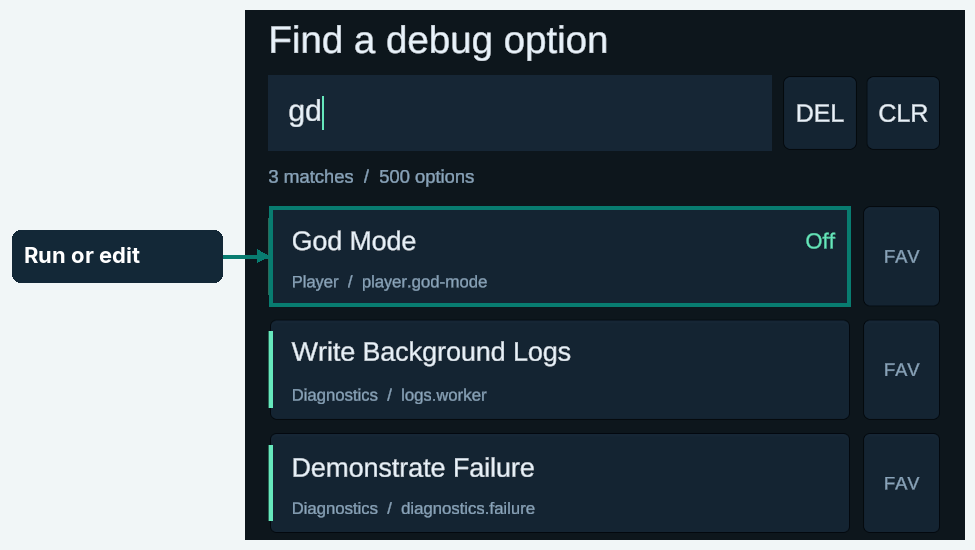
Figure 1
Open and find an option
Call ShowAsync() from your own debug entry point. When the floating launcher is enabled in your configuration, tapping DEBUG opens the same menu.
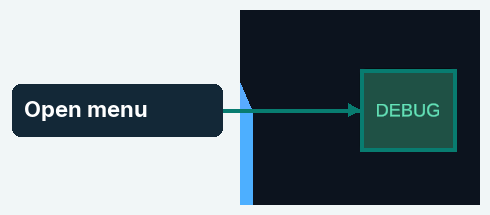
Figure 2
With no available favorites or recent options, the menu opens the built-in keyboard. Type an abbreviation such as gd; then tap the matching row. Matching searches the name, category, aliases, and stable ID.
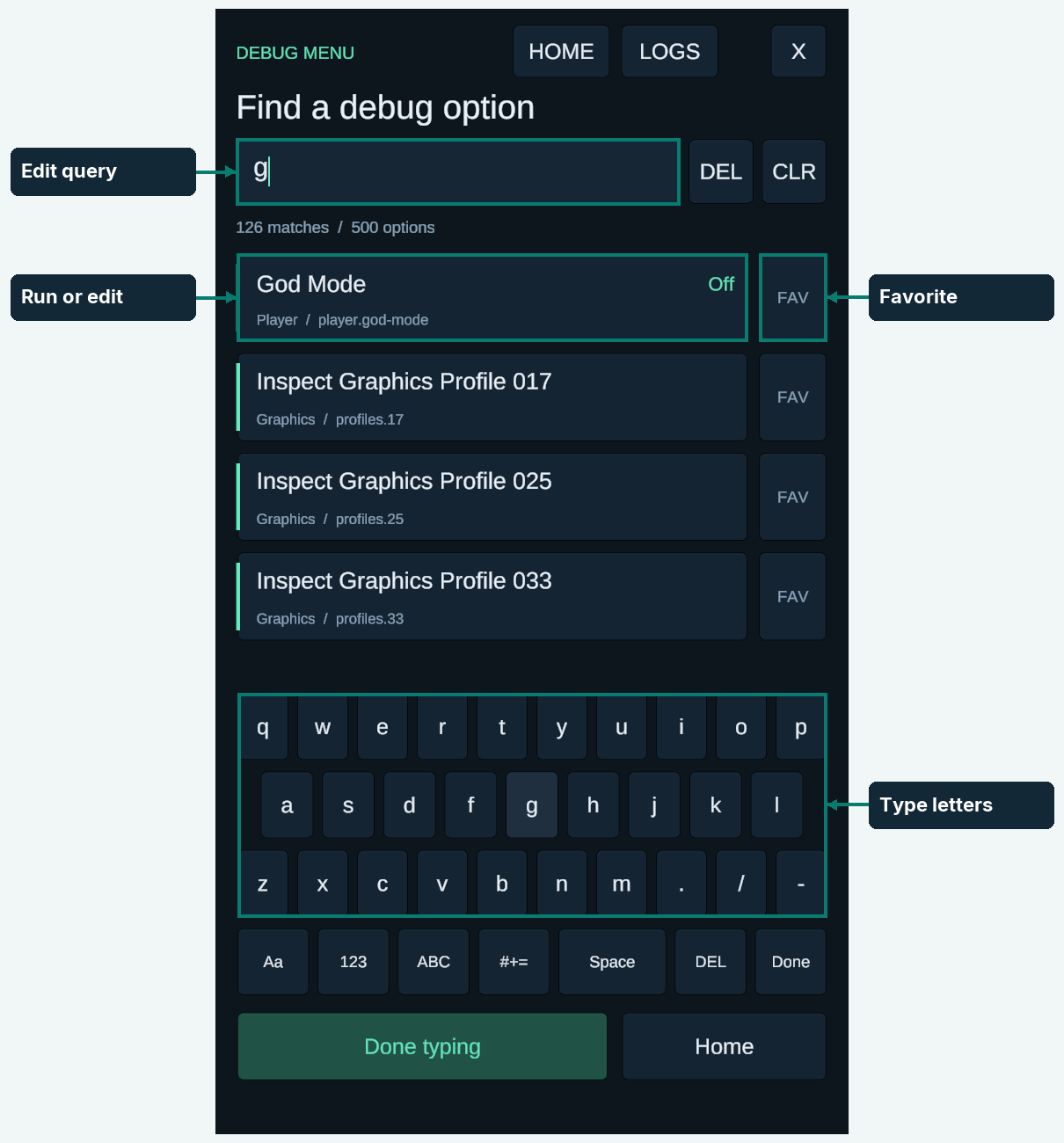
Figure 3
Open, move, and close
Tap the enabled DEBUG launcher to open the menu. Drag it to a convenient position inside the safe area and release. Its position lasts for this launcher instance; configuration supplies the next initial position.
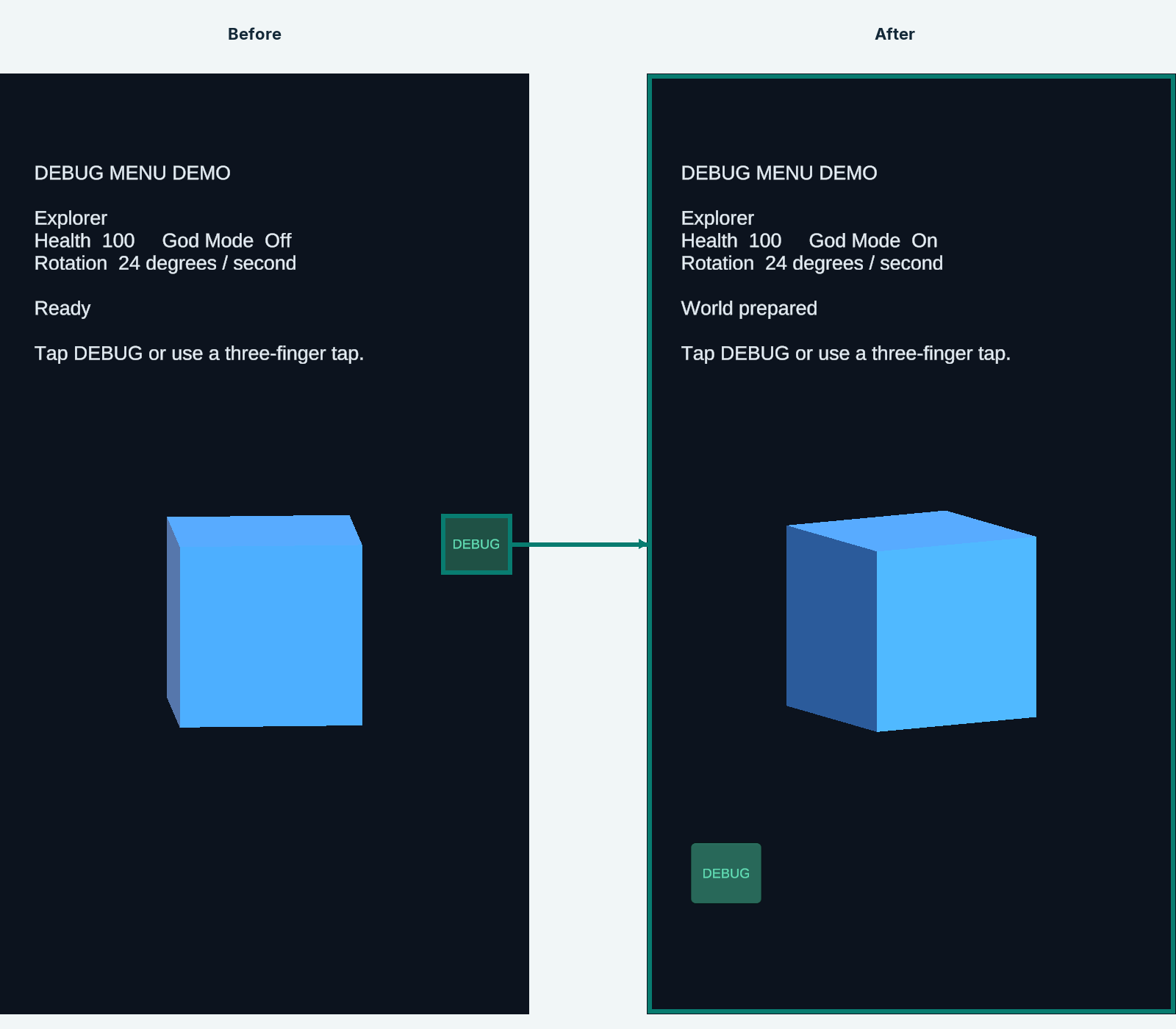
Figure 4
A configured three-finger tap opens or closes the menu when all three fingers lift within half a second. Your own input can call ToggleAsync() at any time.
Use HOME for shortcuts, LOGS for the session log viewer, or X to close. Escape or the controller Back button returns from a subpage, then closes from Home.
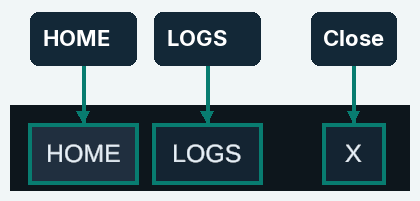
Figure 5
Keep frequent options close
Tap a row to run its action or edit its value. Tap FAV to add or remove that option from favorites; a green button means it is already a favorite.
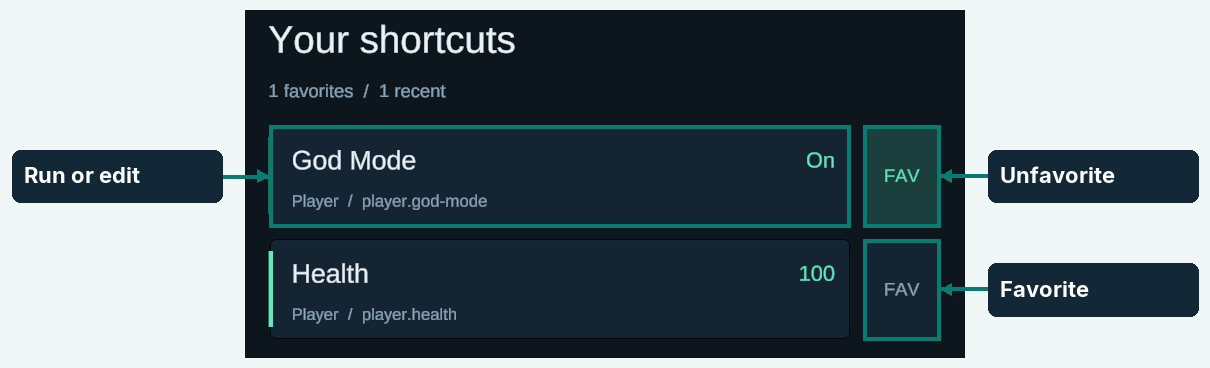
Figure 6
Home places available favorites first, followed by successfully used options that are not already favorites. The default history retains 20 distinct IDs. Home scrolls when its rows exceed the available space.
Tap Search all options to search the entire registered catalog. This button stays below the scrolling list.

Figure 7
Favorites and recent IDs persist in PlayerPrefs. Temporarily unavailable options stay saved but do not appear. Game values and logs are not saved by this package.
Narrow a large catalog
Type letters in order: gd matches God Mode. Search ignores case and includes categories, aliases, and IDs. Exact and contiguous matches rank ahead of loose abbreviations; spelling mistakes are not corrected.
Tap a result to run or edit it, or use its separate FAV button. While many matches remain, the best results appear above the keyboard.
Figure 8
Use the space you have
When all positive matches fit in the available keyboard-hidden area, the keys hide automatically. A query with no matches keeps the keyboard visible so you can correct it.
Tap the query field to reopen the keys while keeping your text. This explicit editing mode keeps the keyboard open until you finish typing.
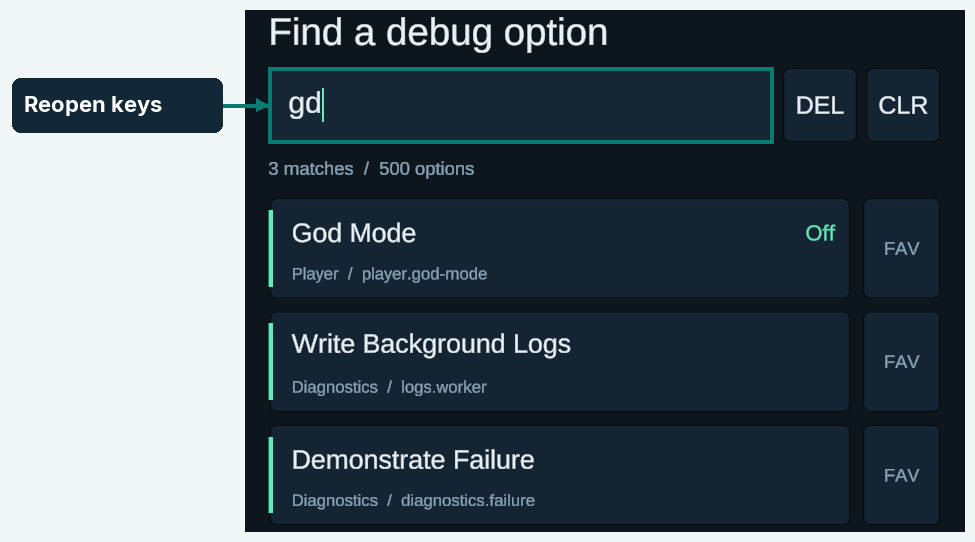
Figure 9
The Edit search button also reopens the keys. In landscape, the keyboard uses the right side and results use the left. Row capacity follows the current safe area and the host UI scale.

Figure 10
Use the built-in keyboard
Tap the text field to place the caret. DEL removes the selection or the character before the caret; CLR removes all text. These controls remain available when the keyboard is hidden.
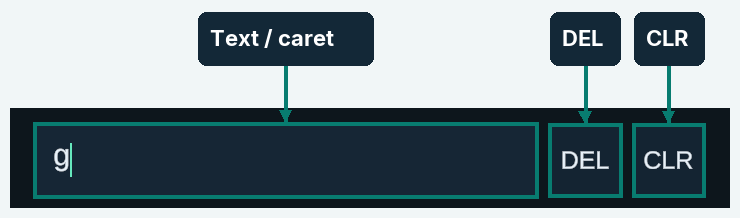
Figure 11
Use Aa to change letter case, 123 for numbers, ABC for letters, and #+= for symbols.
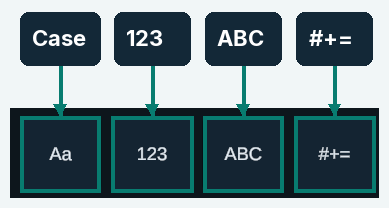
Figure 12
Finish typing
Use Space for a space, the keyboard DEL for backspace, and Done to hide the keyboard. Done typing below the keys performs the same completion action.
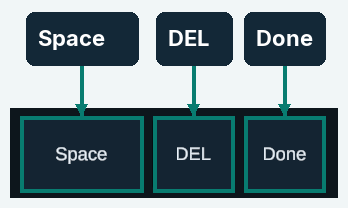
Figure 13

Figure 14
The built-in layout uses Latin letters, numbers, and symbols. It does not open the native mobile keyboard.
Edit numbers and text
Open an integer, float, or text option from its row. Edit the draft, then tap Apply to call the game’s write callback. Tap Cancel to leave the game value unchanged. Numeric editors start on the number layout; floats use a decimal point.
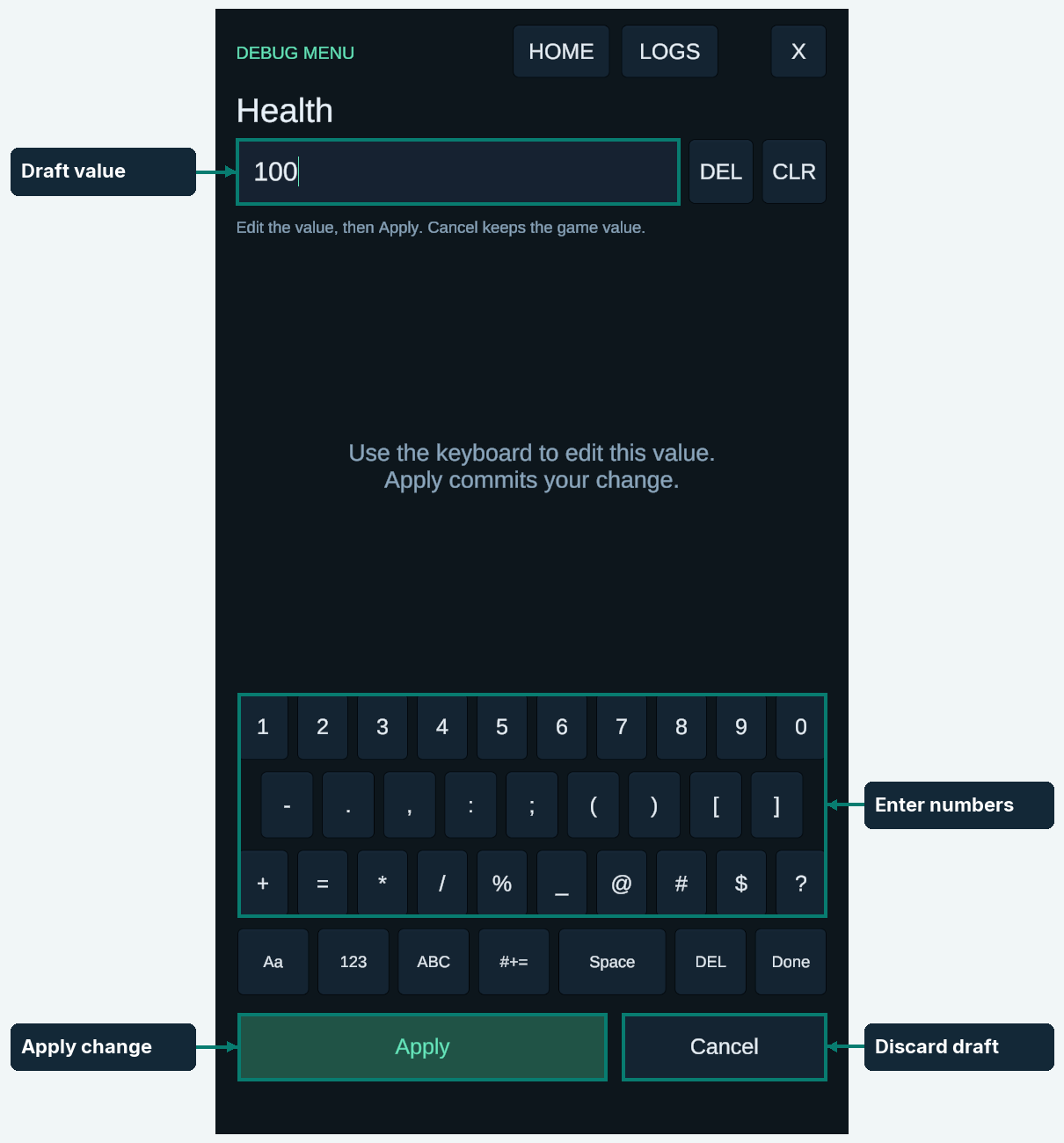
Figure 15
Bounds, text length, and the write callback can reject a draft. The error stays visible and the menu remains open. Read and Write callbacks own the actual game value; the menu only holds the current edit draft.
Choose a named value
Open a choice option and tap the desired row. The pending choice is marked Selected; it does not change the game until you apply it.
Use the query field to narrow a long list of choices. Matching follows the same ordered-letter behavior as option search.
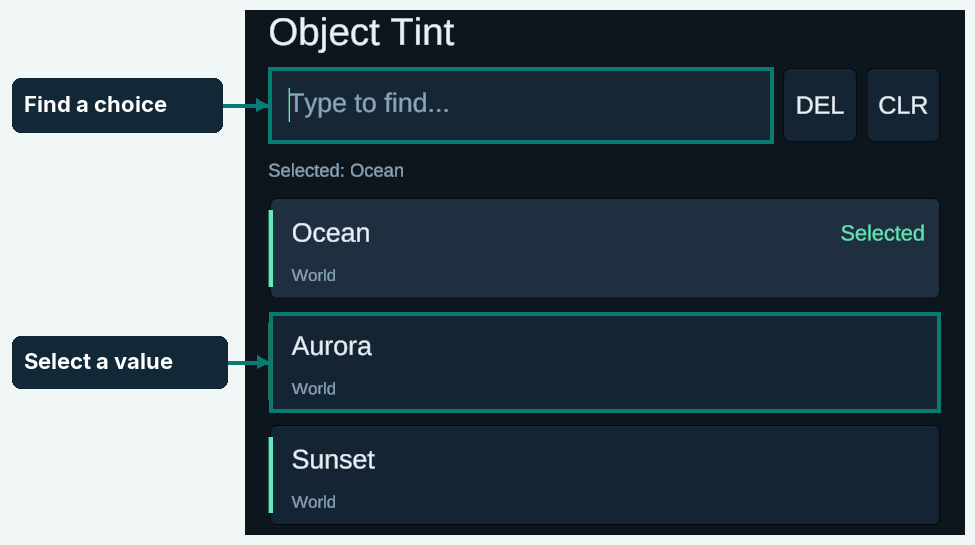
Figure 16
Tap Apply to commit the selected choice through its write callback, or Cancel to leave the game value unchanged.

Figure 17
Keep the registered Items collection unchanged. To replace a choice list, dispose its registration and register a new definition with the same stable ID.
Run and cancel work
Tap an action row to run it. Synchronous actions finish immediately; async actions show progress while their callback is awaited. Option execution is disabled while one async operation is active.

Figure 18
Tap CANCEL beside the progress text to request cancellation. Closing the menu also requests cancellation. A callback must honor its token to stop its work; reopening the menu does not accept stale completion updates.
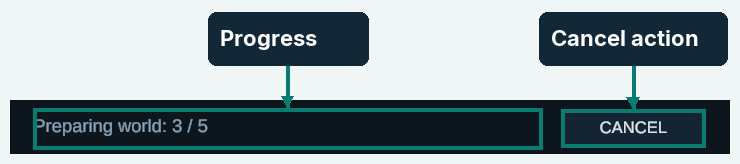
Figure 19
menu.Register(new DebugAsyncAction
{
    Id = "world.prepare", Name = "Prepare World", Category = "World",
    ExecuteAsync = async (context, cancellation) =>
    {
        context.ReportProgress("Loading the next region...");
        await world.PrepareAsync(cancellation);
        return Optional<DebugOperationError>.Empty;
    },
}); // Retain and check the registration result in production.
Use AfterSuccess.CloseMenu when successful work should return directly to the game. The default is StayOpen. Failures keep the menu open and are also reported to Unity’s log.
Find a session log
Open LOGS from the navigation controls. Tap the query field to search message and stack text. Logs use case-insensitive text containment, not option abbreviation matching.
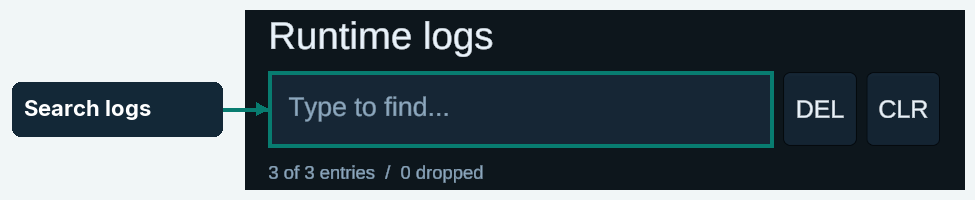
Figure 20
Toggle INFO, WARNING, and ERROR independently. Green controls are included; Error also covers assertions and exceptions.
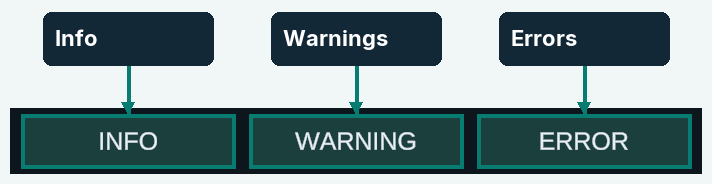
Figure 21
Tap a log row to read the full captured message. Consecutive entries with the same severity, message, and stack share a repeat count.
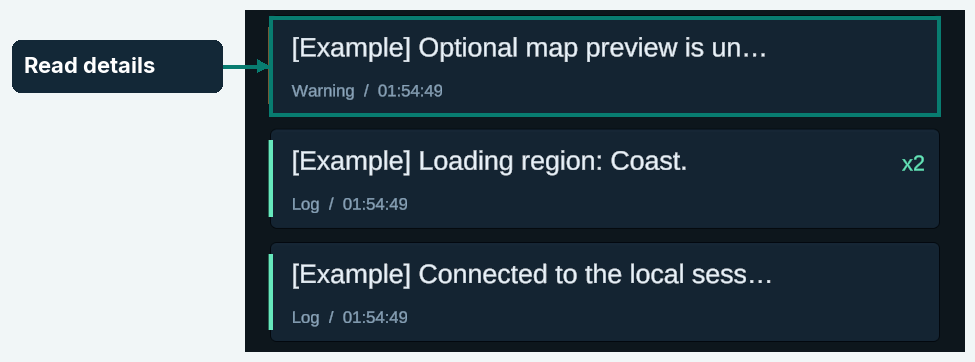
Figure 22
Read, copy, and clear logs
Scroll the detail area to read long messages and any captured stack trace. Tap Copy details to copy the text, or Back to logs to return. Clipboard availability depends on the target platform; tvOS disables copying.
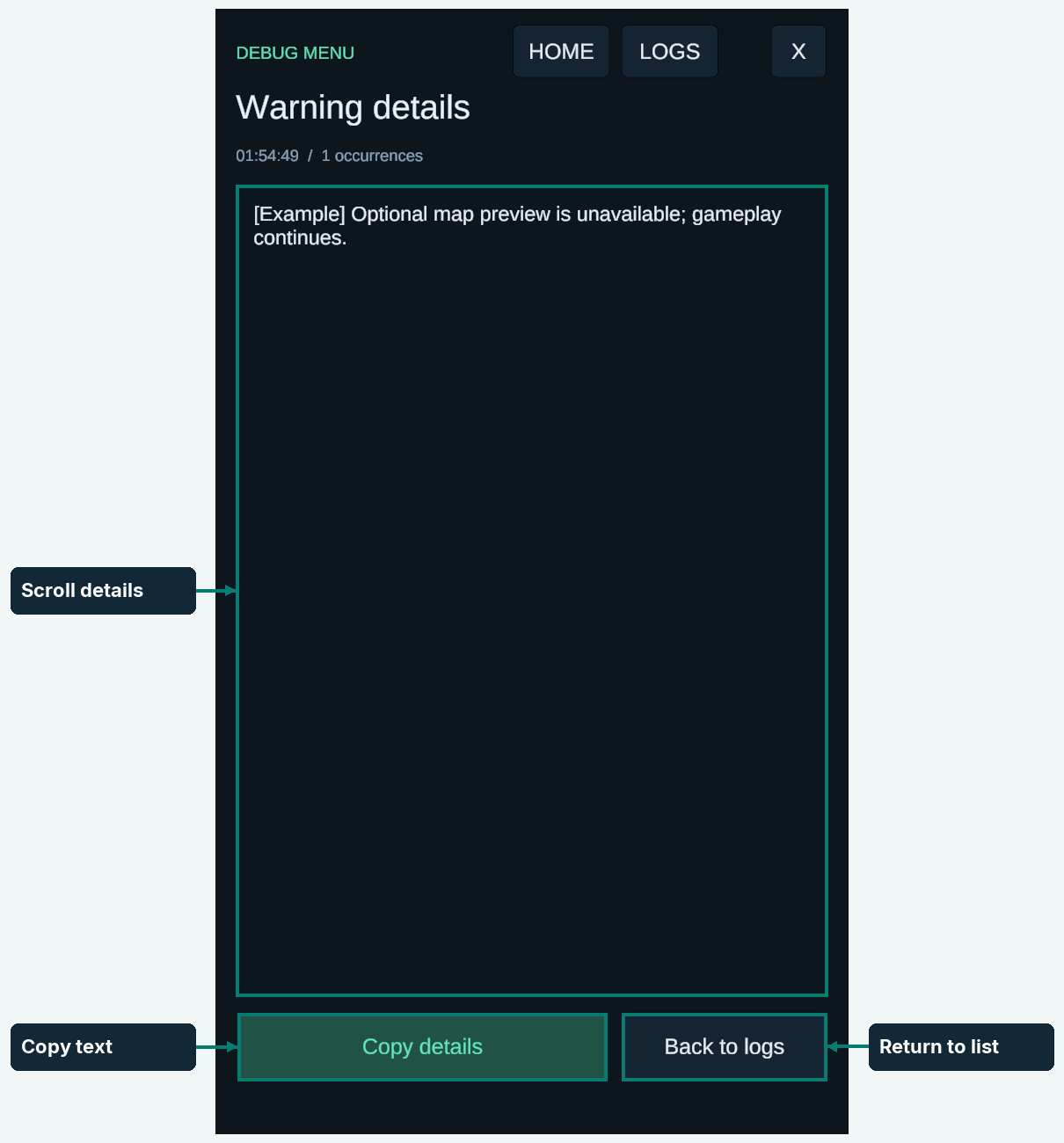
Figure 23
From the log list, Clear logs clears retained and pending entries. Search logs opens the search keyboard.
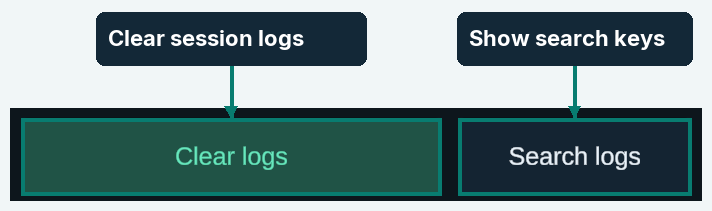
Figure 24
Choose access and retention
Use a project-owned copy of DefaultDebugMenuConfiguration for different policies. Keep Catalog assigned to the supplied DebugMenuCatalog. AddDebugMenu registers that catalog itself; do not register it a second time through the host UI configuration.
Enable Show Floating Button or Enable Three Finger Tap only where you want those launchers. Both are off by default; API access remains available.
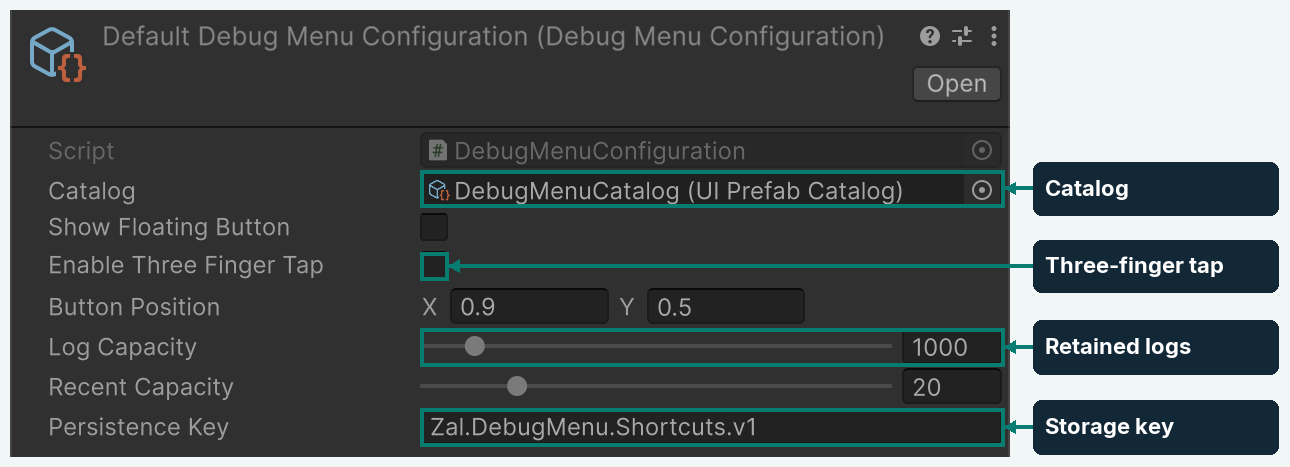
Figure 25
Button Position is the initial center in normalized safe-area coordinates, measured from the bottom left. The supplied value is (0.9, 0.5).
Log Capacity retains 16–10,000 entries, default 1,000. Recent Capacity retains 1–100 distinct successful IDs, default 20. Persistence Key separates shortcut histories within the application.
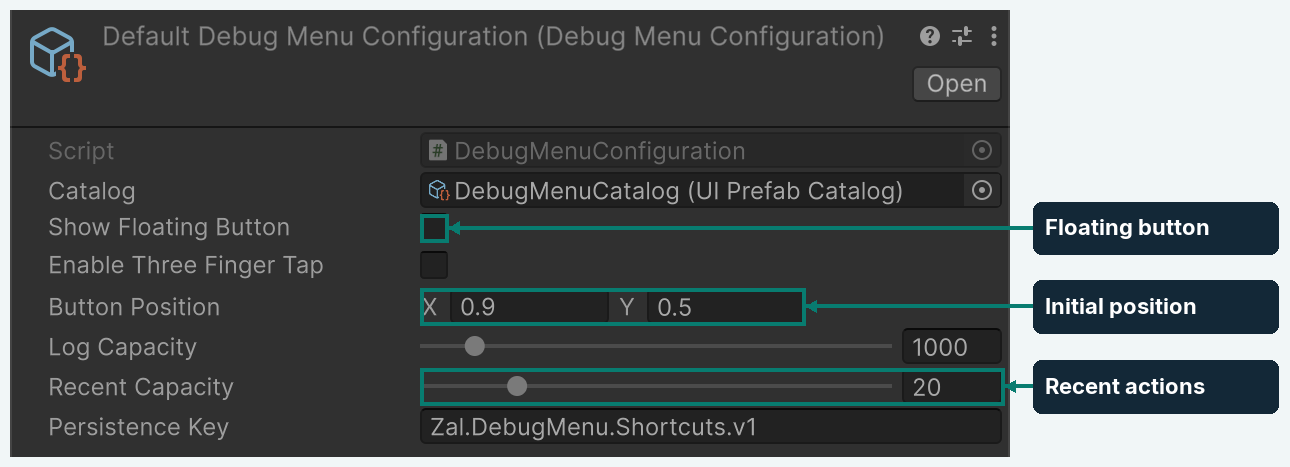
Figure 26
Logs are session-only. A bounded queue accepts up to 256 pending entries before older pending entries are dropped and counted. Each message and stack is limited to 16,384 characters; truncation is marked. Retention evicts the oldest entries at capacity.