 Zal Interactive
Area of Interest
com.zalinteractive.area-of-interest
Cull your first networked prefab
Area of Interest sends a networked object only to the clients whose player is near it. Distant clients don’t spawn the object and receive none of its network traffic. It works with Netcode for GameObjects in client-server sessions, and only the server makes the decisions.
Select the GameObject that holds your Network Manager and add the Area Of Interest Manager component.
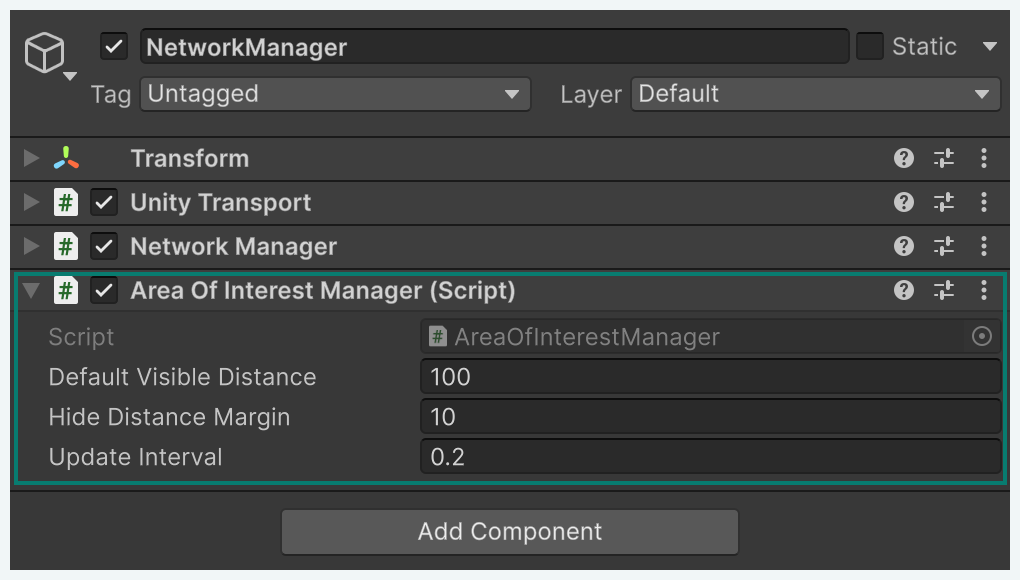
Figure 1
Open a networked prefab, such as a pickup or an animal, and add Area Of Interest Object next to its Network Object.
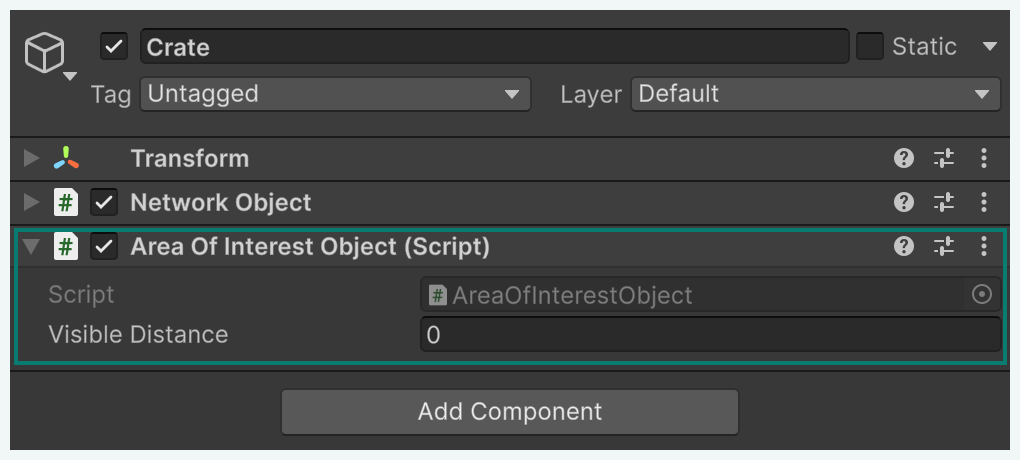
Figure 2
Make sure every client gets a player object, for example through the Player Prefab field of the Network Manager. Distances are measured from each client’s player object.
Start a host, connect a client and spawn the prefab. While the client’s player is more than 100 units away, the object doesn’t exist on that client. Walk the player towards it and the object spawns once the player is within 100 units. Walk back beyond 110 units and it despawns again. The host always keeps every object.
Prefabs without Area Of Interest Object keep Netcode’s default behavior and stay visible to every client.
Choose how far objects reach
Select the GameObject with Area Of Interest Manager to set the defaults for every culled object.
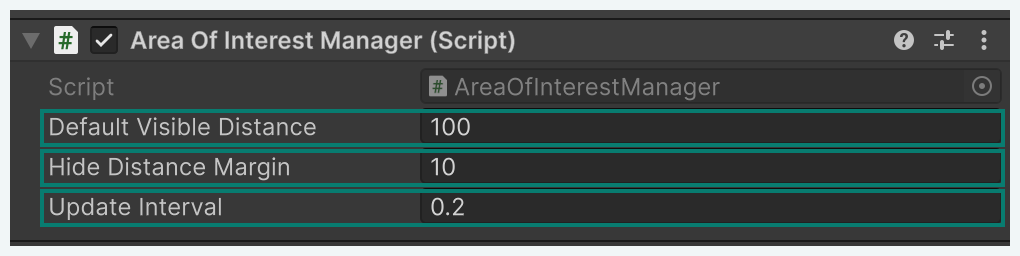
Figure 3
Default Visible Distance: How close, in world units, a client’s player must come before an object spawns on that client. The default is 100. The distance is measured in 3D between the player object’s position and the object’s position. Larger values let players see further but send more objects to every client.
Hide Distance Margin: How much further the player must move away before a visible object despawns again. The default is 10, so with the default distance an object appears at 100 units and disappears beyond 110 units. The gap stops objects from despawning and spawning repeatedly while a player stands near the edge. Set it to 0 to show and hide at the same distance.
Update Interval: Seconds between visibility updates, in unscaled time. The default is 0.2. Each update checks every culled object against every connected client, so shorter intervals react faster to movement but cost more server time. Set it to 0 to update every frame.
To let one prefab reach further or less far than the default, select it and set Visible Distance on its Area Of Interest Object. Large landmarks can use a longer distance, and small pickups a shorter one. The Hide Distance Margin from the manager still applies on top.

Figure 4
Know which clients receive an object
Distance decides most cases, but a few clients always receive an object or never do.
The host always receives everything. The host runs the server, so its own client is never hidden from.
The owner always receives its objects. A client keeps every object it owns at any distance. Netcode requires this: it only transfers ownership to a client that can see the object.
A client without a player object receives nothing it doesn’t own. Distances are measured from the player object, so a client that hasn’t spawned one yet sees no culled objects. They appear once its player object spawns.
A parented object follows its parent. When a networked object with Area Of Interest Object is parented under another object with the component, it appears and disappears together with the topmost one, and its own Visible Distance is ignored. A child only reaches a client without its parent when that client owns the child. Add the component to both prefabs when one is carried by the other, such as an item held by a player.
Players can briefly see every other player when they connect. Netcode makes player objects visible to each other when a new player spawns. Add Area Of Interest Object to the player prefab, and distant players disappear again within one Update Interval.
What a client sees when an object leaves its range
For that client, the object is despawned, exactly as if the server had despawned it. A dynamically spawned object is destroyed, and an in-scene placed object is only despawned. OnNetworkDespawn runs on the client, and OnNetworkSpawn runs again with the object’s current state when the player comes back.
Warning: Client-side code must not assume a networked object stays spawned while it still exists on the server. Clear references to it in OnNetworkDespawn, as you would for a regular despawn.
While an object is hidden from a client, that client receives none of its network variable changes or RPCs. A ClientRpc or Rpc sent to everyone only reaches the clients that see the object.
Update visibility from code
The manager updates visibility every Update Interval. After you teleport a player or an object on the server, call AreaOfInterestManager.Refresh() so clients near the new position receive their objects in the same frame instead of after the next interval.
using Unity.Netcode;
using UnityEngine;
using Zal.AreaOfInterest;

public class Teleporter : NetworkBehaviour
{
    public void TeleportPlayer(NetworkObject player, Vector3 destination)
    {
        if (!IsServer)
        {
            return;
        }

        player.transform.position = destination;
        NetworkManager.GetComponent<AreaOfInterestManager>().Refresh();
    }
}
Refresh() does nothing on clients or in a distributed authority session, so you can call it from shared code.
The Inspector settings are also available as properties, and changes apply from the next update:
AreaOfInterestManager.DefaultVisibleDistance,HideDistanceMarginandUpdateIntervalon the manager.AreaOfInterestObject.VisibleDistanceon each object. Set it on the server instance;0uses the manager’s default.
Positions come from the server’s copy of each transform. With an owner-authoritative Network Transform, the server sees a player’s movement as its updates arrive, so visibility follows with that delay.
Hand ownership to a distant client
Netcode only transfers ownership to a client that can see the object, and Area of Interest only shows an object to a non-owner within its Visible Distance. NetworkObject.ChangeOwnership to a client whose player is out of range is ignored. Netcode only logs a warning about it when the Network Manager’s Log Level is Developer. Move the object or the player within range first and call Refresh() before changing ownership.
Fix common problems
Every client still receives the object
Check these in order:
- Select the prefab and confirm it has Area Of Interest Object next to its Network Object. Prefabs without it are visible to every client.
- Look in the server’s Console for AreaOfInterestObject on … needs an AreaOfInterestManager on the NetworkManager GameObject. Add Area Of Interest Manager to the same GameObject as the Network Manager that runs the session.
- Look for AreaOfInterestManager supports client-server sessions only. Distributed authority sessions aren’t supported, and every object stays visible.
A client receives none of the culled objects
The client has no player object, so there is no position to measure from. Assign a Player Prefab on the Network Manager, or spawn one on the server with NetworkObject.SpawnAsPlayerObject. Objects the client owns still reach it.
Objects appear late after a teleport
The next update runs after Update Interval seconds. Call Refresh() on the server right after moving the player or the object, as shown in Update visibility from code.
Objects keep appearing and disappearing at the edge of the range
The player is moving back and forth across both distances. Increase Hide Distance Margin on the manager so the object needs a larger move before it’s hidden again.
Ownership doesn’t change
The new owner’s player is out of range, so it can’t see the object, and Netcode ignores the change. With the Network Manager’s Log Level set to Developer, the Console shows Cannot send Ownership change as client cannot see NetworkObject. Move the player or the object within range and call Refresh() before you change ownership. See Hand ownership to a distant client.